Revision Control (Using Git & GitHub)
Git-Mastery lessons are divided into several 'tours', each aiming to cover the knowledge required to perform a general revision control use case.
Tour Intro:
Target Usage: To use Git to systematically record the history of files in a folder on your own computer. Specifically, to put a folder under Git's control, choose which file versions to include, and save snapshots of tracked files at chosen points in time.
Motivation: Recording the history of selected files in a folder (e.g., code files of a software project, case notes, files related to an article you are writing) can be useful when you need to refer to past versions.
Recommended: Watch this video!
Tour/lesson videos (such as the one below) are recommended viewing, as they help you build the right mental models about Git before diving into detailed steps covered in the lessons.
Before learning about Git, let us first understand what revision control is.
Revision control is the process of managing versions of as they evolve, such as tracking the versions of a project's files. You can do this by hand: each time you make some changes, you save the project folder under a new descriptive name (e.g., Project-Foo-v1.2 (after fixing memory leak)). But this is tedious and error-prone, especially when multiple people work on the same project.
Revision Control Software (RCS) automates revision control. Modern RCS tools can handle large teams working together on projects with thousands of files. RCS tools are also known as Version Control Software (VCS), and by .
Revision vs Version

- Revision ("How it changed"): A discrete change made to an artifact at a specific point in time. For example, an edit that fixes a typo in the file
README.mdis a revision to that file. - Version ("What it is"): A specific state of an artifact, usually the result of one or more revisions. For example, after fixing that typo, you have a new version of
README.md.
In everyday conversation, these two terms are often used interchangeably. We'll do the same in these lessons.
A revision control tool can:
- track your project's history, recording who made each change, when, why, and what changed.
- make collaboration easier, for example by helping you spot and resolve conflicting changes made around the same time.
- help you recover from mistakes, letting you revert to an earlier version and even pinpoint when a problem was introduced.
- let you work on multiple versions at once and manage the between them.
Git is the most widely used RCS today. It is a free and open-source tool created by Linus Torvalds in 2005 to manage the development of the Linux kernel. Other RCS tools include Mercurial, Subversion (SVN), Perforce, CVS (Concurrent Versions System), Bazaar, TFS (Team Foundation Server), and ClearCase.
GitHub is a web-based platform for hosting projects that use Git for revision control. Other similar services include GitLab, Bitbucket, and SourceForge.
Before you start learning Git, you need to install some tools on your computer.
Installing Git
To use Git, you need to install Git on your computer.
Download the Git installer from the official Git website.
Run the installer and make sure to select the option to install Git Bash when prompted.
The screenshots below provide some guidance on the dialogs you might encounter when installing Git. In other cases, go with the default option.
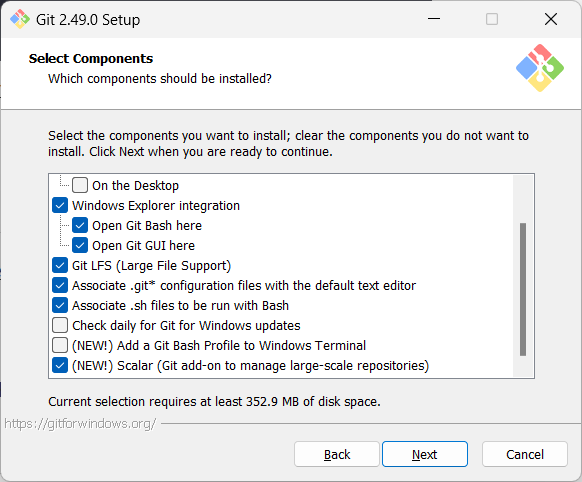
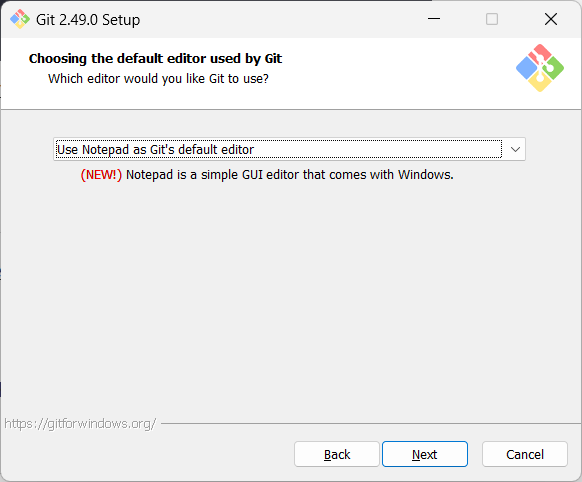
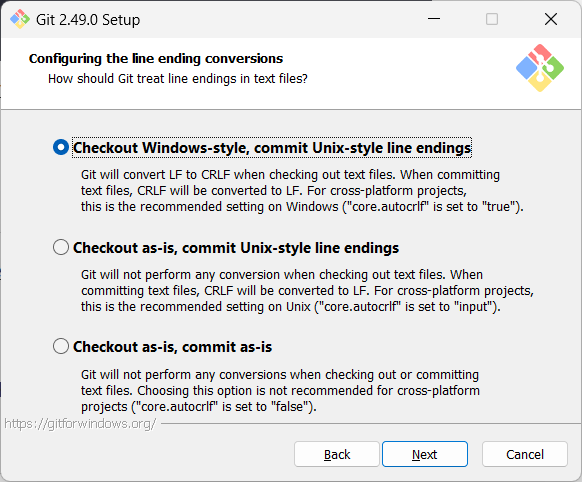
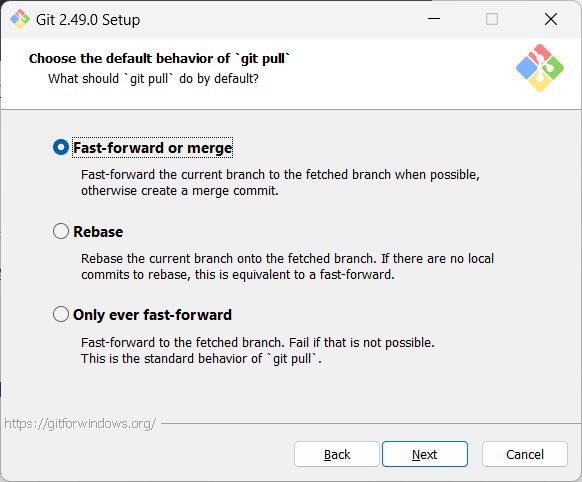
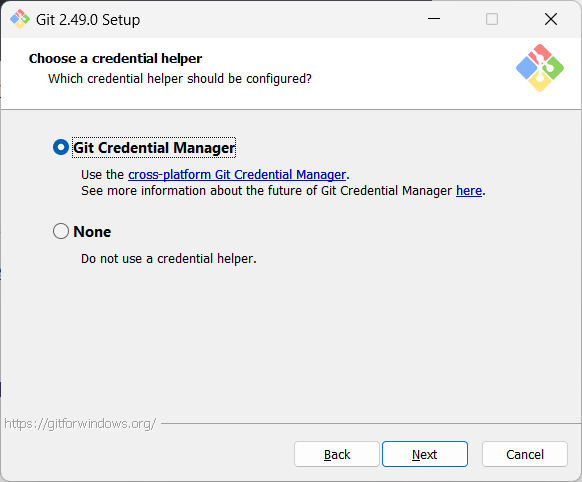
When running Git commands, Windows users should use the Git Bash terminal that comes with Git. To open the Git Bash terminal, hit the key and type git-bash. Some commands might not work in other terminals such as PowerShell.
The installation might not have added a shortcut to the Start Menu.
You can navigate to the directory where git-bash.exe is (most likely C:\Program Files\Git\git-bash.exe), and double-click git-bash.exe to open Git Bash.
You can also right-click it and choose Pin to Start or Pin to taskbar.
SIDEBAR: Git Bash Terminal
Git Bash is a terminal application that lets you use Git from the command line on Windows. Since Git was originally developed for Unix-like systems (like Linux and macOS), Windows does not come with a native shell that supports all the commands and utilities commonly used with Git.

Git Bash provides a Unix-like command-line environment on Windows. It includes:
- A Bash shell (Bash stands for Bourne Again SHell), which is a widely used command-line interpreter on Linux and macOS.
- Common Unix tools and commands (like
ls,cat,ssh, etc.) that are useful when working with Git and scripting.
When pasting text into a Git Bash terminal, you will not be able to use the familiar Ctrl+V key combo to paste. Instead, use Shift+Insert, or right-click on the terminal and use the Paste menu option.
On Windows, you might need to close and open the terminal again for it to recognize changes made elsewhere on the computer (e.g., newly installed software, changes to system variables, etc.).
Install Homebrew if you don't already have it, and then run brew install git.
Use your Linux distribution's package manager to install Git. Examples:
- Debian/Ubuntu: run
sudo apt-get updateand thensudo apt-get install git. - Fedora: run
sudo dnf updateand thensudo dnf install git.
Verify Git is installed by running the following command in a terminal.
git --version
git version 2._._
The output should display the version number.
Configuring user.name and user.email
Git needs to know who you are to record changes properly. When you save a snapshot of your work in Git, it records your name and email as the author of that change. This ensures everyone working on the project can see who made which changes. Accordingly, you should set the config settings user.name and user.email before you start using Git for revision control.
Wish you had a cheat sheet of Git commands? There are a few of them available online, for example, this one from git-scm.com.
Configuring init.defaultBranch
Git has a config property named init.defaultBranch that specifies the default branch name for new repositories (you'll learn more about Git branches in later lessons). Git uses master as the default value, but main is more common now. Git-Mastery uses main too. To make Git behave more consistently with our lessons, you should set this property to main, as described in the panel below:
Interacting with Git: CLI vs GUI
Git is fundamentally a command-line tool. You primarily interact with it by typing commands in its . This gives you full control over its features and helps you understand what's really happening under the hood.
clients for Git also exist, such as Sourcetree, GitKraken, and the built-in Git support in editors like IntelliJ IDEA and VS Code. These tools provide a more visual way to perform some Git operations.
If you're new to Git, it's best to learn the CLI first. The CLI is universal, always available (even on servers), and helps you build a solid understanding of Git's concepts. You can use GUI clients as a supplement -- for example, to visualize complex history structures.
Mastering the CLI gives you confidence and flexibility, while GUI tools can serve as helpful companions.
Optionally, you can install a Git GUI client, such as Sourcetree (installation instructions).
Our Git lessons show how to perform Git operations using Git CLI and Sourcetree; Sourcetree is included only to illustrate how Git GUIs work. It is perfectly fine for you to learn the CLI only.
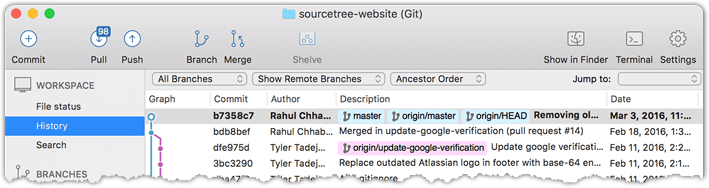
[image credit: https://www.sourcetreeapp.com]
Installing the Git-Mastery App
In these lessons, we will use Git-Mastery, a companion app we developed to help Git learners. In particular, it provides exercises that let you self-test your Git knowledge, and it verifies whether your solution is correct.
If you are new to Git, we strongly recommend that you install and use the Git-Mastery app.
To be able to save snapshots of a folder using Git, you must first put the folder under Git's control by initializing a Git repository in that folder.
Normally, we use Git to manage a revision history of a specific folder, which gives us the ability to revision-control any file in that folder and its subfolders.
To put a folder under Git's control, we initialize a (short name: repo) in that folder. This lets us create repos in different folders and revision-control different clusters of files independently of each other, e.g., files belonging to different projects.
You can follow the hands-on practical below to learn how to initialize a repo in a folder.
What is this? HANDS-ON panels contain hands-on activities you can do as you learn Git. If you are new to Git, we strongly recommend that you do them yourself (even if they appear straightforward), as hands-on usage will help you internalize the concepts and operations better.
Preparation Choose a folder to put under Git's control. The folder may or may not contain any files. For this practical, let us create a folder named things for this purpose.
You can use the Git-Mastery app to for this practical, or create the sandbox manually. The instructions below cover both options.
Avoid putting Git repos inside cloud-synced (e.g., OneDrive, Dropbox) folders. Multiple tools trying to detect/sync changes in the same folder can cause conflicts and unexpected behavior.
If you want to access project files from multiple computers, use Git instead of cloud syncing tools.
1 Then, cd into it. What is cd? For example,
cd hp-init-repo/things
2 Run the git status command to check the status of the folder.
git status
fatal: not a git repository (or any of the parent directories): .git
Don't panic. The error message is expected. It confirms that the folder currently does not have a Git repo.
3 Now, initialize a repository in that folder.
Use git init to initialize the repo.
git init
Initialized empty Git repository in <path-to-repo>/things/.git/
Note how the output mentions the repo being created in things/.git/ (not things/). More on that later.
Click File → Clone/New…, then click the + Create button on the top menu bar.
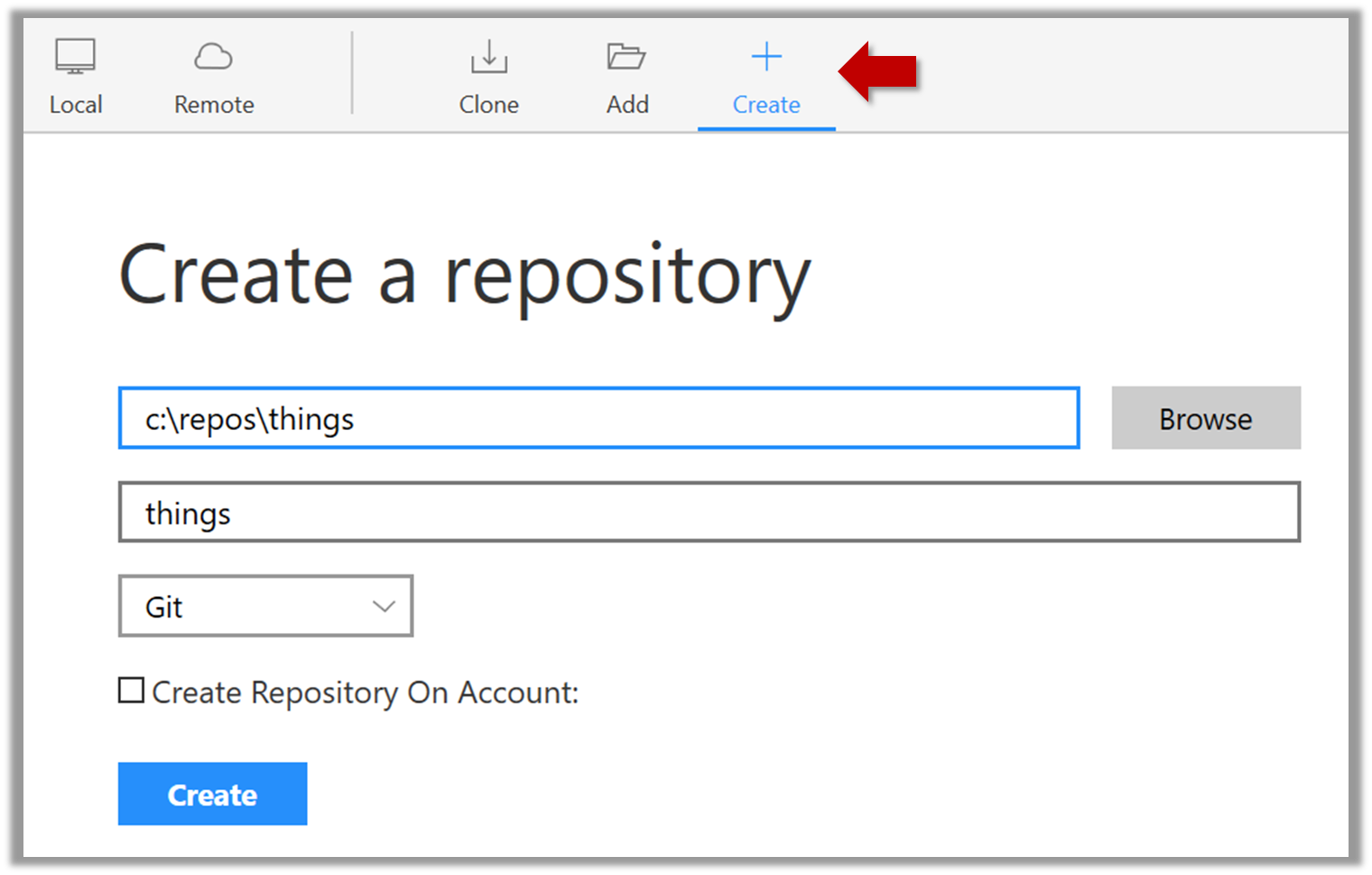
Enter the location of the directory and click Create.
To open an existing repo in Sourcetree, click Fie → Open and select the folder location of the repo (i.e., the folder containing the hidden .git folder).
File→New...to open the dialog for creating a new repo.- In that dialog, click on the
New...dropdown and chooseCreate Local Repository(orCreate New Repository).
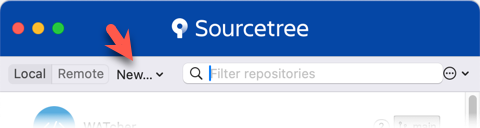
- Click the
...button to select the folder location for the repository. After selecting the folder location, click theCreatebutton.
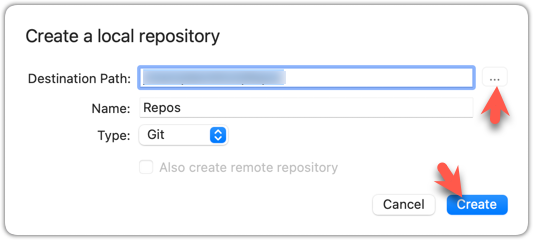
To open an existing repo in Sourcetree, click Fie → Open... and select the folder location of the repo (i.e., the folder containing the hidden .git folder).
done!
Initializing a repo results in two things:
- First, Git now recognizes this folder as a Git repository, which means it can now help you track the version history of files inside this folder.
To confirm, you can run the git status command. It should respond with something like the following:
git status
On branch main
No commits yet
nothing to commit (create/copy files and use "git add" to track)
Don't worry if you don't understand the output (we will learn about these details later) or if your output is slightly different (e.g., master instead of main); what matters is that it no longer gives an error message as it did before.
done!
- Second, Git created a hidden subfolder named
.gitinside thethingsfolder. This folder will be used by Git to store metadata about this repository.
A Git-controlled folder is divided into two main parts:
What is this? EXERCISE panels contain a Git-Mastery exercise that you can download using the Git-Mastery app, and you can use the same app to verify that your solution is correct.
If you are doing Git-Mastery exercises as a course requirement, note that your Git-Mastery exercise progress will not be visible to your course instructors until you go past Tour 2, Lesson 2 (in which you will be taught how to enable the progress sync feature of the Git-Mastery app). Your progress will be saved in your computer until then and uploaded to a location visible to others only at that time.
What is this? DETOUR panels contain related directions you can optionally explore. We recommend that you only skim them the first time you are going through a tour (i.e., just to know what each detour covers); you can revisit them later, to deepen your knowledge further, or when you encounter a use case related to the concepts covered by the detour.
To save a snapshot, you start by specifying what to include in it, also called staging.
Git provides an internal space called the staging area, which it uses to build the next snapshot. Another name for the staging area is the index.
Git treats new files that you add to the working directory as 'untracked', i.e., Git is aware of them, but they are not yet under Git's control. The same applies to files that existed in the working directory at the time you initialized the repo.
We can stage an untracked file to tell Git that we want its current version to be included in the next snapshot (in Git terminology, such a snapshot is called a commit). When asked to stage a file, Git copies that file from the working directory to the staging area. Once you stage an untracked file, it becomes a 'tracked' (i.e., under Git's control) file thereafter.
In the example below, you can see how staging files changes the status of the repo as you go from (a) to (c).
[empty]
├─ fruits.txt (untracked!)
└─ colours.txt (untracked!)
(a) State of the repo, just after initialization and creating two files. Both are untracked.
└─ fruits.txt
├─ fruits.txt (tracked)
└─ colours.txt (untracked!)
(b) State after staging
fruits.txt.├─ fruits.txt
└─ colours.txt
├─ fruits.txt (tracked)
└─ colours.txt (tracked)
(c) State after staging
colours.txt.Preparation
Option 2: Continue with the sandbox from the previous hands-on practical
1 Add a file (e.g., fruits.txt) to the things repo folder.
Here is an easy way to do that with a single terminal command.
Windows users: Use the Git Bash terminal to run the commands given in these lessons. Some of them might not work in other terminals such as PowerShell.
echo -e "apples\nbananas\ncherries" > fruits.txt
Explanation of the echo -e "apples\nbananas\ncherries" > fruits.txt command
apples
bananas
cherries
To see the content of the file, you can use the cat command (or open it in your favorite text editor):
cat fruits.txt
2 Stage the new file.
2.1 Check the status of the folder using the git status command.
git status
On branch main
No commits yet
Untracked files:
(use "git add <file>..." to include in what will be committed)
fruits.txt
nothing added to commit but untracked files present (use "git add" to track)
Git commands targeting a specific repo should be run inside the repo folder. (we use the term repo folder to loosely refer to the folder that we initialized the repo in). For example, to check the status of the things repo, you need to navigate to the things folder in your terminal before you run the git status command.
Remember this for future Git commands too.
2.2 Use the git add <file> command to stage the file.
git add fruits.txt
You can replace add with stage (e.g., git stage fruits.txt) and the result is the same (they are synonyms). Git-Mastery usually uses add, but sometimes uses stage to remind you that both are correct.
Windows users: When using the echo command to write to text files from Git Bash, you might see a warning LF will be replaced by CRLF the next time Git touches it when Git interacts with such a file. This warning is caused by the way line endings are handled differently by Git and Windows. You can ignore it, or suppress it in the future by running the following command:
git config --global core.safecrlf false
2.3 Check the status again. You should see that the file is no longer 'untracked'.
git status
On branch main
No commits yet
Changes to be committed:
(use "git rm --cached <file>..." to unstage)
new file: fruits.txt
As before, don't worry if you don't understand the output yet (we'll unpack it in a later lesson). The key point is that the file is no longer listed as 'untracked'.
2.1 Note how the file is shown as 'unstaged'. The question mark icon indicates the file is untracked.

If the newly added file does not appear in the Sourcetree UI, refresh the UI (: F5
| ⌥+R)
Sourcetree screenshots/instructions: vs
Note that the Sourcetree UI can vary slightly between Windows and macOS versions. Some screenshots in our lessons are from the Windows version while others are from the macOS version.
In some cases, we have specified how they differ.
In other cases, you may need to adapt if the given screenshots/instructions are slightly different from what you are seeing in your Sourcetree.
2.2 Stage the file:
Select fruits.txt and click the Stage Selected button.
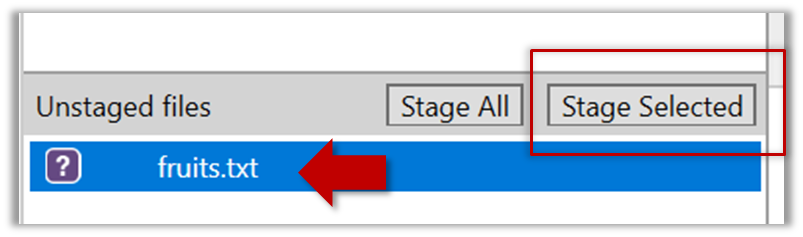
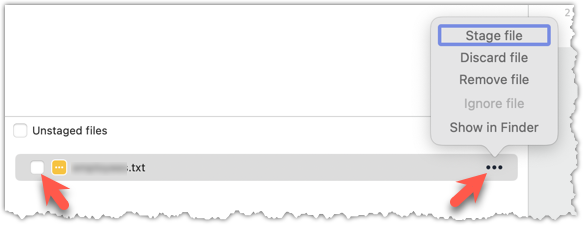
You can stage the file using checkboxes or the ... menu next to the file.
2.3 Note how the file is now staged, i.e., fruits.txt appears in the Staged files panel.
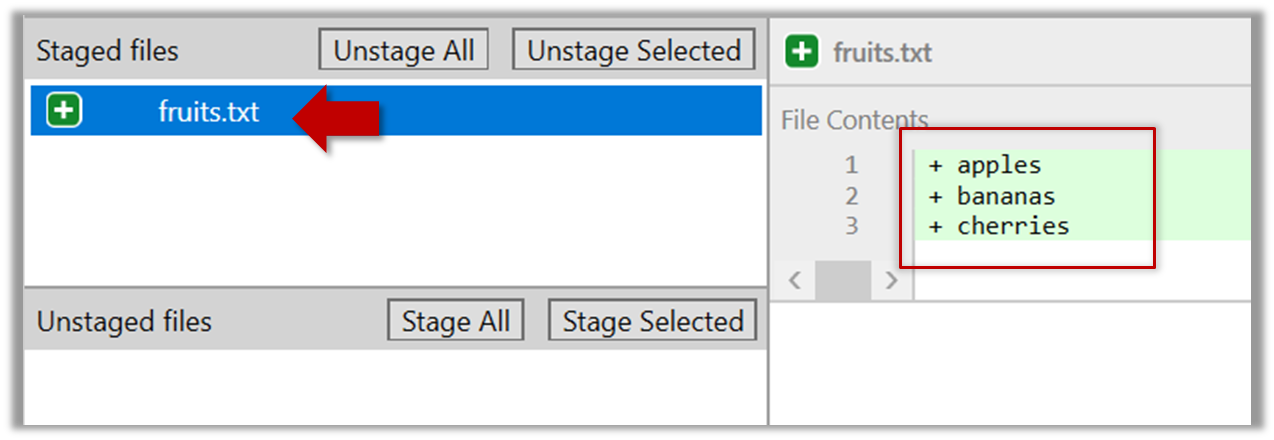
If Sourcetree shows a \ No newline at the end of the file message below the staged lines (i.e., below the cherries line in the above screenshot), it means you did not press enter after entering the last line of the file, so Git is not sure if that line is complete. To fix this, move the cursor to the end of the last line in that file and press enter, as if you were adding a blank line below it. This new change will now appear as an 'unstaged' change. Stage it as well.
done!
If you modify a staged file, Git views it as 'modified', i.e., the file contains changes that are not present in the staged copy waiting to be included in the next snapshot. If you wish to include these new changes in the next snapshot, you need to stage the file again, which will overwrite the copy of the file that was previously in the staging area.
The example below shows how the status of a file changes when it is modified after it was staged.
Alice
Alice
(a) The file names.txt is staged. The copy in the staging area is an exact match to the one in the working directory.
Alice
Alice
Bob
(b) State after adding a line to the file. Git indicates it as 'modified' because it now differs from the version in the staging area.
Alice
Bob
Alice
Bob
(c) After staging the file again, the staging area is updated with the latest copy of the file, and it is no longer marked as 'modified'.
Preparation
1 Now, verify that Git sees that file as 'modified'.
Use the git status command to check the status of the working directory.
git status
On branch main
No commits yet
Changes to be committed:
(use "git rm --cached <file>..." to unstage)
new file: fruits.txt
Changes not staged for commit:
(use "git add <file>..." to update what will be committed)
(use "git restore <file>..." to discard changes in working directory)
modified: fruits.txt
Note how fruits.txt now appears twice, once as new file: ... (representing the version of the file we staged earlier, which had only three lines) and once as modified: ... (representing the latest version of the file which now has a fourth line).
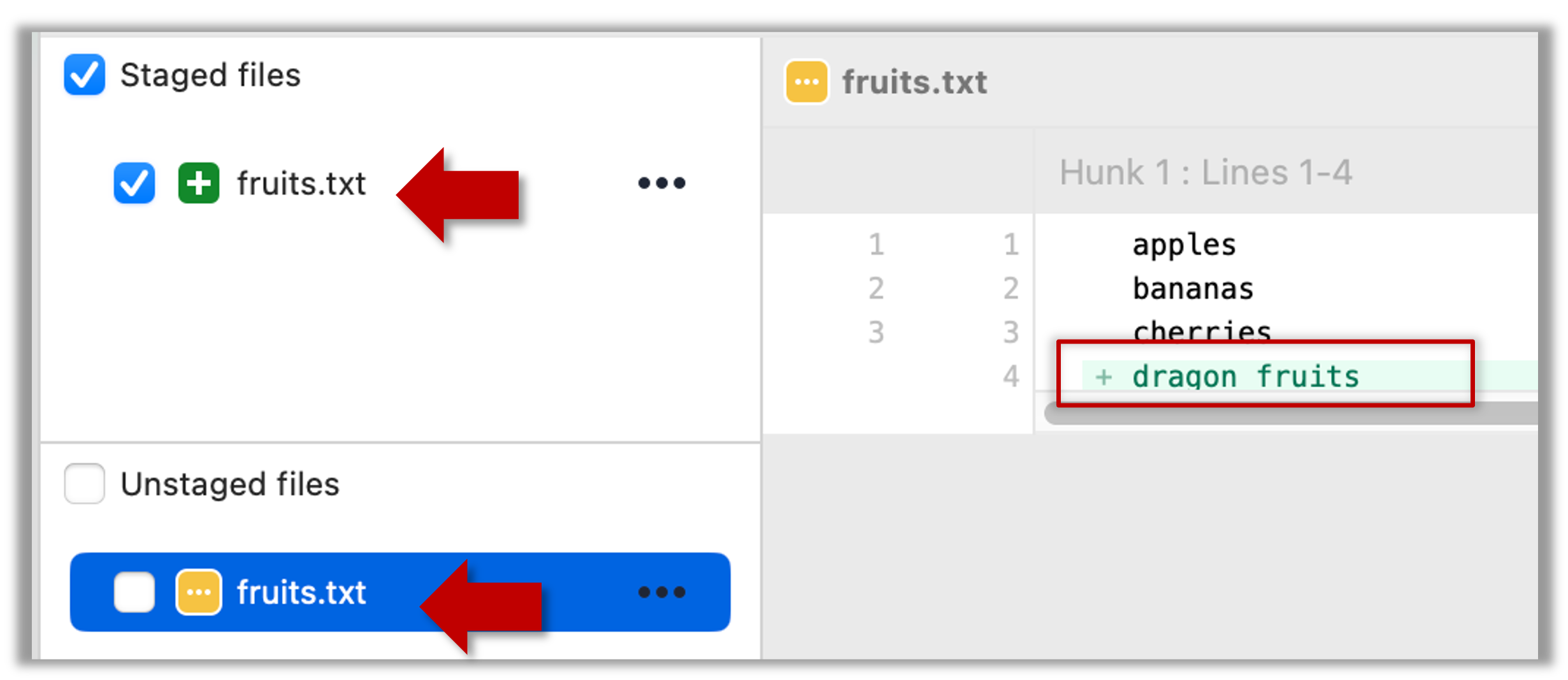
Note how fruits.txt appears in the Staged files panel as well as 'Unstaged files'.
2 Stage the file again, the same way you added/staged it earlier.
3 Verify that Git no longer sees it as 'modified', as in step 1.
done!
Staging applies regardless of whether a file is currently tracked.
- Staging an untracked file will both begin tracking the file and include it in the next snapshot. Git creates a copy of the file in the working directory in the staging area.
- Staging an already tracked file marks its current changes for inclusion in the next commit. Git overwrites the version of that file in the staging area with a copy of that file in the working directory.
Git also supports fine-grained selective staging, i.e., staging only specific changes within a file while leaving other changes to the same file unstaged. A later lesson covers this.
Git does not track empty folders. It tracks only folders that contain tracked files.
You can test this by adding an empty subfolder inside the things folder (e.g., things/more-things) and checking if it shows up as 'untracked' (it will not). If you add a file to that folder (e.g., things/more-things/food.txt) and then stage that file (e.g., git add more-things/food.txt), the file and its path will now be included in the next snapshot.
PRO-TIP: Applying a Git command to multiple files in one go
When a Git command expects a list of files or paths as a parameter (as the git add command does), these parameters are known as pathspecs — patterns that tell Git which files or directories to operate on. Pathspecs can be simple file names, directory names, or more complex patterns.
Here are some common ways to write them, shown with examples using the git add <pathspec> command:
Specify multiple files, separated by spaces:
git add f1.txt f2.txt data/lists/f3.txt # stages the specified three filesUse a glob pattern:
git add '*.txt' # stages all .txt files in the current directoryWhen using glob patterns in Git commands, putting them inside quotes (
'*.txt'instead of*.txt) is recommended, to avoid your shell expanding the pattern before Git sees it.Use
.to indicate 'all in the current directory and subdirectories':git add . # stages all files in current directory and its subdirectoriesSpecify a directory to indicate 'this directory and its subdirectories':
git add path/to/dir # stages all files in path/to/dir and its subdirectoriesNegated pathspecs, to indicate 'except these':
git add . ':!*.log' # stage everything except .log files
Git supports combining these features — for example, you could add all .txt files except those in a certain folder using:
git add '*.txt' ':!docs/*.txt'
Staged changes can be unstaged to indicate that we no longer want them to be included in the next snapshot.
After staging, you can save the snapshot by creating a commit.
Saving a snapshot of a repository is called committing, and the saved snapshot itself is called a commit.
Git constructs a commit based on the staging area. When you examine the staging area using a CLI command or a Git GUI, you are typically shown only a list of staged changes. This can mislead you into thinking that the staging area merely records changes you have selected for the commit. In reality, the staging area, which Git internally calls the index, is a complete record of the exact version of every tracked file that would be written into the next commit, not just a record of staged changes. This behavior aligns more closely with the name "index" than the name "staging area".
A Git commit is therefore a full snapshot of all tracked files. More precisely, it is a record of the exact state of all files in the staging area at that moment -- even the files that have not changed since the previous commit. This contrasts with the intuitive expectation that a commit stores only the since the previous commit. Consequently, a Git commit has all the information it needs to recreate the snapshot of the tracked files in the working directory at that point in time. In addition to the file contents, a commit also stores metadata such as the author, date, and an optional commit message describing the change.
Here is an example of how the three internal zones of Git look as a commit is followed by further changes to tracked files.
(a) Right after creating commit C1:
C1 ← a commit
e.g., author, date, commit message
[no changes to commit]
├─ fruits.txt (tracked)
└─ colours.txt (tracked)
The staging area is empty of changes (i.e., nothing to commit), but it still contains a record of all tracked files. Tracked files in the last commit, staging area, and the working directory are identical.
(b) fruits.txt updated and staged:
C1
e.g., author, date, commit message
[ready to commit]
├─ fruits.txt (tracked, some changes made)
└─ colours.txt (tracked)
The updated version of fruits.txt is also in the staging area. There are no changes to colours.txt in the working directory or the staging area. We can create a new commit at this point.
Given this, the staging area is not truly "empty" right after a commit; it is only empty of changes. It still contains a record of all tracked files, reflecting exactly the versions that were written into the previous commit.
A Git commit is a snapshot of all tracked files, not simply a delta of what changed since the last commit.
This is a good time to recap the three internal zones of a Git repo:
- Working directory The folder on your computer that contains the repo files. This is your workspace for editing files.
Another name for this zone is working tree. - Staging area (aka the index) The space that contains a copy of the exact versions of all tracked files (modified and unmodified) that will be written into the next commit. This resides inside the
.gitfolder. - Committed history Stores the commits and other metadata related to the revision history of the project. This also resides inside the
.gitfolder.
Which area is the 'repository', exactly?
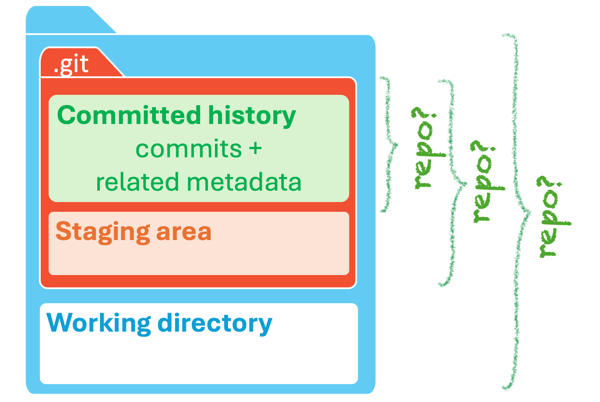
The term 'repository' generally refers to the disk area of the .git folder. However, it can sometimes also mean the 'committed history' area (which resides inside the .git folder` or even the entire project folder depending on the context.
Most Git operations are for transferring some information from one Git internal zone to another. For example, staging a file copies its current version from the working directory to the staging area, and committing saves the staged versions of all tracked files from the staging area to the commit history.
%%{init: {'sequence': {'mirrorActors': false}}}%%
sequenceDiagram
    participant WD as 📁 Working Directory
    participant SA as 📋 Staging Area
    participant CH@{ "type": "database" } as Committed History

    rect rgb(235, 245, 255)
    Note over WD,SA: Staging a file
    WD->>SA: copy current version of the file
    end

    rect rgb(235, 255, 235)
    Note over SA,CH: Committing
    SA->>CH: save staged versions of all tracked files
    end
Target To create a commit based on staged changes.
Preparation
Option 2: Continue with the sandbox from the previous hands-on practical
1 First, do a sanity check using the git status command to confirm there are staged files.
git status
On branch main
No commits yet
Changes to be committed:
(use "git rm --cached <file>..." to unstage)
new file: fruits.txt
2 Now, create a commit using the commit command. The -m switch is used to specify the commit message.
git commit -m "Add fruits.txt"
[main (root-commit) d5f91de] Add fruits.txt
1 file changed, 4 insertions(+)
create mode 100644 fruits.txt
3 Verify the staging area is empty using the git status command again.
git status
On branch main
nothing to commit, working tree clean
Note how the output says nothing to commit, which means there are no staged changes to commit.
1 Ensure the new file fruits.txt has been staged.
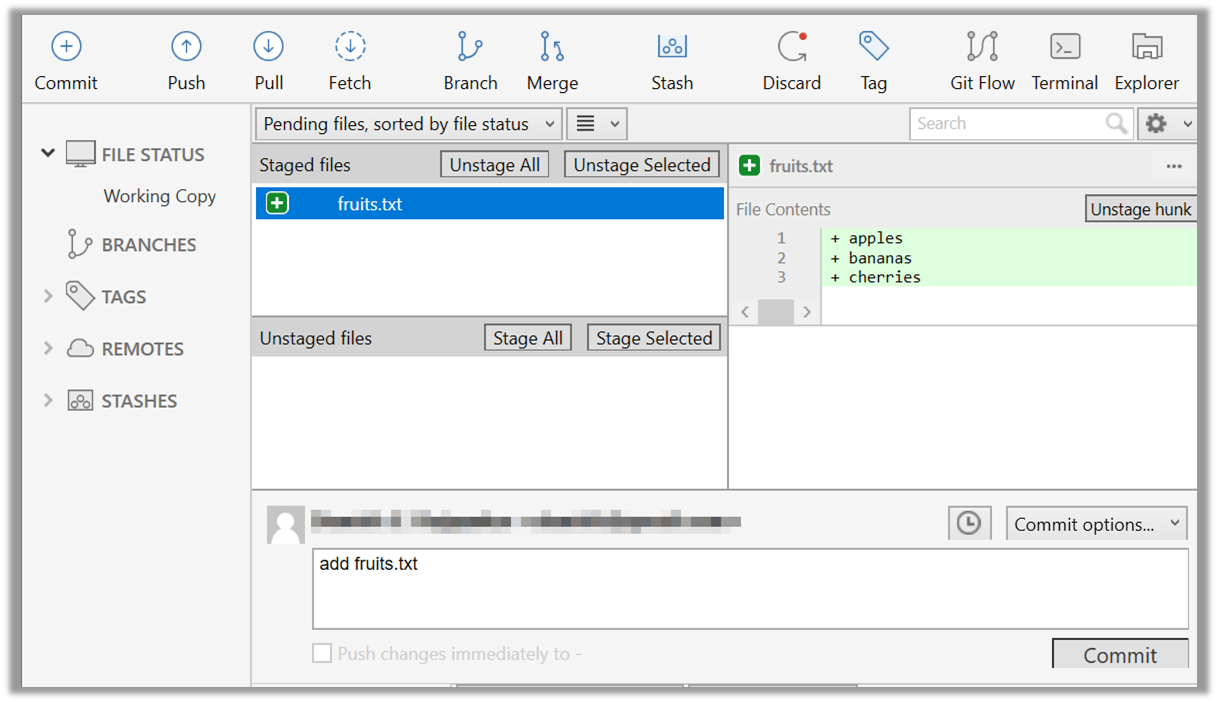
2 Click the Commit button at the top of the window.
3 Enter a commit message (e.g., add fruits.txt) into the text box.
4 Click Commit.
done!
It is useful to visualize the commit timeline, called the revision graph.
Git commits form a timeline, as each corresponds to a point in time when you asked Git to save a snapshot of the tracked files prepared in the staging area. Except for the initial commit, each commit links to at least one previous commit, forming a structure that we can traverse.
A timeline of commits can have a name. Such a named timeline is called a branch. By default, Git names the initial branch master -- though many now use main instead. You'll learn more about branches in future lessons. For now, just be aware that the commits you create in a new repo will be on a branch called main (or master) by default.
gitGraph
    %%{init: { 'theme': 'default', 'gitGraph': {'mainBranchName': 'main (or master)'}} }%%
    commit id: "Add fruits.txt"
    commit id: "Update fruits.txt"
    commit id: "Add colours.txt"
    commit id: "..."
Git can show you the list of commits in a repo's history.
Preparation
Option 2: Continue with the sandbox from the previous hands-on practical
1 View the list of commits, which should show only the commit you just created.
Navigate into the repo folder and run the git log command to see the commit history.
cd hp-list-commits/things
git log
commit ... (HEAD -> main)
Author: ... <...@...>
Date: ...
Add fruits.txt
Use the Q key to exit the output screen of the git log command.
Note how the output includes details about the commit you just created. You can ignore most of them for now, but notice that it also shows the commit message you provided.
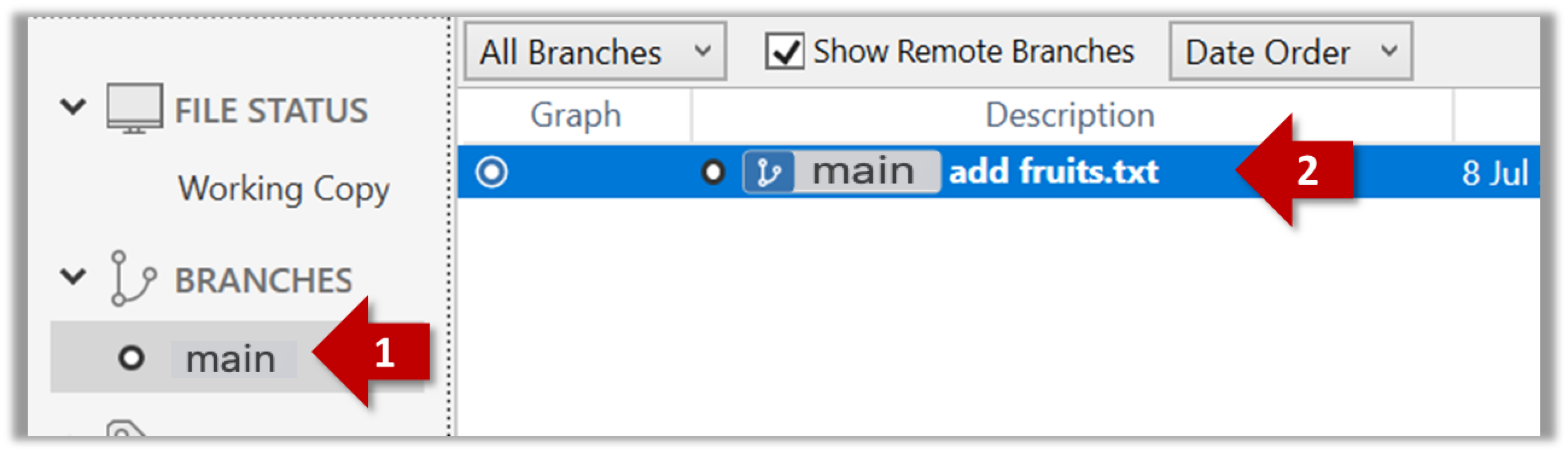
Expand the BRANCHES menu and click main to view the history graph, which contains only one node at the moment, representing the commit you just added. For now, ignore the label main attached to the commit.
2 Create a few more commits (i.e., a few rounds of add/edit files → stage → commit), and observe how the list of commits grows.
Here is an example list of bash commands to add two commits while observing the list of commits after each commit.
echo "figs" >> fruits.txt # add another line to fruits.txt
git add fruits.txt # stage the updated file
git commit -m "Insert figs into fruits.txt" # commit the changes
git log # check commits list
echo "a file for colours" >> colours.txt # add a colours.txt file
echo "a file for shapes" >> shapes.txt # add a shapes.txt file
git add colours.txt shapes.txt # stage both files in one go
git commit -m "Add colours.txt, shapes.txt" # commit the changes
git log # check commits list
You can copy-paste a list of commands (such as the commands above), including any comments, to the terminal. After that, press Enter to run them in sequence.
zsh users: If the terminal reports an error because of comments starting with #, you may need to enable the interactive comments feature in your terminal (e.g., add the line setopt INTERACTIVE_COMMENTS to your ~/.zshrc).
The output of the final git log should be something like this:
commit ... (HEAD -> main)
Author: ... <...@...>
Date: ...
Add colours.txt, shapes.txt
commit ...
Author: ... <...@...>
Date: ...
Insert figs into fruits.txt
commit ...
Author: ... <...@...>
Date: ...
Add fruits.txt
SIDEBAR: Working with the 'less' pager
Some Git commands -- such as git log -- may show their output through a pager. A pager is a program that lets you view long text one screen at a time, so you don't miss anything that scrolls off the top. For example, git log output will temporarily hide the current terminal content and enter a pager view that shows the output one screen at a time. When you exit the pager, the git log output will disappear from view, and the previous content of the terminal will reappear.
command 1
output 1
git log
→
commit f761ea63738a...
Author: ... <...@...>
Date: Sat ...
Add colours.txt
By default, Git uses a pager called less. Below are some useful commands for the less pager.
| Command | Description |
|---|---|
q | Quit less and return to the terminal |
↓ or j | Move down one line |
↑ or k | Move up one line |
Space | Move down one screen |
b | Move up one screen |
G | Go to the end of the content |
g | Go to the beginning of the content |
/pattern | Search forward for pattern (e.g., /fix) |
n | Repeat the last search (forward) |
N | Repeat the last search (backward) |
h | Show help screen with all less commands |
If you'd rather see the output directly, without using a pager, you can add the --no-pager flag to the command, for example:
git --no-pager log
You can also configure Git not to use less, to use a different pager, or to fine-tune how less behaves. For example, you can reduce Git's use of the pager (recommended) by using the following command:
git config --global core.pager "less -FRX"
Explanation: -FRX is shorthand for combining the following three flags.
-F: Quits if the output fits on one screen (don't show pager unnecessarily)-R: Shows raw control characters (for colored Git output)-X: Keeps content visible after quitting the pager (so output stays on the terminal)
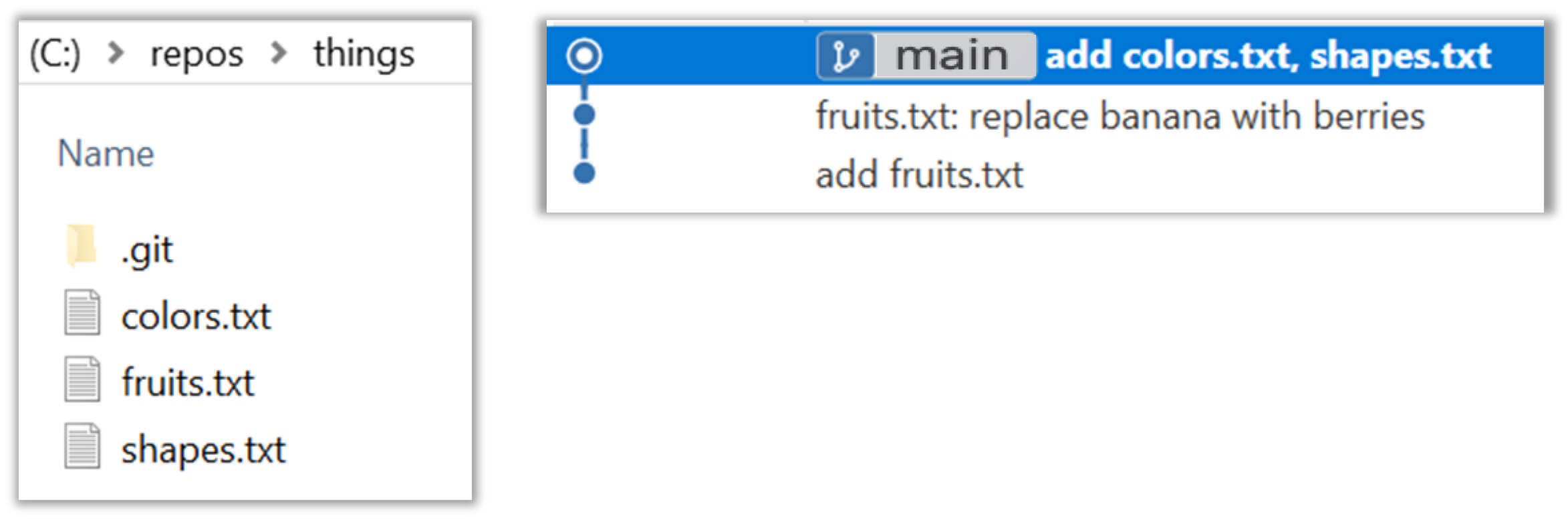
To see the list of commits, click on the History item (listed under the WORKSPACE section) on the menu on the right edge of Sourcetree.

After adding two more commits, the list of commits should look something like this:
done!
The Git data model consists of two types of entities: objects and refs (short for references). In this lesson, you will encounter examples of both.
A Git commit graph (also called a revision graph) is a visualization of a repo's revision history, consisting of one or more branches. First, let us work with a simpler revision graph that has one branch, such as the one below.
- Nodes in the revision graph represent commits. A commit is one of four main types of Git objects. For completeness, the other three are:
- blob (short for binary large object): stores the contents of a file
- tree: represents a directory and records the hierarchy of its contents by referencing blobs and other trees
- tag (specifically, annotated tag): a label-like object that can store additional metadata and point to a specific commit
- A commit is identified by its SHA value. A SHA (Secure Hash Algorithm) value is a unique identifier generated by Git to represent each commit. In the usual Git repository format, it is produced by applying SHA-1 (i.e., one of the algorithms in the SHA family of cryptographic hash functions) to the contents of the commit object. It's a 40-character hexadecimal string (e.g.,
f761ea63738a67258628e9e54095b88ea67d95e2) that acts like a fingerprint, ensuring that every commit can be referenced unambiguously. That is, every commit has a unique hash value. Tell me more about the use of SHA - A commit is a full snapshot of all tracked files, based on the versions prepared in the staging area at commit time. That means each commit (except the initial commit) is based on another 'parent' commit. Some commits can have multiple parent commits -- we'll cover that later.
Because every commit has a unique hash, the commit hash values in our examples will differ from your own commit hash values when you follow our hands-on practicals.
Edges in the revision graph represent links between a commit and its parent commit(s). In some revision graph visualizations, you might see arrows (instead of lines) showing how each commit points to its parent commit.
Git uses refs to name and keep track of various points in a repository's history. These refs are essentially named pointers that can serve as bookmarks to reach a certain point in the revision graph using the ref name.
In the revision graph above, there are two refs main and ←HEAD.
- main is a branch ref. A branch ref points to the latest commit on a branch. In this visualization, the commit shown alongside the ref is the one it points to, i.e.,
C3.
When you create a new commit, the branch ref of the branch moves to the new commit.
You'll be learning more about Git branches in a later lesson. - ←HEAD is a special ref that typically points to the current branch and moves along with that branch ref. In this example, it is pointing to the
mainbranch.
In certain cases, theHEADmay point directly to a specific commit instead of a branch. This situation is called a 'detachedHEAD'; a later lesson covers it.
Target Use Git to examine the revision graph of a simple repo.
Preparation
Option 2: Continue with the sandbox from the previous hands-on practical
1 First, use a simple git log to view the list of commits.
git log
commit f761ea63738a... (HEAD -> main)
Author: ... <...@...>
Date: Sat ...
Add colours.txt, shapes.txt
commit 2bedace69990...
Author: ... <...@...>
Date: Sat ...
Insert figs into fruits.txt
commit d5f91de5f0b5...
Author: ... <...@...>
Date: Fri ...
Add fruits.txt
Below is the visual representation of the same revision graph. As you can see, the log output shows the refs slightly differently, but you can still match them to the same refs.
2 Use the --oneline flag to get a more concise view. Note how the commit SHA has been truncated to the first seven characters (the first seven characters of a commit SHA are enough for Git to identify a commit).
git log --oneline
f761ea6 (HEAD -> main) Add colours.txt, shapes.txt
2bedace Insert figs into fruits.txt
d5f91de Add fruits.txt
3 The --graph flag makes the result closer to a graphical revision graph. Note the * that indicates a node in a revision graph.
git log --oneline --graph
* f761ea6 (HEAD -> main) Add colours.txt, shapes.txt
* 2bedace Insert figs into fruits.txt
* d5f91de Add fruits.txt
The --graph option is more useful when examining a revision graph with multiple parallel branches (branches will be covered in a later lesson).
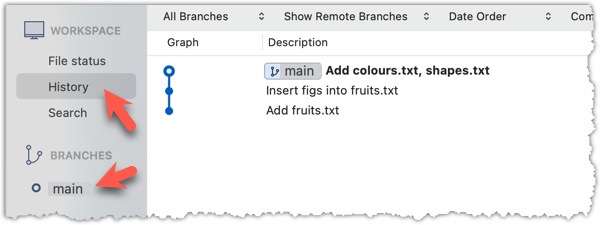
Click History to see the revision graph.
- In some versions of Sourcetree, the
HEADref may not be shown -- it is implied that theHEADref points to the same commit as the current branch ref.
done!
Tour 1: Recording the History of a Folder
Tour Outro:
At this point: You should now be able to initialize a Git repository in a folder, stage file versions, and commit snapshots of tracked files at chosen points in time. So far, you have not learned how to use those snapshots (other than listing them and viewing a simple revision graph) -- we will do that in later tours.
To see the full tour as one page, click here.
What's next: Tour 2: Backing up a Repo on the Cloud
Tour Intro:
Target Usage: To back up a Git repository on a cloud-based Git service such as GitHub.
Motivation: One benefit of maintaining a copy of a repo on a cloud server is that it acts as a safety net (e.g., against the folder becoming inaccessible due to a hardware fault).
To use GitHub, you need to sign up for an account and configure related tools and settings first.
GitHub is a web-based service that hosts Git repositories and adds collaboration features on top of Git. Two other similar platforms are GitLab and Bitbucket. While you use Git to manage version control locally, you can use such a platform to access additional features such as shared access to repositories, issue tracking, code reviews, and permission controls. These platforms are widely used in software development for both and closed-source software projects.
On GitHub, a Git repo can belong to one of two account spaces:
- A GitHub user account represents an individual user. It is created when you sign up for GitHub and includes a username, profile page, and personal settings. With a user account, you can create your own repositories, contribute to others’ projects, and manage collaboration settings for any repositories you own.
- A GitHub organization (org for short) is a shared account used by a group such as a team, company, or open-source project. Organizations can own repositories and manage access to them through teams, roles, and permissions. Organizations are especially useful when managing repositories with shared ownership or when working at scale.
Every GitHub user must have a user account, even if they primarily work within an organization.
Before you can interact with GitHub from your local Git client, you need to set up authentication. In the past, you could simply enter your GitHub username and password, but GitHub no longer accepts passwords for Git operations. Instead, you’ll use a more secure method, such as a Personal Access Token (PAT) or SSH keys, to prove your identity.
A Personal Access Token (PAT) is essentially a long, random string that acts like a password, but it can be scoped to specific permissions (e.g., read-only or full access) and revoked at any time. This makes it more secure and flexible than a traditional password.
Git supports two main protocols for communicating with GitHub: HTTPS and SSH .
- With HTTPS, you connect over the web and authenticate using your GitHub username and a Personal Access Token.
- With SSH, you connect using a cryptographic key pair you generate on your machine. Once you add your public key to your GitHub account, GitHub recognizes your machine and lets you authenticate without typing anything further.
GitHub associates a commit with a user based on the email address in the commit metadata. When you push a commit, GitHub checks if the email matches a verified email on a GitHub account. If it does, the commit is shown as authored by that user. If the email doesn’t match any account, the commit is still accepted but won’t be linked to any profile.
GitHub provides a no-reply email (e.g., 12345678+username@users.noreply.github.com) that you can use as your Git user.email to hide your real email while still associating commits with your GitHub account.
If you prefer not to include your real email address in commits, you can do the following:
Find your no-reply email provided by GitHub: Navigate to the email settings of your GitHub account and select the option to
Keep my email address private. The no-reply address will then be displayed, typically in the formatID+USERNAME@users.noreply.github.com.

Update your
user.emailwith that email address, e.g.,git config --global user.email "12345678+username@users.noreply.github.com"
GitHub offers its own clients to make working with GitHub more convenient.
- The GitHub Desktop app provides a GUI for performing most GitHub operations from your desktop, without needing to visit the GitHub web UI.
Git-Mastery lessons do not use GitHub Desktop, so there is no need for you to install it. - The GitHub CLI (
gh) brings GitHub-specific commands to your terminal, letting you perform most GitHub operations through your terminal.
If you are using Git-Mastery exercises (strongly recommended), install and configure GitHub CLI because some Git-Mastery exercises involving GitHub require it.
The first step of backing up a local repo on GitHub: create an empty repository on GitHub.
You can create a remote repository based on an existing local repository to serve as a remote copy of your local repo. For example, suppose you created a local repo and worked with it for a while, but now you want to upload it to GitHub. The first step is to create an empty repository on GitHub.
Target Create an empty repo named gitmastery-things in your GitHub account.
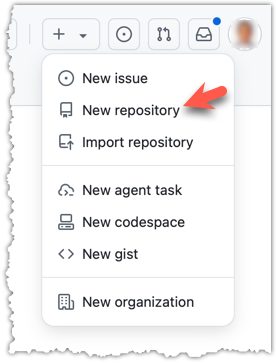
1 Log in to your GitHub account and choose to create a new repo.
2 On the next screen, provide gitmastery-things as the name for your repo. Refer to the screenshot below for which options to choose for the remaining fields.
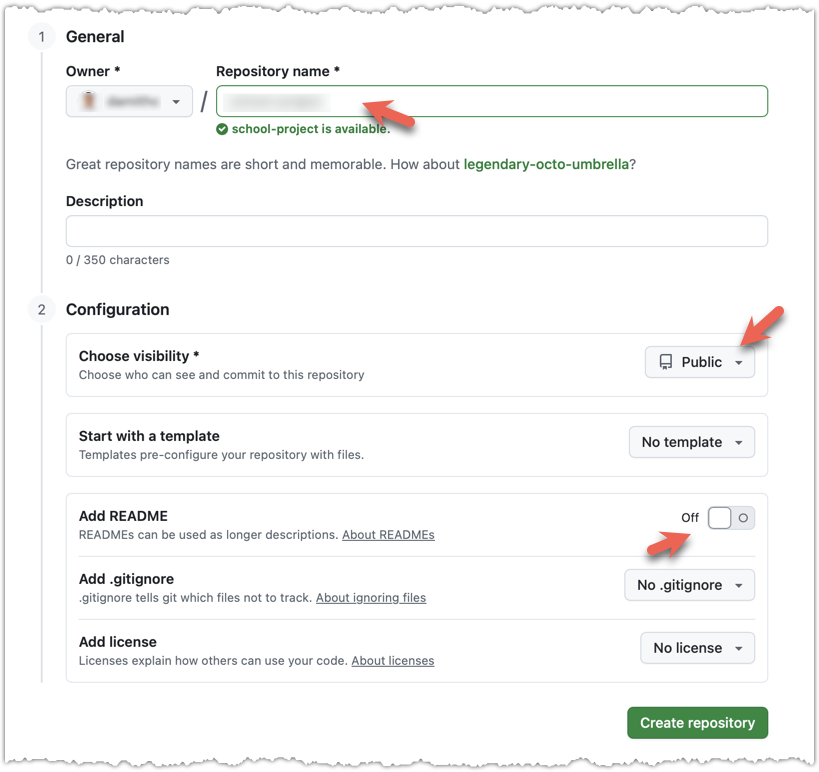
Click the Create repository button to create the new repository. What's the difference between public and private repos?
If you enable any of the three Add _____ options shown above, GitHub will not only create a repo but also initialize it with some initial content. That is not what we want here. To create an empty remote repo, keep those options disabled.
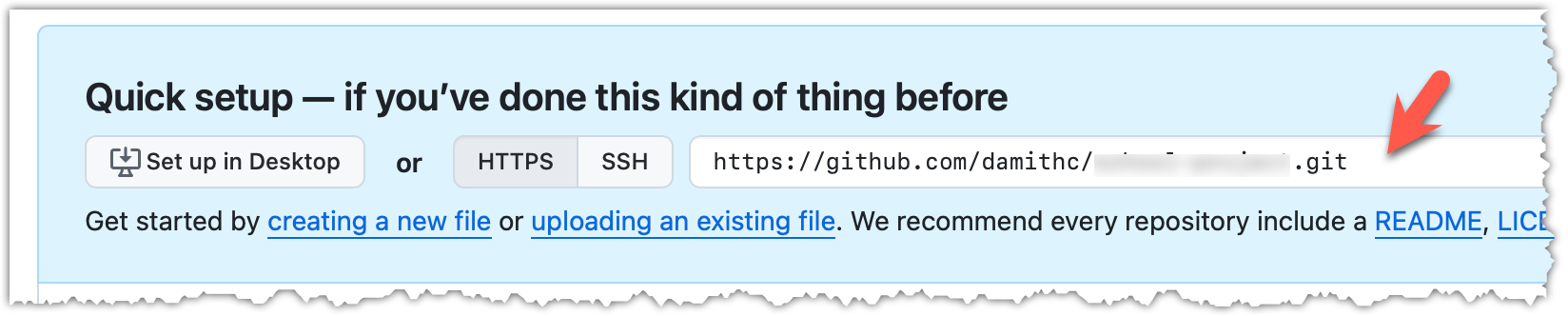
3 Note the URL of the repo. It will be of the form
https://github.com/{your_user_name}/{repo_name}.git.
e.g., https://github.com/[[username: JohnDoe]]/gitmastery-things.git (note the .git at the end)
Your GitHub username :
Note: Type your GitHub username in the blank above so that we can customize sample commands to fit you.
done!
The second step of backing up a local repo on GitHub: link the local repo with the remote repo on GitHub.
A Git remote is a reference to a repository hosted elsewhere, usually on a server like GitHub, GitLab, or Bitbucket. It allows your local Git repo to communicate with another remote copy — for example, to upload locally created commits that are missing in the remote copy.
By adding a remote, you are giving the local repo the details it needs to communicate with a remote repo, such as where the repo is hosted and what name to use for the remote.
The URL you use to connect to a remote repo depends on the protocol — HTTPS or SSH:
- HTTPS URLs use the standard web protocol and start with
https://github.com/(for GitHub users). e.g.,https://github.com/username/repo-name.git - SSH URLs use the secure shell protocol and start with
git@github.com:. e.g.,git@github.com:username/repo-name.git
A Git repo can have multiple remotes. You simply need to specify different names for each remote (e.g., upstream, central, production, other-backup ...).
Target Add the empty remote repo you created on GitHub as a remote of a local repo you have.
Preparation
Option 2: Continue with the things local repo from the previous hands-on practical
1 In a terminal, navigate to the folder containing the local repo things.
2 List the current remotes using the git remote -v command (-v stands for 'verbose'), for a sanity check. No output is expected if there are no remotes yet.
3 Add a new remote repo using the git remote add <remote-name> <remote-url> command.
Format of the <remote-url>:
https://github.com/<owner>/<remote-repo>.git # using HTTPS
git@github.com:<owner>/<remote-repo>.git # using SSH
Your GitHub username :
Note: Type your GitHub username in the blank above so that we can customize sample commands to fit you.
The full commands:
git remote add origin https://github.com/[[username: JohnDoe]]/gitmastery-things.git # using HTTPS
git remote add origin git@github.com:[[username: JohnDoe]]/gitmastery-things.git # using SSH
To find the URL of a repo on GitHub, you can click on the Code button:
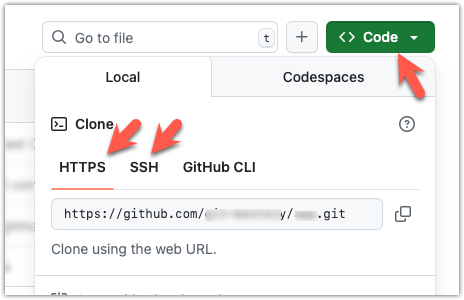
4 List the remotes again to verify the new remote was added.
git remote -v
origin https://github.com/[[username: JohnDoe]]/gitmastery-things.git (fetch)
origin https://github.com/[[username: JohnDoe]]/gitmastery-things.git (push)
The same remote will be listed twice, to indicate that the remote supports two operations (fetch and push). You can ignore that for now. The important thing is that the remote you added is listed.
1 Open the local repo in Sourcetree.
2 Open the dialog for adding a remote, as follows:
Choose the Repository → Repository Settings menu option.
Choose Repository → Repository Settings... → Choose Remotes tab.
3 Add a new remote to the repo with the following values.
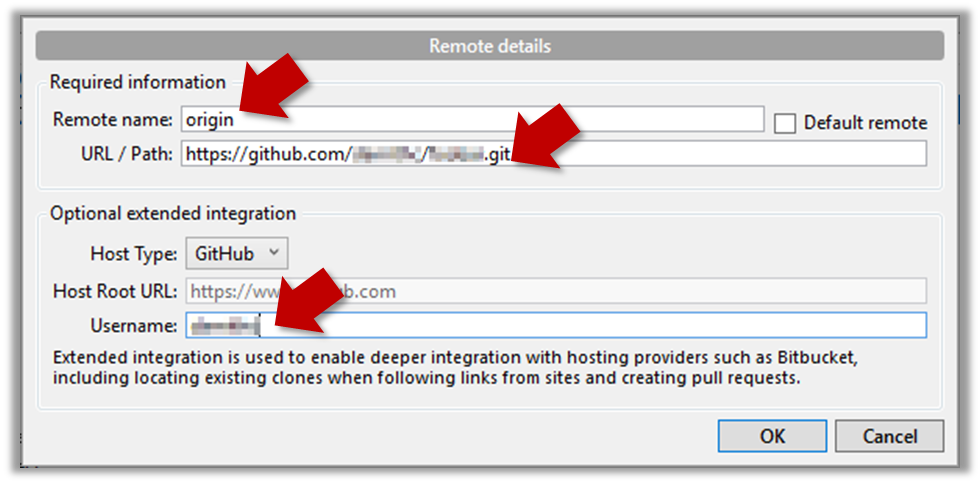
Remote name: the name you want to assign to the remote repo, for example,originURL/path: the URL of your remote repohttps://github.com/<owner>/<repo>.git # using HTTPS git@github.com:<owner>/<repo>.git # using SSHhttps://github.com/[[username: JohnDoe]]/things.git # using HTTPS git@github.com:[[username: JohnDoe]]/things.git # using SSH
To find the URL of a repo on GitHub, you can click on the Code button:
Username: your GitHub username
4 Verify the remote was added by going to Repository → Repository Settings again.
5 Add another remote, to verify that a repo can have multiple remotes. You can use any name for the remote (e.g., backup) and any made-up <owner>/<remote-repo> value for this.
done!
The third step of backing up a local repo on GitHub: push local commits to a branch in the remote repo.
You can push recorded Git history from one repository to another, usually from your local repo to a remote repo. Pushing sends commits and updates a branch in the remote repo, but it does not transfer unstaged changes or untracked files.
- To push, you need to have to the remote repo.
- Pushing is performed one branch at a time; you must specify which branch you want to push.
You can configure Git to remember which remote branch a local branch should push to by default, so later you can push from the same local branch without specifying the destination again. For example, you can set your local main branch to use the main branch on the remote repo origin as its corresponding branch. In the revision graph below, the ref origin/main is a remote-tracking branch that represents Git's latest known state of a corresponding branch in a remote repository. More precisely, a remote-tracking branch records the state of the corresponding remote branch at the time Git last updated that information, such as after a successful push. You can think of a remote-tracking branch as a bookmark that tells you where the corresponding branch in the remote repo was the last time you checked.
In this example, the main branch in the remote origin is also at the commit C3 (which means you have not created new commits after you pushed to the remote).
If you now create a new commit C4, the state of the revision graph will be as follows:
Explanation: When you create C4, the current branch main moves to C4, and HEAD moves along with it. However, the main branch in the remote origin remains at C3 (because you have not pushed C4 yet). That is, the remote-tracking branch origin/main is one commit behind the local branch main (or, the local branch is one commit ahead). The origin/main ref will move to C4 only after you push your local branch to the remote again.
Target Upload (i.e., push) the commits from a local branch to a branch in a remote repo.
Preparation
Option 2: Continue with the things local repo and the gitmastery-things remote repo from the previous hands-on practical
1 Push the main branch to the remote. Also instruct Git to track this branch pair.
Navigate inside the things folder.
Use git push -u <remote-repo-name> <local-branch-name> to push the commits in a local branch to a remote repository.
git push -u origin main
Explanation:
push: the Git sub-command that sends local commits to a remote repoorigin: name of the remotemain: branch to push-u(or--set-upstream): the flag that setsorigin/mainas the upstream branch of the localmainbranch. The upstream branch is Git's remembered default remote-tracking branch for this local branch; here,mainwill useorigin/mainas the upstream branch.
Click the Push button on the toolbar at the top.

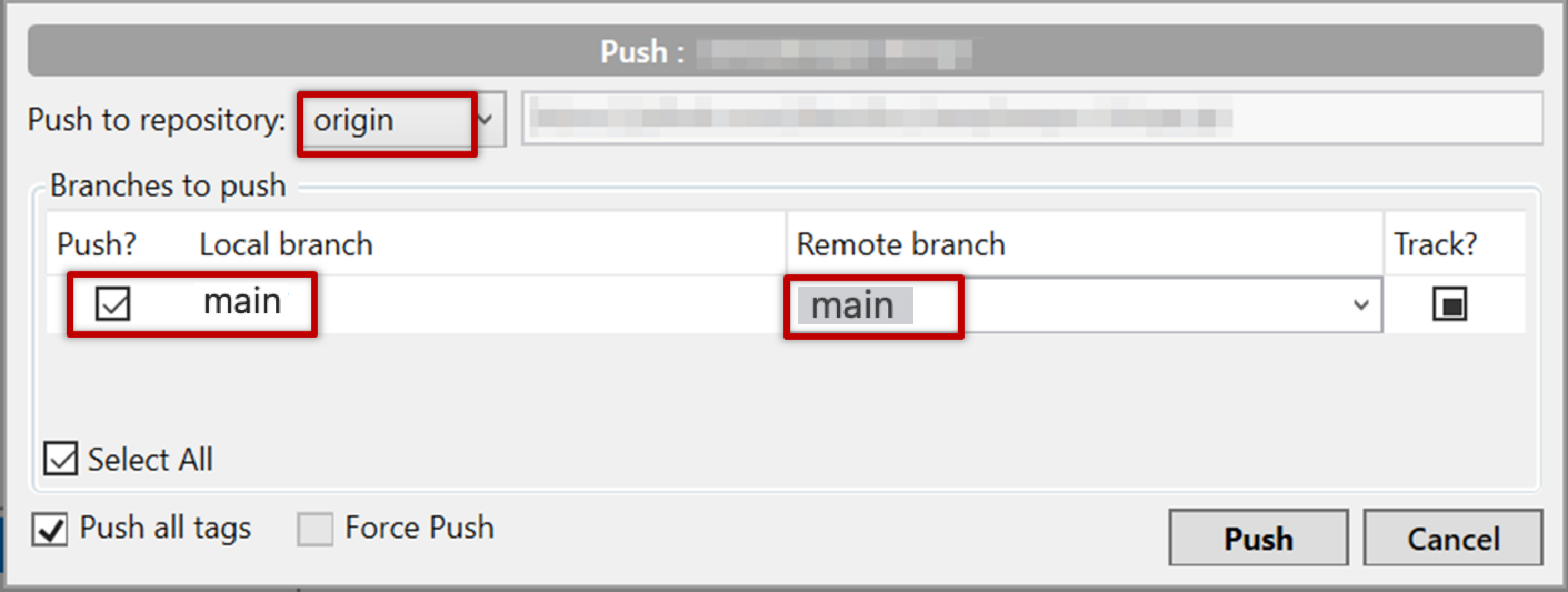
In the next dialog, ensure the settings are as follows, select the Track option, and click the Push button on the dialog.

Note: Because the remote repo is empty, this push creates the main branch on the remote and uploads the commits to it. You can go to the repo page on GitHub to see the commits and the branch.
2 Observe the remote-tracking branch origin/main is now pointing at the same commit as the main branch.
Use git log --oneline --graph to see the revision graph.
* f761ea6 (HEAD -> main, origin/main) Add colours.txt, shapes.txt
* 2bedace Insert figs into fruits.txt
* d5f91de Add fruits.txt
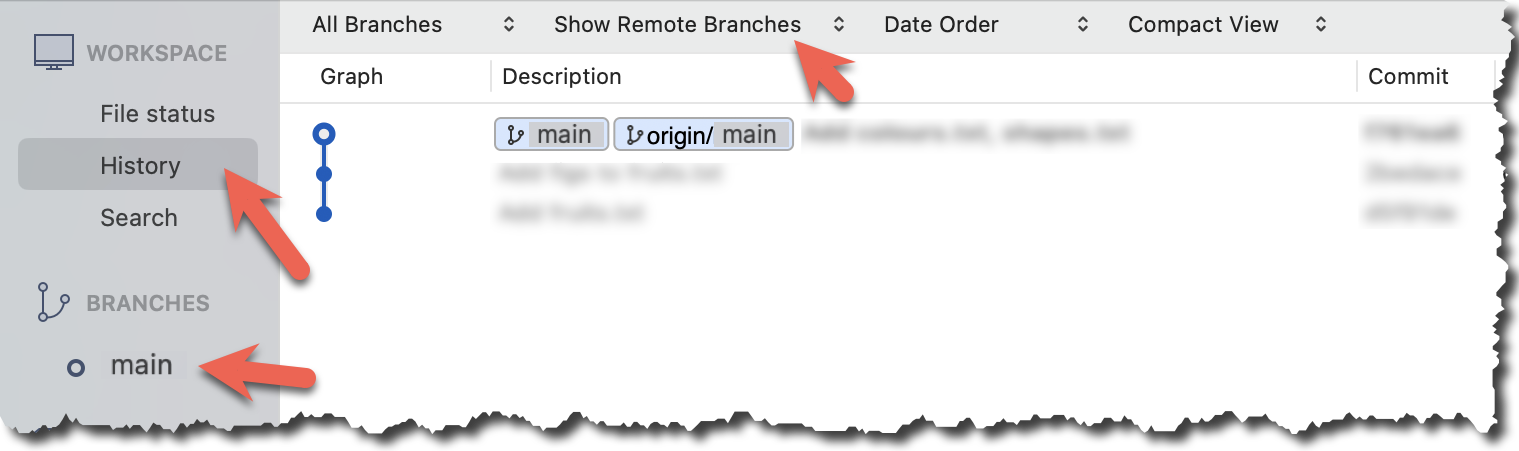
Click History to see the revision graph.
- In some versions of Sourcetree, the
HEADref may not be shown -- it is implied that theHEADref points to the same commit as the current branch ref. - If the remote-tracking branch ref (e.g.,
origin/main) is not showing up, you may need to enable theShow Remote Branchesoption.
done!
You can use the push command repeatedly to send further updates to the remote repo, e.g., to update the remote with commits you created since you pushed the first time.
Target Add a commit to the same local repo, and push it to the remote repo.
Preparation
Option 2: Continue with the things local repo and the gitmastery-things remote repo from the previous hands-on practical
1 Commit some changes in your local repo. Example:
echo "Elderberries" >> fruits.txt
git commit -am "Update fruits list"
-am is shorthand for -a -m. The -a option stages any changes to tracked files, and -m is for specifying the commit message. See here for a longer explanation.
Optionally, you can run the git status command, which should confirm that your local branch is 'ahead' by one commit (i.e., the local branch has commits that are not present in the corresponding branch in the remote repo).
git status
On branch main
Your branch is ahead of 'origin/main' by 1 commit.
(use "git push" to publish your local commits)
nothing to commit, working tree clean
You can also use the git log --oneline --graph command to see where the branch refs are. Note how the remote-tracking branch origin/main is one commit behind the local main.
e60deae (HEAD -> main) Update fruits list
f761ea6 (origin/main) Add colours.txt, shapes.txt
2bedace Insert figs into fruits.txt
d5f91de Add fruits.txt
Create commits as you did before.
Before pushing the new commit, Sourcetree will indicate that your local branch is 'ahead' by one commit (i.e., the local branch has one new commit that is not in the corresponding branch in the remote repo).

2 Push the new commits to your remote repo on GitHub.
To push the newer commit(s) in the current branch main to the remote origin, you can use any of the following commands:
git push origin maingit push origin
→ With the usual Git configuration used in this course, Git will push the current branch (e.g.,main) to the branch it tracks onorigin.git push
→ Because of the tracking you set up earlier, Git will push the current branch (e.g.,main) to its upstream branch onorigin.
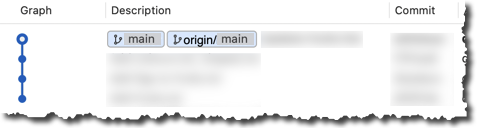
After pushing, the revision graph should look something like the following (note how both local and remote-tracking branch refs are pointing to the same commit again).
e60deae (HEAD -> main, origin/main) Update fruits list
f761ea6 Add colours.txt, shapes.txt
2bedace Insert figs into fruits.txt
d5f91de Add fruits.txt
To push, click the Push button on the top toolbar, ensure the settings are as follows in the next dialog, and click the Push button in the dialog.
After pushing the new commit to the remote, the remote-tracking branch ref should move to the new commit:
done!
Can one push from any repo to any other repo?
When updating an existing branch on a remote, Git normally expects your local changes to build on the remote repo's current history. That is, you cannot normally push if the two repos are completely unrelated to each other. In this tour, the remote repo is empty, so the first push from a local repo goes through just fine.
DETOUR: Pushing to Multiple Repos
You can push to any number of repos, as long as the target repos and your repo have a shared history.
- Add the GitHub repo URL as a remote while giving a suitable name (e.g.,
upstream,central,production,backup...), if you haven't done so already. - Push to the target repo, remembering to select the correct target repo when you push.
e.g., git push backup main
Git allows you to specify which files should be omitted from revision control.
You can specify which files Git should ignore when deciding what to track. While you can always omit files from revision control simply by not staging them, an 'ignore-list' is more convenient, especially when the working directory contains files that are not suitable for revision control (e.g., temporary log files) or files you want to avoid accidentally committing (e.g., files containing confidential information).
A repo-specific ignore-list of files can be specified in a .gitignore file, stored in the root of the repo folder.
The .gitignore file itself can either be tracked by Git or ignored.
- To keep it under version control (the more common choice, which allows you to track how the
.gitignorefile changes over time), simply commit it as you would commit any other file. - To ignore it, simply add its name to the
.gitignorefile itself.
The .gitignore file supports file patterns; e.g., adding temp/*.tmp to the .gitignore file prevents Git from tracking any .tmp files in the temp directory.
SIDEBAR: .gitignore File Syntax
Blank lines: Ignored and can be used for spacing.
Comments: Begin with
#(lines starting with # are ignored).# This is a commentWrite the name or pattern for each file/directory to ignore.
log.txt # Ignores a file named log.txtWildcards:
*matches any number of characters, except/(i.e., for matching a string within a single directory level):abc/*.tmp # Ignores all .tmp files in abc directory**matches any number of characters (including/)**/foo.tmp # Ignores all foo.tmp files in any directory?matches a single characterconfig?.yml # Ignores config1.yml, configA.yml, etc.[abc]matches a single character (a, b, or c)file[123].txt # Ignores file1.txt, file2.txt, file3.txt
Directories:
Add a trailing
/to match directories only.logs/ # Ignores the logs directory (and everything under it)Patterns without
/are not anchored and are matched at any directory level.*.bak # Ignores all .bak files anywhere in the repositoryPatterns starting with
/are relative to the location of the.gitignorefile./secret.txt # Only ignores secret.txt in the repository root
Negation: Use
!at the start of a line to stop ignoring something.*.log # Ignores all .log files !important.log # Except important.log
Example:
# Ignore all log files
*.log
# Ignore node_modules folder
node_modules/
# Don’t ignore main.log
!main.log
.gitignore is a 'hidden' file!
Files with a name starting with . (such as .gitignore) are considered hidden files by macOS and Linux. Git tools on Windows are also likely to mark the .gitignore file as a hidden file. Therefore, if the .gitignore file is not visible to you, you'll need to look for it among 'hidden' files.
How to do that in: Windows | macOS | Linux
Target Get Git to ignore some files in a repo.
Preparation
1 Configure Git to ignore those files:
Create a file named .gitignore in the working directory root and add the text temp.txt into it.
echo "temp.txt" >> .gitignore
temp.txt
Observe how temp.txt is no longer detected as 'untracked' by running the git status command (but now it will detect the .gitignore file as 'untracked').
Update the .gitignore file as follows:
temp.txt
*.tmp
Observe how .tmp files are no longer detected as 'untracked' by running the git status command.
The file should currently be listed under Unstaged files. Right-click it and choose Ignore.... Choose Ignore exact filename(s) and click OK.
Also note the other options available, e.g., Ignore all files with this extension. They may be useful in future.
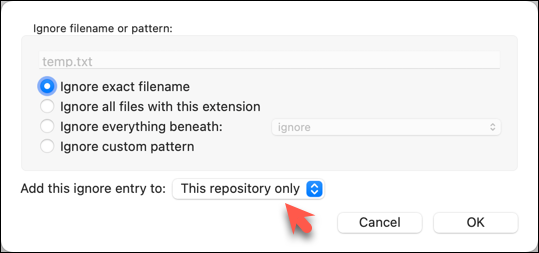
Note how temp.txt is no longer listed under Unstaged files. Observe that a file named .gitignore has been created in the working directory root and has the following line in it. This new file is now listed under Unstaged files.
temp.txt
Right-click on any of the .tmp files you added, and choose Ignore... as you did previously. This time, choose the option Ignore files with this extension.
Note how .tmp files are no longer shown as unstaged files, and the .gitignore file has been updated as given below:
temp.txt
*.tmp
2 Optionally, stage and commit the .gitignore file.
done!
Files recommended to be omitted from version control
- Binary files generated when building your project, e.g.,
*.class,*.jar,*.exe
Reasons:- There is no need to version control these files, as they can be generated again from the source code.
- Revision control systems are optimized for tracking text-based files, not binary files.
- Temporary files e.g., log files generated while testing the product
- Local files, i.e., files specific to your own computer e.g., local settings of your IDE (
.idea/) - Auto-fetched files, i.e., files automatically downloaded by build tools and package managers e.g.,
node_modules/for Node.js projects - Sensitive content, i.e., files containing sensitive or personal information e.g., credential files, personal identification data (especially if there is a risk of those files leaking through the revision control system).
Tour 2: Backing up a Repo on the Cloud
Tour Outro:
At this point: You should now be able to create a copy of your repo on GitHub and keep it updated as you add more commits to your local repo. If something goes wrong with your local repo (e.g., a disk crash), you can now recover it from the remote repo. This tour did not cover the exact recovery steps; they will be covered in a future tour.
To see the full tour as one page, click here.
What's next: Tour 3: Working With an Existing Remote Repo
Tour Intro:
Target Usage: To work with an existing remote repository.
Motivation: You will often need to start with an existing remote repository. You may need to create your own copies and keep them updated when the upstream repository changes.
GitHub allows you to create your own remote copy of another repo through a process called forking.
A fork is a copy of a remote repository created on the same hosting service, such as GitHub, GitLab, or Bitbucket. On GitHub, you can fork a repository owned by another user or organization into your own space, such as your account or an organization where you have the required access. Forking is useful when you want to experiment with a repo but don't have write permissions to the original; it gives you your own remote copy without affecting the original repo.
Preparation Create a GitHub account if you don't have one yet.
1 Go to the GitHub repo you want to fork, e.g., samplerepo-things
2 Click the  button in the top-right corner. On the next screen:
- choose your own account or a GitHub organization where you are an admin.
- uncheck the
[ ] Copy the main branch onlyoption, so that you get copies of other branches (if any) in the repo. You'll learn more about branches in a later lesson.
done!
Forking is not a Git feature, but a feature provided by hosted Git services like GitHub, GitLab, or Bitbucket.
GitHub does not allow you to fork the same repo more than once to the same destination. If you want to re-fork, you need to delete the previous fork.
The next step is to create a local copy of the remote repo by cloning it.
You can clone a repository to create a local copy on your computer. A normal clone downloads the repository history and populates the working directory with the files from the latest commit of the default branch, giving you a local working copy.
Cloning a repo automatically creates a remote named origin, which points to the repo you cloned from.
Conventions:
When configuring remotes for a Git repository, the following naming conventions are commonly used:
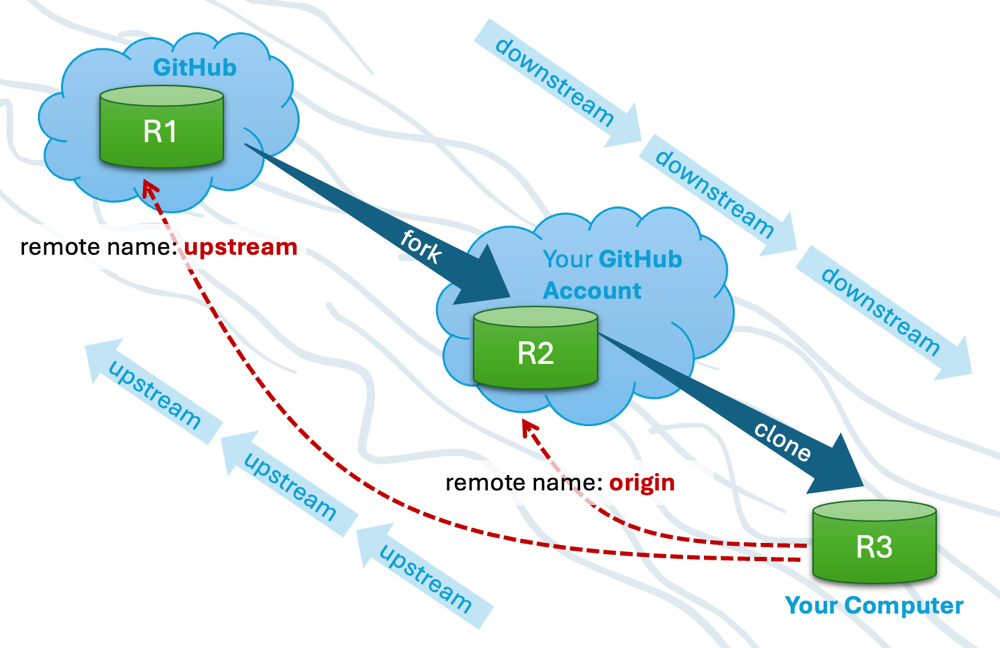
origin: The repository that you cloned from is usually given the remote nameorigin. Git sets this remote name automatically when you clone a repository (but you can change it to something else).upstream: In fork-based workflows, the repository you forked from is often added as a second remote namedupstream. This name is not created by Git automatically; it is a convention chosen by developers. Some teams use a more specific name for this, such asteam-repo.
Separately from remote names, the term 'upstream' is also used informally to describe the relationship between an original repository and its duplicates. When one repository is created by duplicating another (for example, by forking or cloning), the original repository is said to be upstream of the duplicate.
Example:
- If you fork R1 to create R2, then R1 is upstream of R2.
- If you then clone R2 to create R3, both R1 and R2 are upstream of R3.
1 Clone the remote repo to your computer. For example, you can clone the samplerepo-things repo, or the fork you created from it in a previous lesson.
Note that the GitHub project page URL is different from the repo URL you need for cloning. For example:
https://github.com/git-mastery/samplerepo-things # GitHub project URL
https://github.com/git-mastery/samplerepo-things.git # the repo URL
You can use the git clone <repository-url> [directory-name] command to clone a repo.
<repository-url>: The URL of the remote repository you want to copy.[directory-name](optional): The name of the folder where you want the repository to be cloned. If you omit this, Git will create a folder with the same name as the repository.
git clone https://github.com/git-mastery/samplerepo-things.git # if using HTTPS
git clone git@github.com:git-mastery/samplerepo-things.git # if using SSH
git clone https://github.com/foo/bar.git my-bar-copy # also specifies a dir to use
For exact steps, see this GitHub document.
File → Clone / New ... and provide the URL of the repo and the destination directory.
File → New ... → Choose as shown below → Provide the URL of the repo and the destination directory in the next dialog.
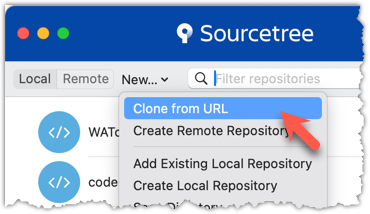
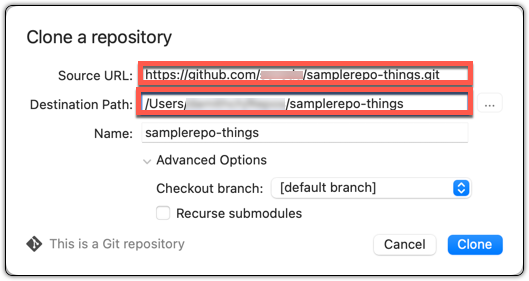
2 Verify the clone has a remote named origin pointing to the repo you cloned from.
Use the git remote -v command that you learned earlier.
Choose the Repository → Repository Settings menu option.
done!
When there are new commits in the remote repo, you need to pull those commits down to your local repo.
Bringing changes from a remote repository into a local repository involves two steps: fetch and merge.
- Fetch is the act of downloading the latest changes from the remote repository, but without applying them to your current branch yet. It updates metadata in your repo so Git knows what has changed in the remote repo, but your own local branch remains untouched.
- Merge is the step after fetching that incorporates the fetched changes into your local branch. It combines your local branch with the changes from the corresponding branch in the remote repo.
Scenario You have cloned a remote repo. After you cloned it, two new commits were added to the remote. R and L1 in the diagram below represent this scenario.
gitGraph BT:
    %%{init: { 'theme': 'default', 'gitGraph': {'mainBranchName': 'main'}} }%%
    commit id: "add loans.txt"
    commit id: "add loan to Ben"
    commit id: "add assets.txt"
    commit id: "add goals.txt"
    commit id: "[HEAD → main] add loan to Chang"
origin]
gitGraph BT:
    %%{init: { 'theme': 'default', 'gitGraph': {'mainBranchName': 'main'}} }%%
    commit id: "add loans.txt"
    commit id: "add loan to Ben"
    commit id: "[HEAD → main][origin/main] add assets.txt"
2 commits behind the remote]
→
gitGraph BT:
    %%{init: { 'theme': 'default', 'gitGraph': {'mainBranchName': 'main'}} }%%
    commit id: "add loans.txt"
    commit id: "add loan to Ben"
    commit id: "add assets.txt"
    commit id: "add goals.txt"
    commit id: "[HEAD → main][origin/main] add loan to Chang"
the missing commits]
Target Now, you want to bring those missing commits into your clone, taking it from state L1 to state L2 (as shown in the diagram above).
Preparation
1 Verify Git has not yet learned about the extra commits in the remote.
git status
On branch main
Your branch is up to date with 'origin/main'.
nothing to commit, working tree clean
The revision graph should look like this:
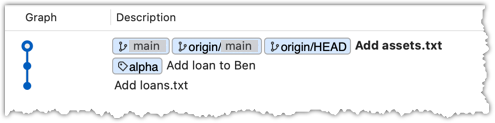
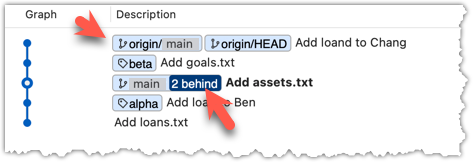
If it looks like the image below, Sourcetree may be auto-fetching data from the repo periodically.
2 Fetch from the new remote.
Use the git fetch <remote> command to fetch changes from a remote. If you do not specify <remote>, Git uses the default remote origin.
git fetch origin
remote: Enumerating objects: 8, done.
... # more output ...
afbe966..b201f03 main -> origin/main
Click on the Fetch button on the top menu:
3 Verify the fetch worked: the local repo is now aware of the two missing commits. Also observe that the local main branch ref, the staging area, and the working directory remain unchanged after the fetch.
Use the git status command to confirm the local repo now knows it is behind the remote repo.
git status
On branch main
Your branch is behind 'origin/main' by 2 commits, and can be fast-forwarded.
(use "git pull" to update your local branch)
nothing to commit, working tree clean
Now, the revision graph should look something like this. Note how the origin/main ref is now two commits ahead of the main ref.
4 Merge the fetched changes.
Use the git merge <remote-tracking-branch> command to merge the fetched changes. Check the status and the revision graph to verify that the branch tip has now moved by two more commits.
git merge origin/main
Updating afbe966..b201f03
Fast-forward
goals.txt | 1 +
loans.txt | 1 +
2 files changed, 2 insertions(+)
create mode 100644 goals.txt
Verify the status of the repo is as expected:
git status
On branch main
Your branch is up to date with 'origin/main'.
git log --oneline --decorate
b201f03 (HEAD -> main, origin/main, origin/HEAD) Add loan to Chang
1b923a4 Add goals.txt
afbe966 Add assets.txt
0434002 Add loan to Ben
fd96227 Add loans.txt
To merge the fetched changes, right-click on the latest commit on the origin/main branch and choose Merge.
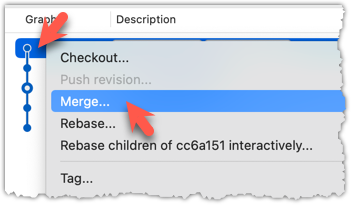
In the next dialog, choose as follows:
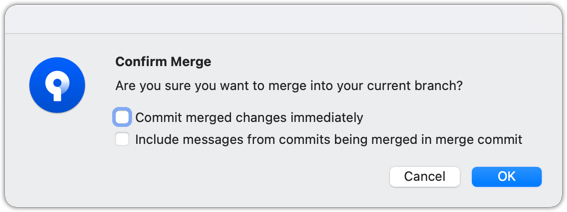
The final result should look something like this, matching state L2 in the diagram above:
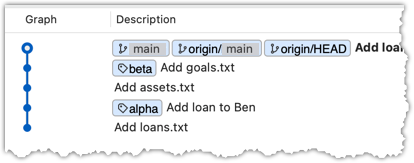
Note that merging fetched changes can get complicated when the repo has multiple branches, or when local commits conflict with remote commits. We will address such situations in a later lesson when we learn more about Git branches.
done!
Pull is a shortcut that combines fetch and merge: it fetches the latest changes from the remote and immediately merges them into your current branch. In practice, Git users usually pull instead of fetching and merging separately.
pull = fetch + merge
Scenario Use the same scenario as the previous hands-on practical.
Target Use the same target as in the previous hands-on practical, but fetch and merge in one step.
Preparation
1 Pull the newer commits from the remote instead of fetching and merging separately.
Use the git pull <remote> <branch> command to pull changes.
git pull origin main
remote: Enumerating objects: 8, done.
remote: Counting objects: 100% (8/8), done.
remote: Compressing objects: 100% (3/3), done.
remote: Total 6 (delta 1), reused 6 (delta 1), pack-reused 0 (from 0)
Unpacking objects: 100% (6/6), 557 bytes | 69.00 KiB/s, done.
From https://github.com/git-mastery/samplerepo-finances-2
* branch main -> FETCH_HEAD
afbe966..b201f03 main -> origin/main
Updating afbe966..b201f03
Fast-forward
goals.txt | 1 +
loans.txt | 1 +
2 files changed, 2 insertions(+)
create mode 100644 goals.txt
The following command also works. If you do not specify <remote> and <branch>, Git will pull into the current branch from the remote branch it tracks.
git pull
Click on the Pull button on the top menu:
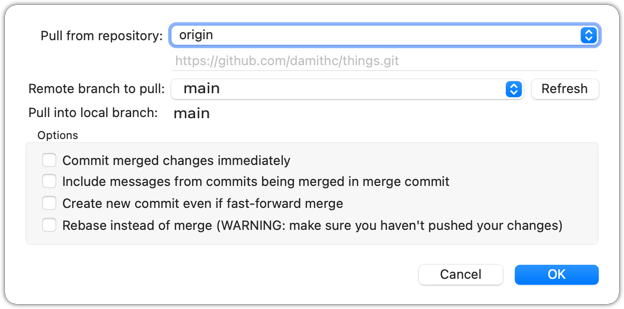
2 Verify that the outcome matches the fetch + merge steps you did in the previous hands-on practical.
done!
You can pull from multiple remote repos, as long as the repos have a shared history. This is useful when the upstream repo you forked from has new commits that you want to bring into your fork and local repo.
Scenario You have forked and cloned a remote repo. Since then, new commits have been added to the original remote repo that you forked from.
gitGraph BT:
    %%{init: { 'theme': 'default', 'gitGraph': {'mainBranchName': 'main'}} }%%
    commit id: "add loans.txt"
    commit id: "add loan to Ben"
    commit id: "add assets.txt"
    commit id: "add goals.txt"
    commit id: "[HEAD → main] add loan to Chang"
upstream: the original remote repo
that you forked]
gitGraph BT:
    %%{init: { 'theme': 'default', 'gitGraph': {'mainBranchName': 'main'}} }%%
    commit id: "add loans.txt"
    commit id: "add loan to Ben"
    commit id: "[HEAD → main] add assets.txt"
origin: your fork (remote),
2 commits behind upstream]
gitGraph BT:
    %%{init: { 'theme': 'default', 'gitGraph': {'mainBranchName': 'main'}} }%%
    commit id: "add loans.txt"
    commit id: "add loan to Ben"
    commit id: "[HEAD → main][origin/main] add assets.txt"
2 commits behind]
Target Now, you want to bring the new commits into your clone and then update your fork with them.
Preparation
1 Confirm your local repo is behind upstream by two commits. Here are two ways to do that:
a) Go to the upstream repo at https://github.com/git-mastery/samplerepo-finances-2, and navigate to the repo's commit list. Compare that list with the commits in your local copy.
OR
b) Do a fetch and examine the revision graph locally, as shown below.
git fetch upstream
git log --oneline --decorate --graph --all
* b201f03 (upstream/main, upstream/HEAD) Add loan to Chang
* 1b923a4 Add goals.txt
* afbe966 (HEAD -> main, origin/main, origin/HEAD) Add assets.txt
* 0434002 Add loan to Ben
* fd96227 Add loans.txt
2 Pull from the upstream repo. Git will bring any new commits into your local repo. For example:
git pull upstream main
3 Push to your fork. Any new commits you pulled from the upstream repo will now appear in your fork as well. For example:
git push origin main
This method is the standard way to synchronize a fork with the upstream repo. Platforms such as GitHub also provide alternatives, including GitHub's Sync fork feature.
done!
SIDEBAR: Distributed vs Centralized Revision Control
Revision control can follow either a centralized or a distributed model.
Centralized RCS uses a single central (server-hosted) repository that is shared by the team. Developers check out a working copy, make changes locally, and then commit directly to the central repository. Developers do not have their own copy of the entire repository history; they only have a working copy of files. One advantage of this model is having one clear "source of truth." A major disadvantage is that the central server becomes a critical dependency: if it's down, most operations (commits and history queries beyond the local working copy) are blocked. Older RCS tools such as CVS, Subversion, and Perforce follow this model.
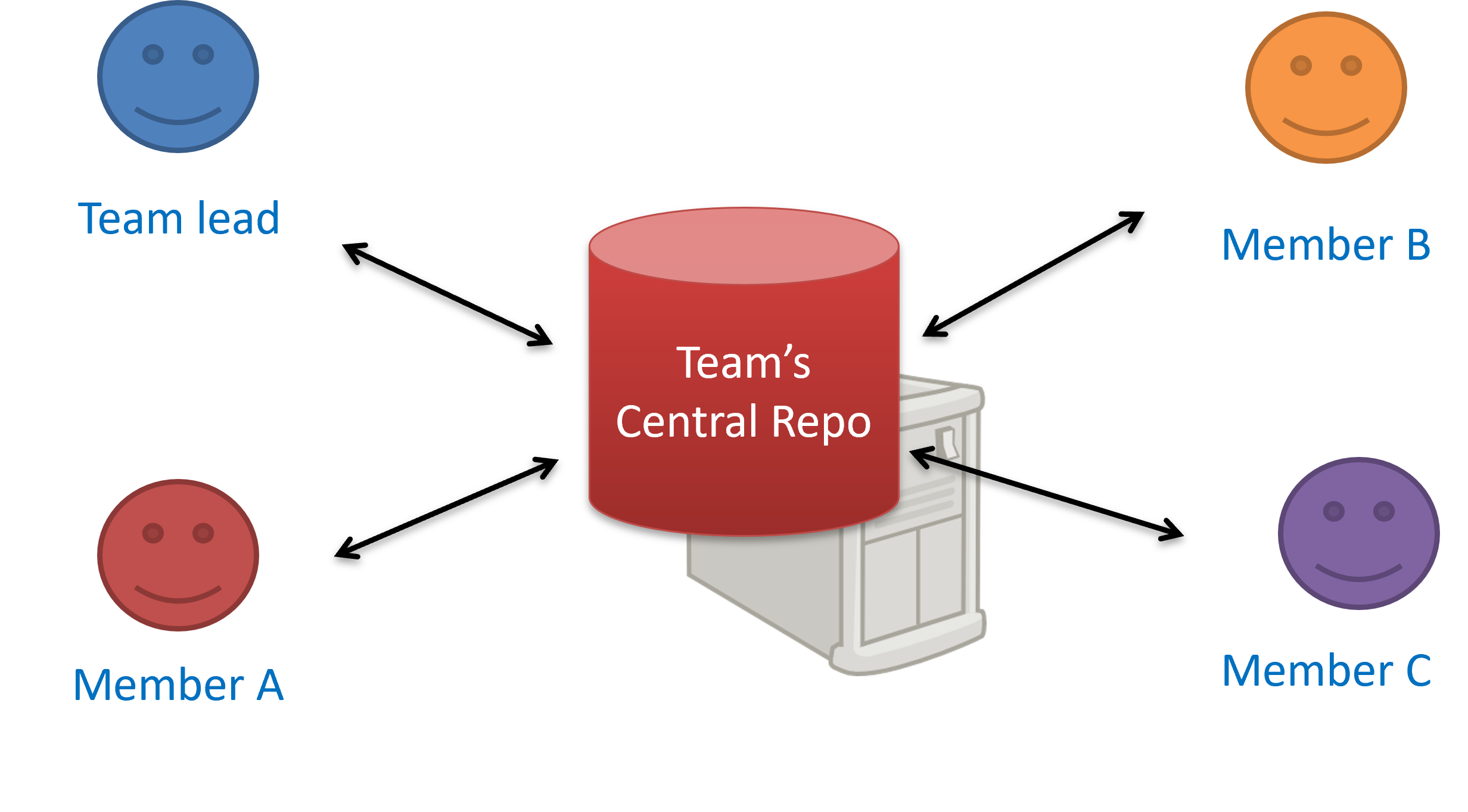
The centralized RCS approach
Distributed RCS (also known as decentralized RCS) allows multiple remote and local repositories to work together. Workflows vary by team. For example, each team member can have their own remote repository in addition to a local repository. This architecture enables offline work, fast local operations, and more flexible workflows. It also supports multiple integration points (e.g., forks or alternative remotes) and uses cryptographic checksums to ensure history integrity. The trade-offs include more conceptual complexity (multiple repositories, remotes, and sync patterns) and the need for conventions to establish an authoritative integration flow. Git and Mercurial are prominent RCS tools that support the distributed approach.
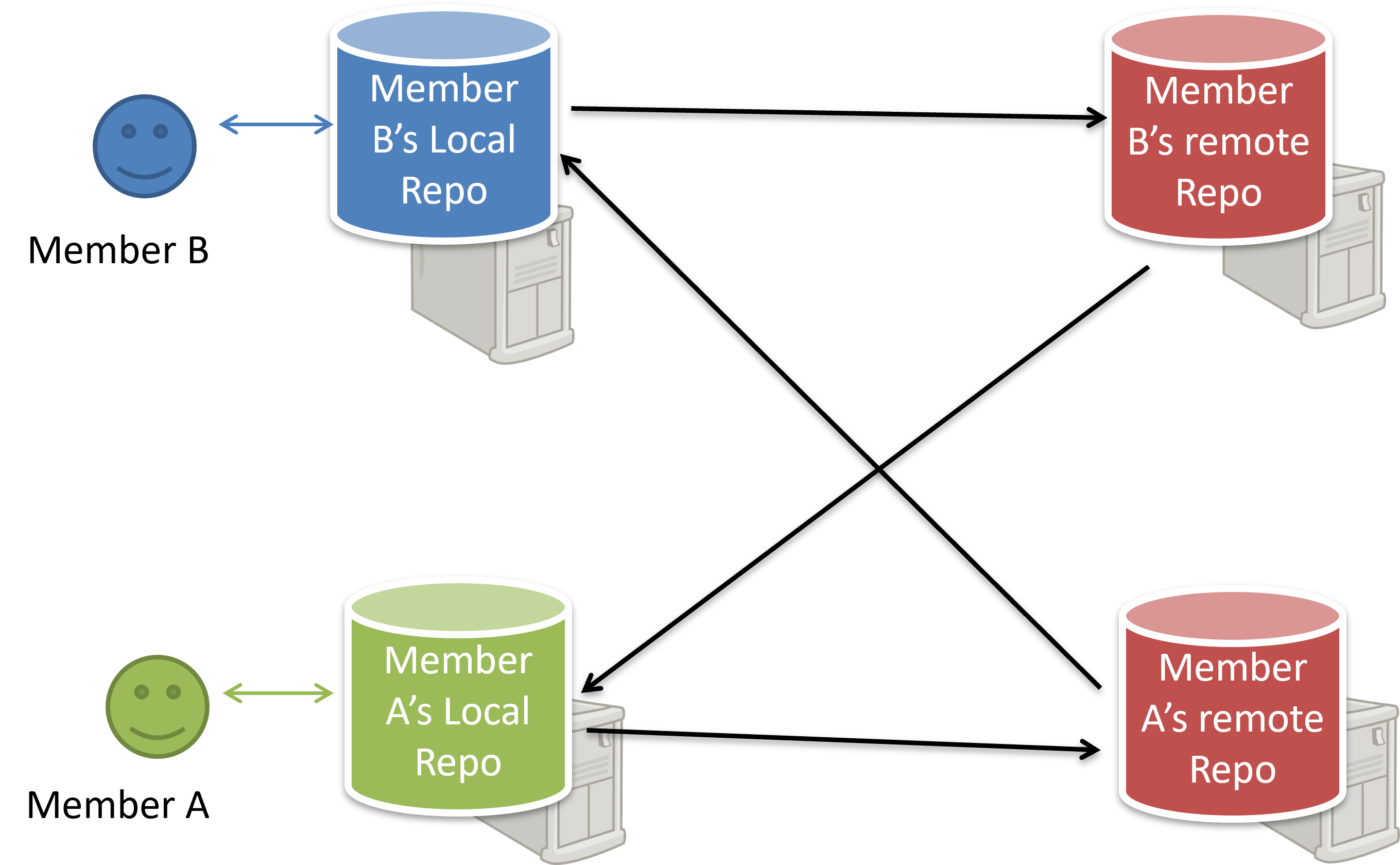
The decentralized RCS approach
Because Git uses multiple copies of a repository, Git is considered a distributed revision control system, as opposed to a centralized revision control system that keeps only a single repository.
Tour 3: Working With an Existing Remote Repo
Tour Outro:
At this point: Now you can create your own remote and local copies of any accessible GitHub repo you are allowed to fork or clone, and update your copy when there are new commits in the upstream repo.
To see the full tour as one page, click here.
What's next: Tour 4: Using the Revision History of a Repo
Tour Intro:
Target Usage: To use the commits in a Git repo's history as reference points for understanding, navigating, and correcting the project.
Motivation: After you have put effort into recording meaningful commits, the history should help you answer practical questions such as "What changed in this file?", "Which commit should I mark as a release?", "What did the project look like last week?", and "How can I undo a mistake safely?"
It is useful to be able to see what changes were included in a specific commit.
When you examine a commit, what you normally see is the 'changes made since the previous commit'. This does not mean that a Git commit contains only the changes made since the previous commit. As you recall, a Git commit contains a full snapshot of the working directory. However, tools used to examine commits typically show only the changes, as that is the more informative part.
Git shows changes included in a commit by dynamically calculating the difference between the snapshots stored in the target commit and the parent commit. This is because Git commits store snapshots of the working directory, not changes themselves.
Although each commit represents a copy of the entire working directory, Git uses space efficiently in two main ways:
- Reuse of unchanged data: If a file hasn't changed since a previous commit, the commit simply points to the already stored version of that file instead of making another copy. This means only new or changed files take up extra space, while unchanged files are reused.
- Compression: Git also compresses all the files and data it stores using an algorithm (zlib). So, even the objects that are stored (whether reused or new) take up less disk space because they are saved in a compressed format.
To address a specific commit, you can use its SHA (e.g., e60deaeb2964bf2ebc907b7416efc890c9d4914b). In fact, the first few characters of the SHA are enough to uniquely address a commit (e.g., e60deae), provided the partial SHA is long enough to uniquely identify the commit (i.e., only one commit starts with that partial SHA).
A commit can also be addressed using any ref that points to it (e.g., HEAD, main).
Another related technique is to use the <ref>~<n> notation (e.g., HEAD~1) to address the commit that is n commits before the commit pointed to by <ref>, i.e., "start with the commit pointed to by <ref> and go back n commits".
A related alternative notation is HEAD~, HEAD~~, HEAD~~~, and so on, to mean HEAD~1, HEAD~2, HEAD~3, and so on.
HEAD or mainHEAD~1 or main~1 or HEAD~ or main~HEAD~2 or main~2Git uses the diff format to show file changes in a commit. The diff format was originally developed for Unix. It was later extended with headers and metadata to show changes between file versions and commits. Here is an example diff showing changes to files.
diff --git a/fruits.txt b/fruits.txt
index 7d0a594..f84d1c9 100644
--- a/fruits.txt
+++ b/fruits.txt
@@ -1,6 +1,6 @@
-apples
+apples, apricots
bananas
cherries
dragon fruits
-elderberries
figs
@@ -20,2 +20,3 @@
oranges
+pears
raisins
diff --git a/colours.txt b/colours.txt
new file mode 100644
index 0000000..55c8449
--- /dev/null
+++ b/colours.txt
@@ -0,0 +1 @@
+a file for colours
A Git diff can consist of multiple file diffs, one for each changed file. Each file diff can contain one or more hunks, i.e., localized groups of changes within the file, including lines added, removed, or left unchanged (included for context).
Below is how the diff is divided into its components:
File diff for fruits.txt:
diff --git a/fruits.txt b/fruits.txt
index 7d0a594..f84d1c9 100644
--- a/fruits.txt
+++ b/fruits.txt
Hunk 1:
@@ -1,6 +1,6 @@
-apples
+apples, apricots
bananas
cherries
dragon fruits
-elderberries
figs
Hunk 2:
@@ -20,2 +20,3 @@
oranges
+pears
raisins
File diff for colours.txt:
diff --git a/colours.txt b/colours.txt
new file mode 100644
index 0000000..55c8449
--- /dev/null
+++ b/colours.txt
Hunk 1:
@@ -0,0 +1 @@
+a file for colours
Here is an explanation of the diff:
| Part of Diff | Explanation |
|---|---|
diff --git a/fruits.txt b/fruits.txt | The diff header, indicating that it is comparing the file fruits.txt between two versions: the old (a/) and new (b/). |
index 7d0a594..f84d1c9 100644 | Shows the before and after the change, and the file mode (100644 means a regular, non-executable file with standard read/write permissions). |
--- a/fruits.txt+++ b/fruits.txt | Marks the old version of the file (a/fruits.txt) and the new version of the file (b/fruits.txt). |
| This hunk header shows that lines 1-6 (i.e., starting at line 1, showing 6 lines) in the old file were compared with lines 1-6 in the new file. |
-apples+apples, apricots | Removed line apples and added line apples, apricots. |
bananascherriesdragon fruits | Unchanged lines, shown for context. |
-elderberries | Removed line: elderberries. |
figs | Unchanged line, shown for context. |
| Hunk header showing that lines 20-21 in the old file were compared with lines 20-22 in the new file. |
oranges+pearsraisins | Unchanged line. Added line: pears.Unchanged line. |
diff --git a/colours.txt b/colours.txt | The usual diff header, indicating that Git is comparing two versions of the file colours.txt: one before and one after the change. |
new file mode 100644 | This indicates a new file is being added. 100644 means it is a normal, non-executable file with standard read/write permissions. |
index 0000000..55c8449 | The usual SHA hashes for the two versions of the file. 0000000 indicates the file did not exist before. |
--- /dev/null+++ b/colours.txt | Refers to the "old" version of the file (/dev/null means it didn't exist before), and the new version. |
@@ -0,0 +1 @@ | Hunk header, which says: "0 lines in the old file were replaced with 1 line in the new file, starting at line 1." |
+a file for colours | Added line. |
Points to note:
+indicates a line being added.
-indicates a line being deleted.- Editing a line is seen as deleting the original line and adding the new line.
Target View contents of specific commits in a repo.
Preparation
1 Locate the commits to view, using the revision graph.
git log --oneline --decorate
e60deae (HEAD -> main) Update fruits list
f761ea6 Add colours.txt, shapes.txt
2bedace Add elderberries and figs into fruits.txt
d5f91de Add fruits.txt
2 Use the git show command to view specific commits.
git show # shows the latest commit
commit e60deaeb2964bf2ebc907b7416efc890c9d4914b (HEAD -> main)
Author: damithc <...@...>
Date: Sat Jun ...
Update fruits list
diff --git a/fruits.txt b/fruits.txt
index 7d0a594..6d502c3 100644
--- a/fruits.txt
+++ b/fruits.txt
@@ -1,6 +1,6 @@
-apples
+apples, apricots
bananas
+blueberries
cherries
dragon fruits
-elderberries
figs
To view the parent commit of the latest commit, you can use any of these commands:
git show HEAD~1
git show main~1
git show e60deae # first few characters of the SHA
git show e60deae..... # run git log to find the full SHA and specify the full SHA
To view the commit that is two commits before the latest commit, you can use git show HEAD~2, and so on.
Click on the commit. The remaining panels (indicated in the image below) will be populated with the details of the commit.
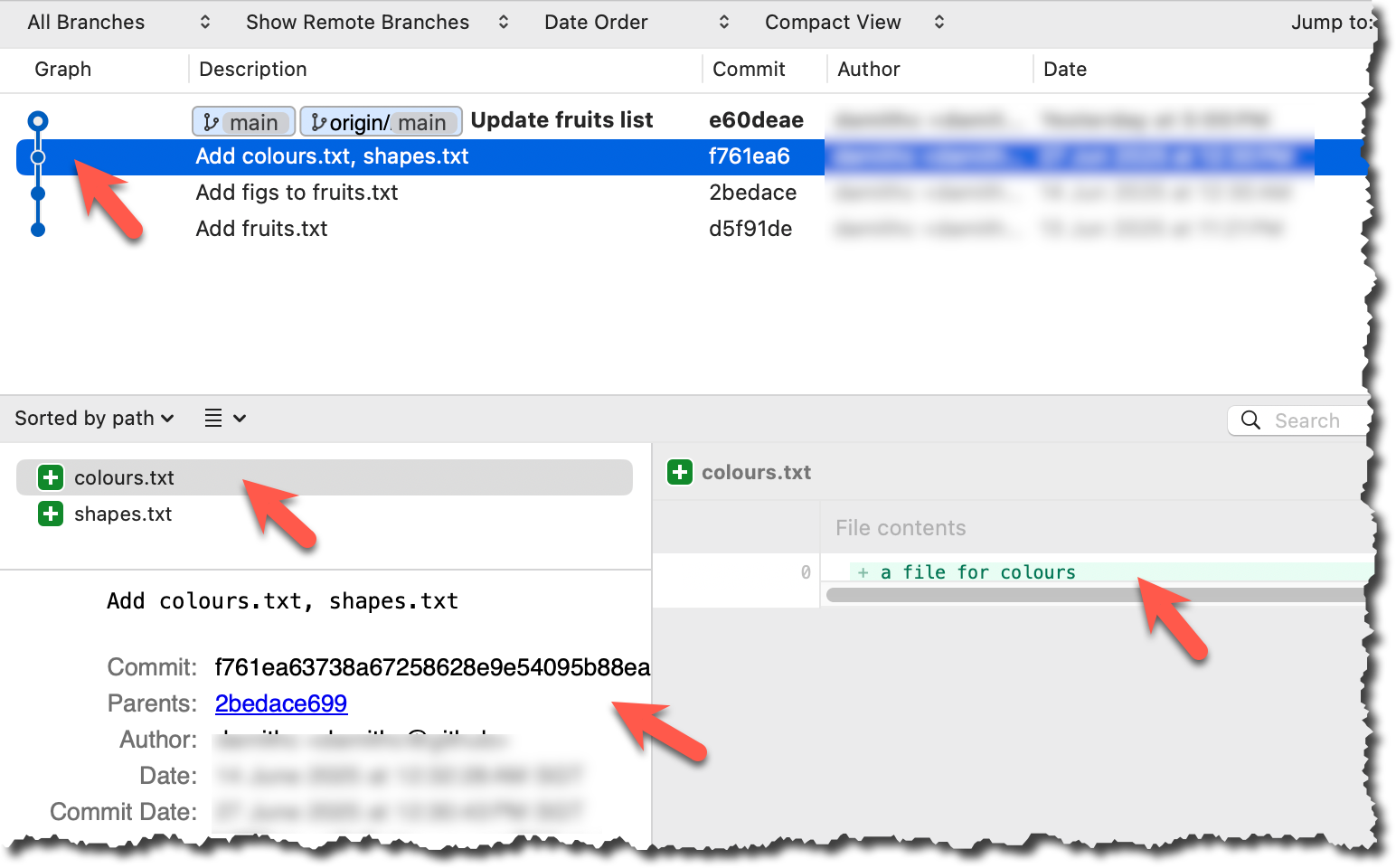
done!
PRO-TIP: Use Git Aliases to Work Faster
The Git alias feature allows you to create custom shortcuts for frequently used Git commands. This saves time and reduces typing, especially for long or complex commands. Once an alias is defined, you can use the alias just like any other Git command; for example, use git lodg as an alias for git log --oneline --decorate --graph.
To define a global git alias, you can use the git config --global alias.<alias> "<command>" command. For example:
git config --global alias.lodg "log --oneline --graph --decorate"
You can also create shell-level aliases using your shell configuration (e.g., .bashrc, .zshrc) to make even shorter aliases. This lets you create shortcuts for any command, including Git commands, and even combine them with other tools. For example, instead of the Git alias git lodg, you can define a shorter shell-level alias glodg.
1. Locate your .bash_profile file (likely to be in C:\Users\<YourName>\.bash_profile -- if it doesn't exist, create it.)
1. Locate your shell's config file e.g., .bashrc or .zshrc (likely to be in your ~ folder)
1. Locate your shell's config file e.g., .bashrc or .zshrc (likely to be in your ~ folder)
Oh-My-Zsh for Zsh terminal supports a Git plugin that adds a wide array of Git command aliases to your terminal.
2. Add aliases to that file:
alias gs='git status'
alias glod='git log --oneline --graph --decorate'
3. Apply changes by running the command source ~/.zshrc or source ~/.bash_profile or source ~/.bashrc, depending on which file you put the aliases in.
When working with many commits, it helps to tag specific commits with custom names so they're easier to refer to later.
Git lets you tag commits with names, making them easy to reference later. This is useful when you want to mark specific commits -- such as releases or key milestones (e.g., v1.0 or v2.1). Using tags to refer to commits is much more convenient than using SHA hashes. In the diagram below, v1.0 and interim are tags.
A tag stays fixed to the commit. Unlike branch refs or HEAD, tags do not move automatically as new commits are made. As you see below, after adding a new commit, tags stay on the previous commits while main←HEAD has moved to the new commit.
Git supports two kinds of tags:
- A lightweight tag is just a ref that points directly to a commit, like a branch that doesn't move.
- An annotated tag is a full Git object that stores a reference to a commit along with metadata such as the tagger's name, date, and a message.
Annotated tags are generally preferred for versioning and public releases, while lightweight tags are often used for less formal purposes, such as marking a commit for your own reference.
Target Add a few tags to a repository.
Preparation
1 Add a lightweight tag to the current commit as v1.0:
git tag v1.0
2 Verify the tag was added. To view tags:
git tag
v1.0
To view tags in the context of the revision graph:
git log --oneline --decorate
507bb74 (HEAD -> main, tag: v1.0, origin/main, origin/HEAD) Add donuts
de97f08 Add cake
5e6733a Add bananas
3398df7 Add food.txt
3 Use the tag to refer to the commit, e.g., git show v1.0 should show the changes in the tagged commit.
4 Add an annotated tag to an earlier commit. The example below adds a tag v0.9 to the commit HEAD~2 with the message First beta release. The -a switch tells Git this is an annotated tag.
git tag -a v0.9 HEAD~2 -m "First beta release"
5 Check the new annotated tag. While both types of tags look similar in the revision graph, the show command on an annotated tag will show the tag details and the details of the commit it points to.
git show v0.9
tag v0.9
Tagger: ... <...@...>
Date: Sun Jun ...
First beta release
commit ....999087124af... (tag: v0.9)
Author: ... <...@...>
Date: Sat Jun ...
Add banana
diff --git a/fruits.txt b/fruits.txt
index a8a0a01..7d0a594 100644
# rest of the diff goes here
Right-click on the commit (in the graphical revision graph) you want to tag and choose Tag….
Specify the tag name, e.g., v1.0, and click Add Tag.
Configure tag properties in the next dialog and press Add. For example, you can choose whether to make it a lightweight tag or an annotated tag (default).
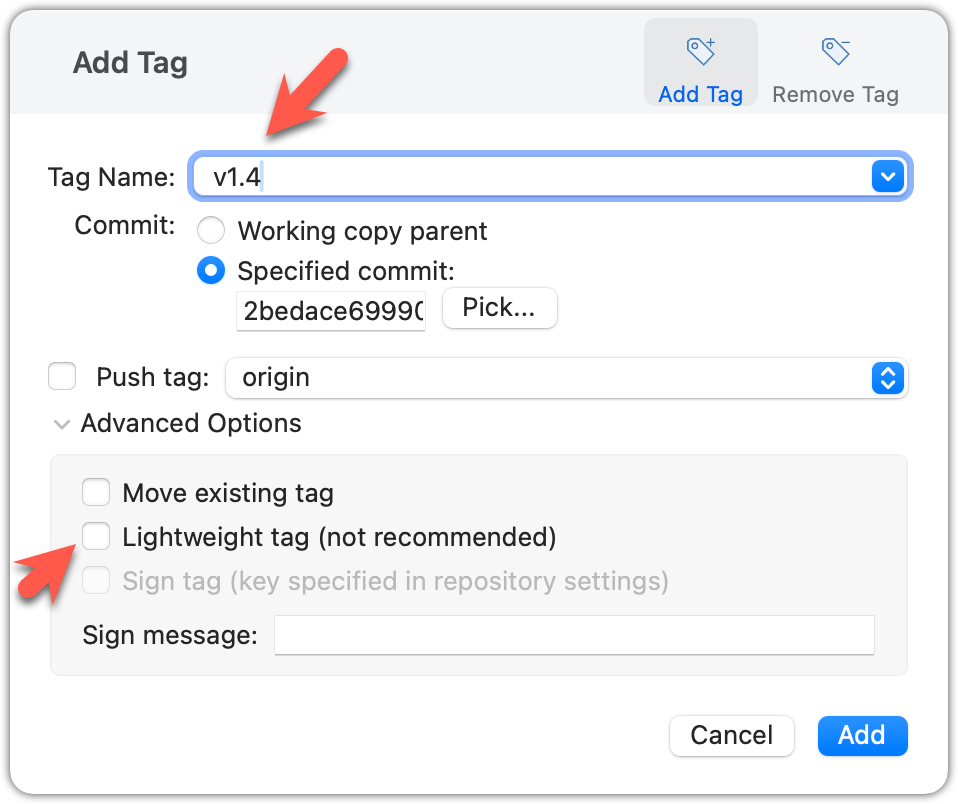
Tags will appear as labels in the revision graph, as seen below. To see the details of an annotated tag, you need to use the menu indicated in the screenshot.

done!
If you need to change what a tag points to, use an explicit delete-and-recreate workflow. This keeps the move visible: tags are designed to be fixed references to specific commits, so changing a tag should feel like replacing an old reference with a new one.
Preparation
Option 2: Continue with the sandbox from the previous hands-on practical
Move the local v1.0 tag to the commit HEAD~1 by deleting it first and creating it again at the destination commit.
Delete the previous v1.0 tag by using the -d . Add it again to the other commit, as before.
git tag -d v1.0
git tag v1.0 HEAD~1
You can use the same dialog to delete or move a tag. Note that 'moving' here means deleting and re-adding the tag behind the scenes.
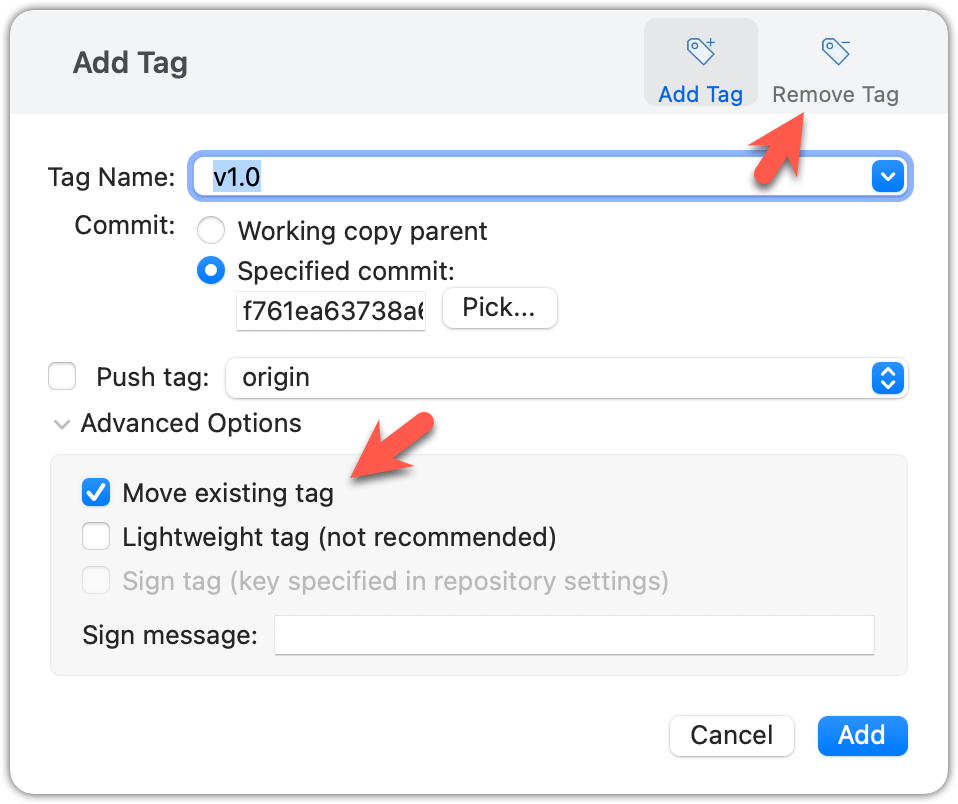
done!
Tags are different from commit messages, in purpose and in form. A commit message is a description of the commit that is part of the commit itself. A tag is a short name for a commit, which you can use to address a commit.
Pushing commits to a remote does not push tags automatically. You need to push tags specifically.
Target Push tags you created earlier to the remote.
Preparation
Option 2: Continue with the sandbox from the previous hands-on practical
You can visit https://github.com/{USER}/{REPO}/tags (e.g., https://github.com/[[username: JohnDoe]]/samplerepo-preferences/tags) to verify the tag is present on GitHub.
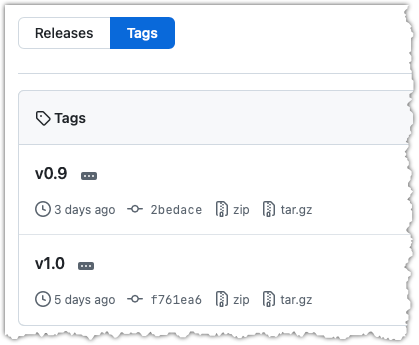
Note how GitHub assumes these tags are meant as releases and automatically provides zip and tar.gz archives of the repo for each tag.
1 Push a specific tag in the local repo to the remote (e.g., v1.0) using the git push <remote> <tag-name> command.
git push origin v1.0
In addition to verifying the tag's presence via GitHub, you can also use the following command to list the tags currently on the remote.
git ls-remote --tags origin
2 Delete a tag from the remote, using the git push --delete <remote> <tag-name> command.
git push --delete origin v1.0
3 Push all tags to the remote repo, using the git push <remote> --tags command.
git push origin --tags
To push a specific tag, use the following menu:
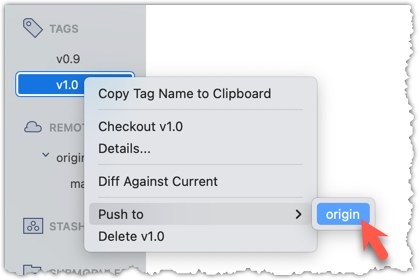
To push all tags, select the Push all tags option when pushing commits:
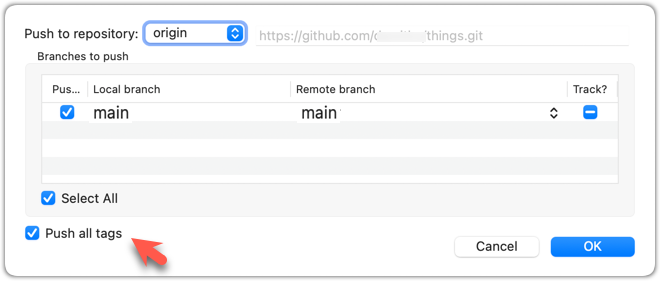
done!
Git can tell you the net effect of changes between two points in history.
Git's diff feature can show you what changed between two points in the revision history. Here are some use cases.
Usage 1: Comparing two commits at different points of the revision graph
Example use case: Suppose you're trying to improve the performance of a piece of software by experimenting with different code tweaks. You commit after each change (as you should). After several commits, you now want to review the overall effect of those changes on the code.
Target Compare two commits in a repo.
Preparation
You can use the git diff <commit1> <commit2> command for this.
- You may use any valid way to refer to commits (e.g., SHA, tag, or
HEAD~n). - You may also use the
..notation to specify the commit range, e.g.,0023cdd..fcd6199,HEAD~2..HEAD.
git diff v0.9 HEAD
diff --git a/colours.txt b/colours.txt
index 55c8449..435e81d 100644
--- a/colours.txt
+++ b/colours.txt
@@ -1 +1,4 @@
a file for colours
+blue
# rest of the diff ...
Swap the commit order in the command and see what happens.
git diff HEAD v0.9
diff --git a/colours.txt b/colours.txt
index 435e81d..55c8449 100644
--- a/colours.txt
+++ b/colours.txt
@@ -1,4 +1 @@
a file for colours
-blue
# rest of the diff ...
As you can see, the diff is directional, i.e., diff <commit1> <commit2> shows what changes are needed to get from <commit1> to <commit2>. If you swap <commit1> and <commit2>, the output will change accordingly; for example, lines previously shown as 'added' will now be shown as 'deleted'.
Select the two commits: Click on one commit, and Ctrl-Click (or Cmd-Click) on the second commit. The changes between the two selected commits will appear in the other panels, as shown below:
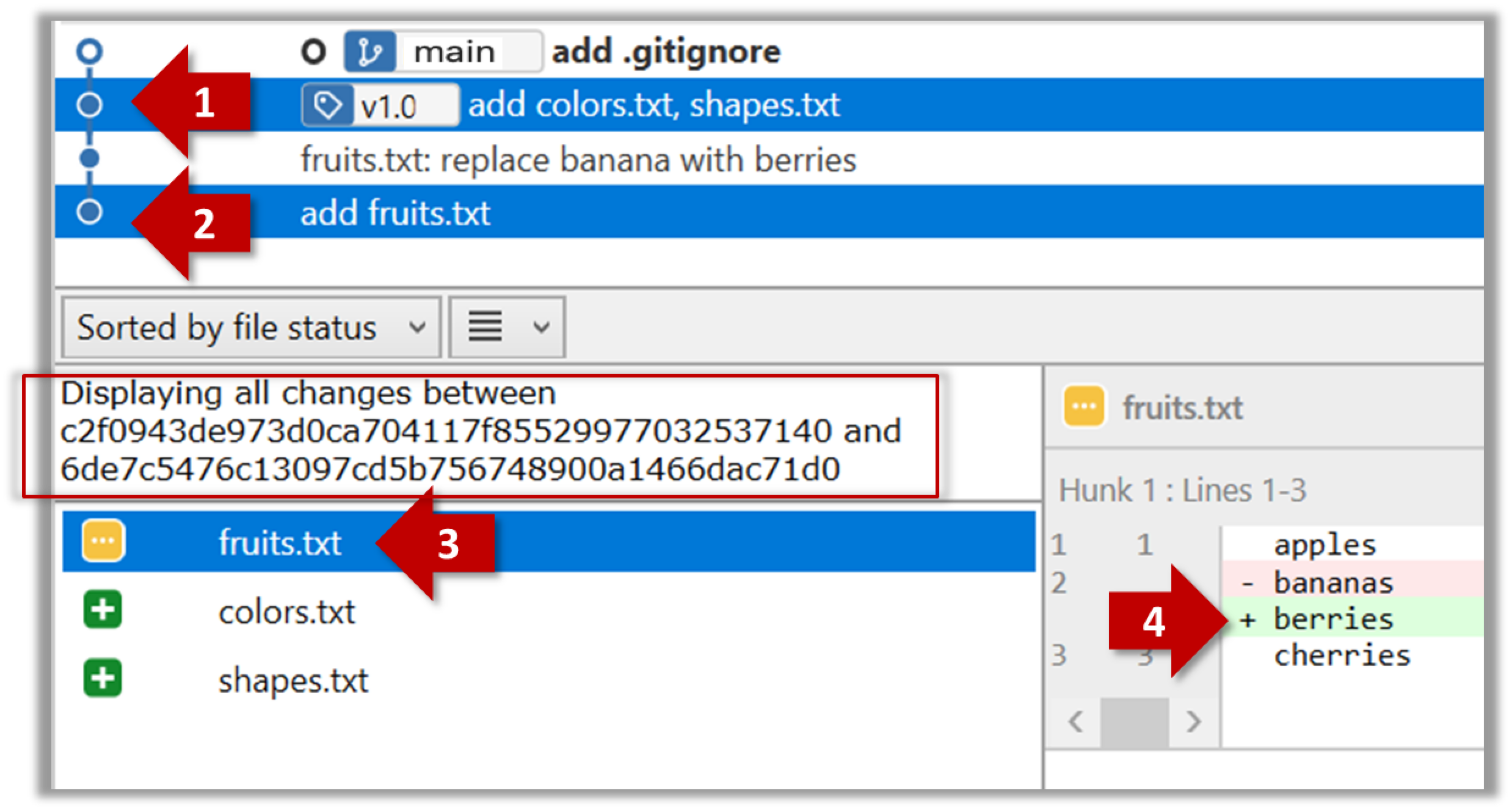
The same method can be used to compare the current state of the working directory (which might have uncommitted changes) to a point in the history.
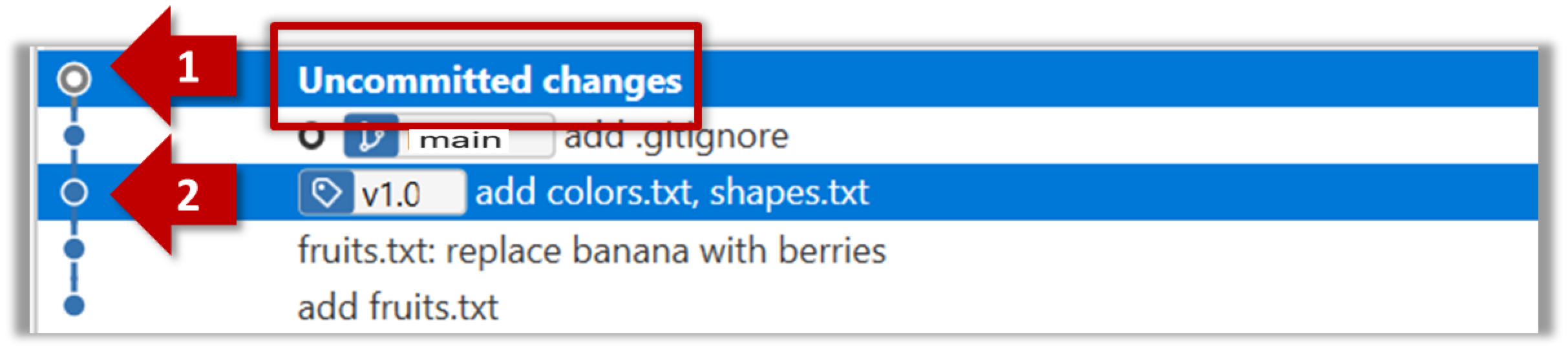
done!
Usage 2: Examining changes in the working directory
Example use case: You want to verify that the next commit will include exactly what you intend it to include.
Preparation
Option 2: Continue with the things repo from the previous hands-on practical
1 Make some changes to the working directory. Stage some (but not all) changes. For example, you can run the following commands.
echo -e "blue\nred\ngreen" >> colours.txt
git add . # a shortcut to stage all changes
echo "no shapes added yet" >> shapes.txt
2 Examine the staged and unstaged changes.
The git diff command shows unstaged changes in tracked files in the working directory. The output of the diff command is a diff view (introduced in this lesson).
git diff
diff --git a/shapes.txt b/shapes.txt
index 4bc044e..1971ab8 100644
--- a/shapes.txt
+++ b/shapes.txt
@@ -3,3 +3,4 @@ circle
oval
rectangle
square
+no shapes added yet
The git diff --staged command shows the staged changes (same as git diff --cached).
git diff --staged
Select the two commits: Click on one commit, and Ctrl-Click (or Cmd-Click) on the second commit. The changes between the two selected commits will appear in the other panels, as shown below:
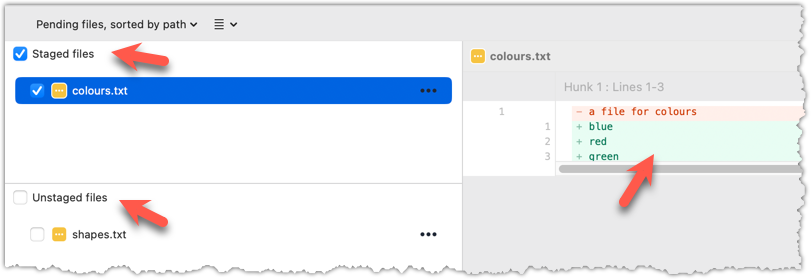
done!
Usage 3: Examining changes to a specific file
Example use case: This is similar to the earlier use cases, but focuses on a specific file.
Target Examine the changes made to a file between two different points in the version history (including the working directory).
Preparation
1 Examine changes to a specific file between specific points in history.
Add -- path/to/file to a previous diff command to narrow the output to a specific file. Some examples:
git diff -- andy/history.txt # unstaged changes to andy/history.txt
git diff --staged -- list.txt # staged changes to list.txt
git diff HEAD~2..HEAD -- list.txt # changes to list.txt between commits
The -- tells Git that what follows it should be interpreted as a file path, not a branch, commit, ref, or tag.
More about the -- in Git commands
Sourcetree UI shows changes to one file at a time by default; just click on the file to view changes to that file. To view changes to multiple files, Ctrl-Click (or Cmd-Click) on multiple files to select them.
done!
Another useful revision control feature is the ability to view the working directory as it was at a specific point in history by checking out a commit created at that point.
Suppose you added a new feature to a software product, and while testing it, you noticed that another feature added two commits ago doesn't handle a certain edge case correctly. Now you're wondering: did the new feature break the old one, or was it already broken? Can you go back to the moment you committed the old feature and test it in isolation, and come back to the present after you find the answer? With Git, you can.
To view the working directory at a specific point in history, you can check out the commit created at that point.
When you check out a commit, Git:
- Updates your working directory to match the snapshot in that commit, overwriting current files as needed.
- Moves the
HEADref to that commit, marking it as the current state you're viewing.
→
[check out commit C2...]
Checking out a specific commit puts you in a "detached HEAD" state: i.e., HEAD no longer points to a branch, but directly to a commit (see the above diagram for an example). This is not a problem by itself, but any commits you make in this state can be lost unless you take certain follow-up actions. It is perfectly fine to be in a detached state if you are only examining the state of the working directory at that commit.
To get out of a "detached HEAD" state, you can check out a branch, which "re-attaches" HEAD to the branch you checked out.
→
[check out main...]
Target Check out a few commits in a local repo, while examining the working directory to verify that it matches the state at the corresponding commit.
Preparation
1 Examine the revision tree, to get your bearings first.
git log --oneline --decorate
Reminder: You can use aliases to reduce typing Git commands.
6304a59 (HEAD -> main) shapes.txt: Add some shapes
9f68246 (tag: 1.0) colours.txt: Add some colours
2ef8852 Update fruits list
8ca5cc6 (tag: 0.9) Add colours.txt, shapes.txt
542668f Add elderberries and figs into fruits.txt
ec49b17 Add fruits.txt
2 Use the git checkout <commit-identifier> command to check out a commit other than the one currently pointed to by HEAD. You can use any of the following methods:
git checkout v1.0: checks out the commit taggedv1.0git checkout 0023cdd: checks out the commit with the hash0023cddgit checkout HEAD~2: checks out the commit two commits before the most recent commit.
git checkout HEAD~2
Note: switching to 'HEAD~2'.
You are in 'detached HEAD' state.
# rest of the warning about the detached HEAD ...
HEAD is now at 2ef8852 Update fruits list
3 Verify HEAD and the working directory have updated as expected.
HEADshould now be pointing at the target commit- The working directory should match the state it was in at that commit (i.e., changes made after that commit should not be in the folder).
git log --oneline --decorate
2ef8852 (HEAD) Update fruits list
8ca5cc6 (tag: 0.9) Add colours.txt, shapes.txt
542668f Add elderberries and figs into fruits.txt
ec49b17 Add fruits.txt
HEAD is indeed pointing at the target commit.
But note how the output does not show commits you added after the checked-out commit.
You can use the following command to verify that the missing commits still exist in the repo.
git log --oneline --decorate --all --date-order
2a6daee (main) shapes.txt: Add some shapes
b9a03c0 (tag: 1.0) colours.txt: Add some colours
b57ad18 (HEAD) Update fruits list
aff416b (tag: 0.9) Add colours.txt, shapes.txt
8998bfb Add elderberries and figs into fruits.txt
9d3b329 Add fruits.txt
The --all switch tells git log to show commits from all refs, not just those reachable from the current HEAD. This includes commits from other branches, tags, and remotes.
The --date-order switch tells git log to order commits primarily by commit date while ensuring it never shows a child commit before its parent. This keeps the output chronologically and topologically sensible
even when multiple commits have identical timestamps (a situation that can happen when commits are generated programmatically by a tool or script, e.g., Git-Mastery).
4 Go back to the latest commit by checking out the main branch again.
git checkout main
In the revision graph, double-click the commit you want to check out, or right-click on that commit and choose Checkout....
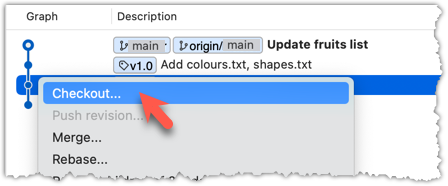
Click OK to the warning about 'detached HEAD' (similar to below).
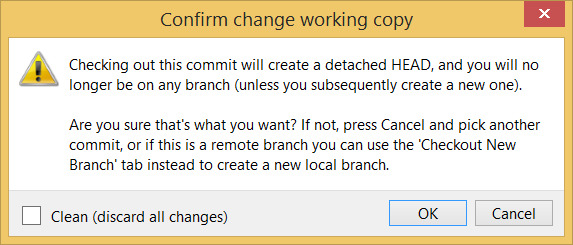
The specified commit is now loaded into the working directory, as indicated by the HEAD label.
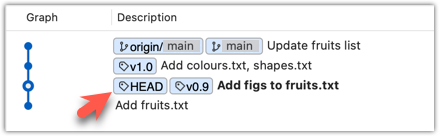
To go back to the latest commit on the main branch, double-click the main branch.
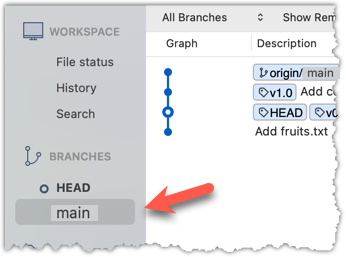
If you check out a commit that comes before the commit in which you added a certain file (e.g., temp.txt) to the .gitignore file, and if the .gitignore file is version controlled as well, Git will now show it under 'unstaged modifications' because at Git hasn't been told to ignore that file yet.
done!
If there are uncommitted changes in the working directory or staging area, Git proceeds with a checkout only if doing so would not overwrite or remove those changes. Here are some examples to illustrate this behavior:
- Example 1: There is a new uncommitted file in the working directory.
→ If the new file is untracked: Git proceeds with the checkout and keeps the file, provided the target commit does not contain a tracked file at the same path.
→ If the new file is staged: Git proceeds with the checkout only if the checkout would not overwrite or remove the staged version of the file. - Example 2: There is an uncommitted change to a file that would be overwritten by the version in the commit you want to check out.
→ Git aborts the checkout.
If these examples feel too abstract for now, the important thing to remember is that Git aims to prevent your uncommitted changes from being irrecoverably lost due to a checkout operation.
The Git stash feature temporarily sets aside uncommitted changes you've made (in your working directory and staging area), without committing them. This is useful when you're in the middle of some work, but you need to switch to another state (e.g., check out a previous commit), and your current changes are not yet ready to be committed or discarded. You can later reapply the stashed changes when you're ready to resume that work.
Git can also reset the revision history to a specific point so that you can start over from that point.
Suppose you realize your last few commits have gone in the wrong direction, and you want to go back to an earlier commit and continue from there, as if the "bad" commits never happened. Git's reset feature can help you do that.
Git reset moves the of the current branch to a specific commit, optionally adjusting your staged and unstaged changes to match. This effectively rewrites the branch's history by discarding any commits that came after that point.
Resetting is different from the checkout feature:
- Reset: Lets you start over from a past state. It rewrites history by moving the branch ref to a new location.
- Checkout: Lets you explore a past state without rewriting history. It just moves the
HEADref.
→
[reset to C2...]
main branch!There are three types of resets: soft, mixed, and hard. All three move the branch pointer (and HEAD) to a new commit, but they vary based on what happens to the staging area and the working directory.
- soft reset: Moves the cumulative changes from the discarded commits into the staging area. Any staged and unstaged changes that existed before the reset will remain unchanged.
→ It is as if you did all the changes in the discarded commits and staged them, but never committed them. - mixed reset: Cumulative changes from the discarded commits, and any existing staged changes, are moved into the working directory. After the reset, no changes are staged.
→ It is as if you did all the changes in the discarded commits, but never staged or committed them. - hard reset: All staged and unstaged changes are discarded. Both the working directory and the staging area are aligned with the target commit.
→ It is as if no changes were made after the target commit.
Scenario Imagine the following scenario. After working with the things repo for a while, you realized that you made the following mistakes.
i) First, you added four 'bad' commits (i.e., commits that shouldn't have been created) -- shown as B1 to B4 in the revision graph given below.
iii) Last, you did a 'bad' change in `shapes.txt`, but didn't stage it yet.
Target Rewrite the repo history to get rid of the 'bad' commits/changes listed above.
Preparation
Now we have some 'bad' commits and some 'bad' changes in both the staging area and the working directory. Let's use reset to get rid of all of them in three steps, so that you can learn all three types of resets.
1 Do a soft reset to B2 (i.e., discard the last two commits). Verify that:
- the
mainbranch is now pointing atB2. - the changes that were in the discarded commits (i.e.,
B3andB4) are now in the staging area.
Use the git reset --soft <commit> command to do a soft reset.
git reset --soft HEAD~2
You can run the following commands to verify the current status of the repo is as expected.
git status # check overall status
git log --oneline --decorate # check the branch tip
git diff # check unstaged changes
git diff --staged # check staged changes
Right-click on the commit that you want to reset to, and choose the Reset <branch-name> to this commit option.
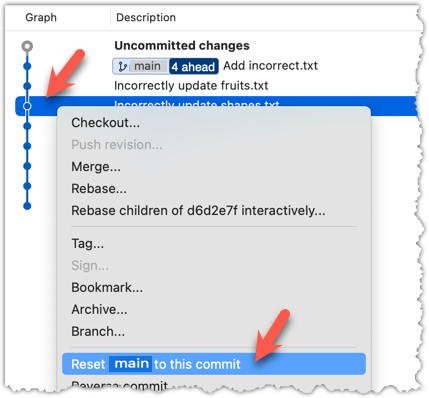
In the next dialog, choose Soft - keep all local changes.
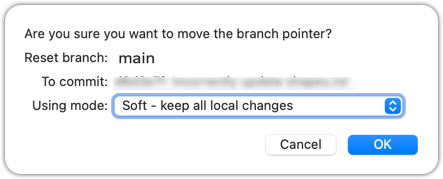
2 Do a mixed reset to commit B1. Verify that:
- the
mainbranch is now pointing atB1. - the staging area is empty.
- the accumulated changes from all three discarded commits (including those from the previous soft reset) now appear as unstaged changes in the working directory.
Note howincorrect.txtappears as an 'untracked' file -- this is because unstaging a change of type 'add file' results in an untracked file.
Use the git reset --mixed <commit> command to do a mixed reset. The --mixed flag is the default, and can be omitted.
git reset HEAD~1
Verify the repo status, as before.
Similar to the previous reset, but choose the Mixed - keep working copy but reset index option in the reset dialog.

3 Do a hard reset to commit C4. Verify that:
- the
mainbranch is now pointing atC4, i.e., all 'bad' commits are gone. - the staging area is empty.
- there are no unstaged changes (except for the untracked file
incorrect.txt-- Git leaves untracked files alone, as untracked files are not meant to be under Git's control).
Use the git reset --hard <commit> command.
git reset --hard HEAD~1
Verify the repo status, as before.
Similar to the previous reset, but choose the Hard - discard all working copy changes option.
done!
Rewriting history can cause your local repo to diverge from its remote counterpart. For example, if you discard earlier commits and create new ones in their place, and you've already pushed the original commits to a remote repository, your local branch history will no longer match the corresponding remote branch. Git refers to this as a diverged history.
To protect the integrity of the remote, Git will reject attempts to push a diverged branch using a normal push. If you want to overwrite the remote history with your local version, you must perform a force push.
Scenario You have a local repo that is linked to a remote repo on GitHub. You have pushed all local commits to the remote repo (i.e., the two are in sync).
Target You want to rewrite the last commit in the local repo and update the remote repo to match the local repo.
Preparation
1 Rewrite the last commit as follows: Reset the current branch back by one commit, and add a new commit.
For example, you can use the following commands.
git reset --hard HEAD~1
echo "water" >> drinks.txt
git add .
git commit -m "Add drinks.txt"
2 Observe how the local branch has diverged.
git log --oneline --graph --all
* 9ff4d04 (HEAD -> main) Add drinks.txt
| * d086f15 (origin/main) shapes.txt: Add some shapes
|/
* 01472c4 colours.txt: Add some colours
* 4d6714c Update fruits list
* 55be601 Add colours.txt, shapes.txt
* fb8d75d Add elderberries and figs into fruits.txt
* 16cad65 Add fruits.txt
3 Attempt to push to the remote. Observe that Git rejects the push.
git push origin main
To https://github.com/.../things.git
! [rejected] main -> main (non-fast-forward)
error: failed to push some refs to 'https://github.com/.../gitmastery-samplerepo-things.git'
hint: Updates were rejected because the tip of your current branch is behind
hint: its remote counterpart. If you want to integrate the remote changes,
hint: ...
4 Do a force-push.
You can use the --force (or -f) flag to force push.
git push -f origin main
A safer alternative to --force is --force-with-lease, which overwrites the remote branch only if it has not changed since you last fetched it (i.e., if the remote does not have recent changes that you are unaware of):
git push --force-with-lease origin main
done!
DETOUR: Resetting Uncommitted Changes
At times, you might need to get rid of uncommitted changes so that you have a fresh start for the next commit.
To get rid of uncommitted changes, you can reset the repo to the last commit (i.e., HEAD):
The command git reset (without specifying a commit) defaults to git reset HEAD.
git reset: moves any staged changes to the working directory (i.e., unstages them).git reset --hard: gets rid of any staged and unstaged changes.
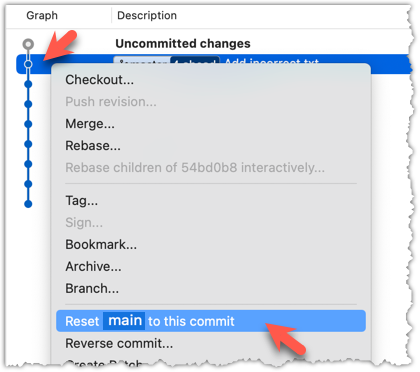
Tour 4: Using the Revision History of a Repo
Tour Outro:
At this point: You should now be able to use a repository's revision history to inspect past commits, mark important commits with tags, compare versions, visit earlier snapshots, and choose between rewriting local history with reset or preserving history with revert.
How useful this history is depends greatly on how well it was constructed -- for example, how focused and well-documented the commits are. We will explore that in the next tour.
To see the full tour as one page, click here.
What's next: Tour 5: Fine-Tuning the Revision History
Tour Intro:
Target Usage: To maintain a clean and meaningful revision history.
Motivation: A revision history is more useful when it consists of well-crafted and well-documented commits.
To create well-crafted commits, you need to know how to control exactly which changes go into a commit.
Crafting a commit involves two aspects:
- What changes to include in it: deciding what changes belong together in a single commit — this is about commit granularity, ensuring each commit represents a meaningful, self-contained change.
- How to include those changes: carefully staging just those changes — this is about using Git’s tools to precisely control what ends up in the commit.
SIDEBAR: Guidelines on what to include in a commit
A good commit represents a single, logical unit of change — something that can be described clearly in one sentence. For example, fixing a specific bug, adding a specific feature, or refactoring a specific function. If each commit tells a clear story about why the change was made and what it achieves, your repository history becomes a valuable narrative of the project’s development. Here are some (non-exhaustive) guidelines:
- No more than one change per commit: Avoid lumping unrelated changes into one commit, as this makes the history harder to understand, review, or revert (if each commit contains one standalone change, you can reverse that change by deleting or reverting that specific commit entirely, without affecting any other changes).
- Make the commit standalone: Don’t split a single logical change across multiple commits unnecessarily, as this can clutter the history and make it harder to follow the evolution of an idea or feature.
- Small enough to review easily, but large enough to stand on its own: For example, fixing the same typo in five files can be one commit — splitting it into five separate commits is excessive. Conversely, implementing a big feature may be too much for one commit — instead, break it down into a series of commits, each containing a meaningful yet standalone step toward the final goal.
Git lets you choose not just which files, but which specific changes within those files, to include in a commit. Most Git tools — including the command line and many GUIs — let you interactively select which "hunks" or even individual lines of a file to stage. This allows you to separate unrelated changes and avoid committing unnecessary edits. If you make multiple changes in the same file, you can selectively stage only the parts that belong to the current logical change.
This level of control is particularly useful when:
- You noticed and fixed a small, unrelated issue while working on something else.
- You experimented with multiple approaches in the same file and now want to commit only the final, clean solution.
- You want your commit history to clearly separate concerns, even when the edits touch the same files.
Preparation You can use any repo for this.
1 Make several changes to some tracked files. Change multiple files. Also change multiple locations in the same file.
2 Stage some changes in some files while keeping other changes in the same files unstaged.
As you know, you can use git add <filename> to stage changes to an entire file.
To select which hunks to stage, you can use the git add -p command instead (-p stands for 'by patch'):
git add -p
This command opens an interactive mode where you can go through each hunk and decide whether to stage it. The video below demonstrates how this feature works:
To stage a hunk, click the Stage button above that hunk:
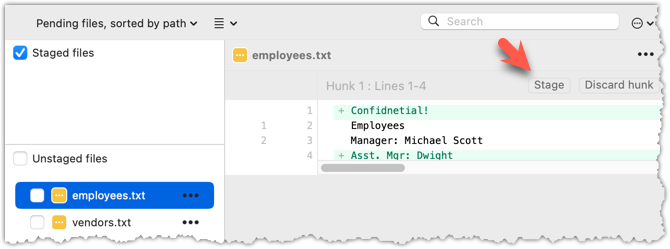
To stage specific lines, select the lines before clicking the Stage button above that hunk:
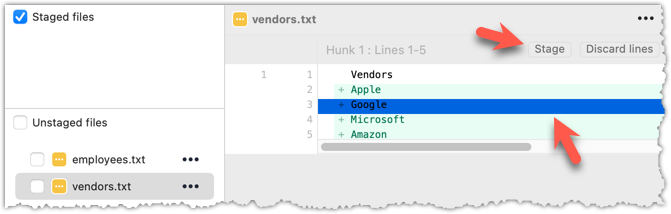
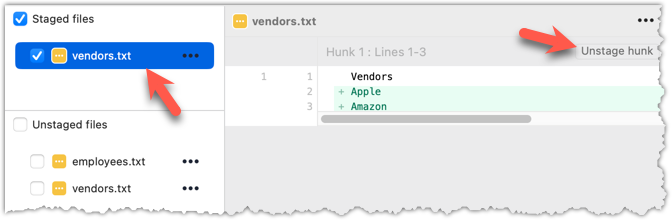
Most Git operations can be done faster through the CLI than through equivalent Git GUI clients, once you are familiar enough with the CLI commands.
However, selective staging is one exception where a good GUI can do better than the CLI, if you need to do many fine-grained staging operations (e.g., frequently staging only parts of hunks).
done!
Detailed and well-written commit messages can increase the value of Git revision history.
Every commit you make in Git also includes a commit message that explains the change. While one-line messages are fine for small or obvious changes, as your revision history grows, good commit messages become an important source of information — for example, to understand the rationale behind a specific change made in the past.
A commit message is meant to explain the intent behind the changes, not just what was changed. The code (or diff) already shows what changed. Well-written commit messages make collaboration, code reviews, debugging, and future maintenance easier by helping you and others quickly understand the project’s history without digging into the code of every commit.
A complete commit message can include a short summary line (the subject) followed by a more detailed body if needed. The subject line should be a concise description of the change, while the body can elaborate on the context, rationale, side effects, or other details if the change is more complex.
A commit message has the following structure (note how the subject and the body are separated by a blank line):
Subject line
<blank line>
Body
# lines starting with '#' are ignored (they will not be included in the commit message)
Here is an example commit message:
Find command: make matching case-insensitive
Find command is case-sensitive.
A case-insensitive find is more user-friendly because users cannot be
expected to remember the exact case of the keywords.
Let's:
* update the search algorithm to use case-insensitive matching
* add a script to migrate stress tests to the new format
Make some changes to a repo you have.
Commit the changes while writing a full commit message (i.e., subject + body).
When you are ready to commit, use the git commit command (without specifying a commit message).
git commit
This will open your default text editor (like Vim, Nano, or VS Code). Write the commit message inside the editor.
Save and close the editor to create the commit.
You can write your full commit message in the text box you have already been using to write commit messages.
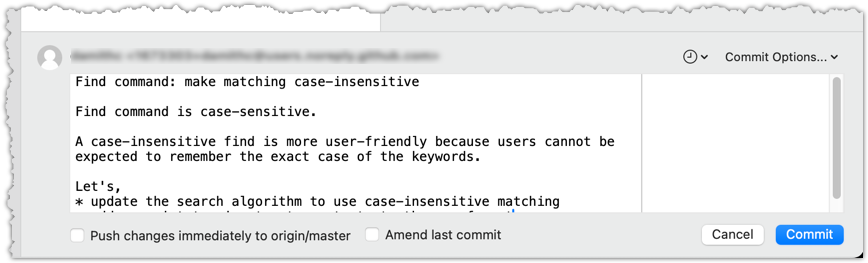
done!
Following a style guide makes your commit messages more consistent and useful. Many teams adopt established guidelines. These style guides typically contain common conventions that Git users follow when writing commit messages. For example:
- Keep the subject line (the first line) under 50–72 characters.
- Write the subject in the imperative mood (e.g.,
Fix typo in READMErather thanFixed typoorFixes typo). - Leave a blank line between the subject and the body, if you include a body.
- Wrap the body at around 72 characters per line for readability.
PRO-TIP: Configure Git to use your preferred text editor
Git will use the default text editor when it needs you to write a commit message. However, Git can be configured to use a different text editor of your choice.
You can use the following command to set Git's default text editor:
git config --global core.editor "<editor command>"
Some examples of <editor command>:
| Editor | Command to use |
|---|---|
| Vim (default) | vim |
| Nano | nano |
| VS Code | code --wait e.g., git config --global core.editor "code --wait"For this to work, your computer should already be configured to launch VS Code using the code command. See the VS Code command-line documentation for instructions (refer to the 'Launching from command line' section). |
| Sublime Text | subl -n -w |
| Atom | atom --wait |
| Notepad++ | notepad++.exe (Windows only) |
| Notepad | notepad (Windows built-in) |
Why use --wait or -w? Graphical editors (like VS Code or Sublime) start a separate process, which can take a few seconds. Without --wait, Git may think editing is done before you actually write the message. --wait makes Git pause until the editor window is closed.
When the revision history gets 'messy', Git has a way to 'tidy up' the recent commits.
Git has a powerful tool called interactive rebasing, which lets you review and reorganize your recent commits. With it, you can reword commit messages, change their order, delete commits, combine several commits into one (squash), or split a commit into smaller pieces. This feature is useful for tidying up a commit history that has become messy — for example, when some commits are out of order, poorly described, or include changes that would be clearer if split up or combined.
Preparation Run the following commands to create a sample repo that we'll use for this hands-on practical:
mkdir samplerepo-sitcom
cd samplerepo-sitcom
git init -b main
echo "Aspiring actress" >> Penny.txt
git add .
git commit -m "C1: Add Penny.txt"
echo "Scientist" >> Sheldon.txt
git add .
git commit -m "C3: Add Sheldon.txt"
echo "Comic book store owner" >> Stuart.txt
git add .
git commit -m "C2: Add Stuart.txt"
echo "Engineer" >> Stuart.txt
git commit -am "X: Incorrectly update Stuart.txt"
echo "Engineer" >> Howard.txt
git add .
git commit -m "C4: Adddd Howard.txt"
Target Here are the commits that should be in the created repo, and how each commit needs to be 'tidied up'.
C4: Adddd Howard.txt-- Fix typo in the commit messageAdddd→Add.X: Incorrectly update Stuart.txt-- Drop this commit.C2: Add Stuart.txt-- Swap this commit with the one below.C3: Add Sheldon.txt-- Swap this commit with the one above.C1: Add Penny.txt-- No change required.
1 Start the interactive rebase.
To start the interactive rebase, use the git rebase -i <start-commit> command. -i stands for 'interactive'. In this case, we want to modify the last four commits (hence, HEAD~4).
git rebase -i HEAD~4
pick 97a8c4a C3: Add Sheldon.txt
pick 60bd28d C2: Add Stuart.txt
pick 8b9a36f X: Incorrectly update Stuart.txt
pick 8ab6941 C4: Adddd Howard.txt
# Rebase ee04afe..8ab6941 onto ee04afe (4 commands)
#
# Commands:
# p, pick <commit> = use commit
# r, reword <commit> = use commit, but edit the commit message
# e, edit <commit> = use commit, but stop for amending
# s, squash <commit> = use commit, but meld into previous commit
# f, fixup [-C | -c] <commit> = like "squash" but keep only the previous
# commit's log message, unless -C is used, in which case
# keep only this commit's message; -c is same as -C but
# opens the editor
# x, exec <command> = run command (the rest of the line) using shell
# b, break = stop here (continue rebase later with 'git rebase --continue')
# d, drop <commit> = remove commit
# l, label <label> = label current HEAD with a name
# t, reset <label> = reset HEAD to a label
# m, merge [-C <commit> | -c <commit>] <label> [# <oneline>]
# create a merge commit using the original merge commit's
# message (or the oneline, if no original merge commit was
# specified); use -c <commit> to reword the commit message
# u, update-ref <ref> = track a placeholder for the <ref> to be updated
# to this position in the new commits. The <ref> is
# updated at the end of the rebase
#
# These lines can be re-ordered; they are executed from top to bottom.
#
# If you remove a line here THAT COMMIT WILL BE LOST.
#
# However, if you remove everything, the rebase will be aborted.
#
The command opens your text editor, which shows content similar to the example above. It has two parts:
- At the top, the list of commits and the action to take on each, oldest commit first, with the action
pickindicated by default (pickmeans 'use this commit in the result') for each. - At the bottom, instructions on how to edit those lines.
2 Edit the commit list to specify the rebase actions, as follows:
pick 60bd28d C2: Add Stuart.txt
pick 97a8c4a C3: Add Sheldon.txt
drop 8b9a36f X: Incorrectly update Stuart.txt
reword 8ab6941 C4: Adddd Howard.txt
3 Once you save your edits and exit the text editor, Git will perform the rebase based on the actions you specified, from top to bottom.
At certain points, Git will pause the rebase and ask for your input. In this case, it will ask you to specify the new commit message when it processes the following line.
reword 8ab6941 C4: Adddd Howard.txt
To enter interactive rebase mode, right-click the parent commit of the earliest commit you want to reorganize (in this case, it is C1: Add Penny.txt) and choose Rebase children of <SHA> interactively...
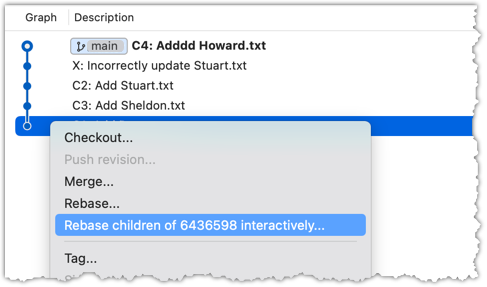
2 To indicate which action to perform on each commit, select the commit in the list and click the button for the action you want to apply to it:
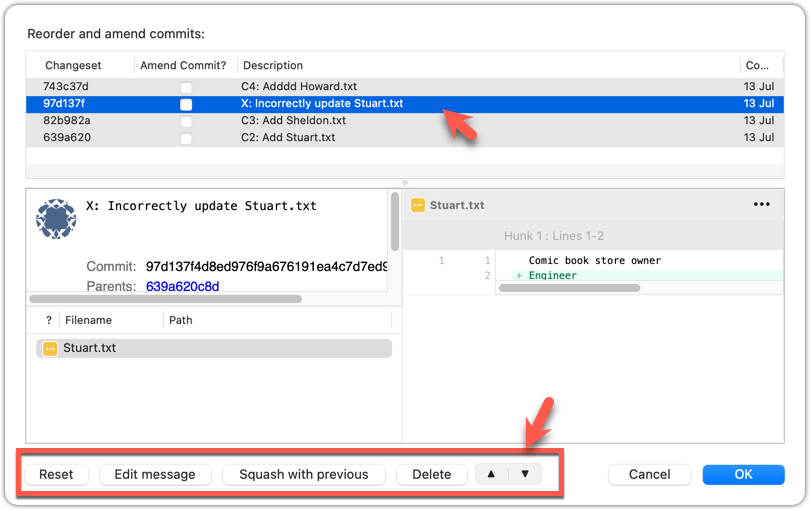
3 To execute the rebase, after indicating the action for all commits (the dialog will look like the following), click OK.
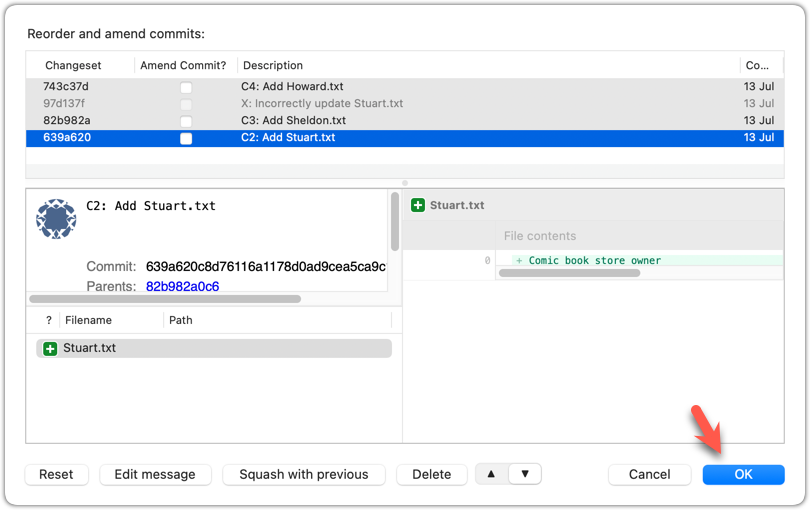
The final result should look like this, with the commits 'tidied up' exactly as intended:
* 727d877 C4: Add Howard.txt
* 764fc29 C3: Add Sheldon.txt
* 08a965a C2: Add Stuart.txt
* 6436598 C1: Add Penny.txt
done!
PRO-TIP: Combining commits with squash
Instead of dropping a commit, you can meld it into the commit right before it in the list, using squash (or s). For example, if X: Incorrectly update Stuart.txt had been an unfinished part of C2: Add Stuart.txt rather than a mistake to discard, you could squash it into C2 like this:
pick 60bd28d C2: Add Stuart.txt
squash 8b9a36f X: Incorrectly update Stuart.txt
pick 97a8c4a C3: Add Sheldon.txt
reword 8ab6941 C4: Adddd Howard.txt
Git will then open the editor so you can combine the two commit messages. X will disappear as a separate commit, with its changes merged into C2.
Splitting a commit into smaller ones is also possible, though it takes a few more steps: mark the commit with edit instead of pick, then when the rebase pauses on it, undo just that commit with git reset HEAD~1 (this unstages its changes but keeps them in the working directory), and re-stage and commit the changes in smaller pieces before continuing the rebase with git rebase --continue.
Rebasing rewrites history. Do not rebase commits you have already shared with others.
DETOUR: Updating the Last Commit
Git allows you to amend the most recent commit. This is useful when you realize you need to change something, such as fixing a typo in the commit message or excluding an unintended change from the commit.
Updating the commit message
To change the commit message subject only, use the git commit --amend -m "<new commit message>" command.
git commit --amend -m "Fix bug that froze the GUI"
To change the entire commit message (not just the subject), run the git commit --amend command, which will open the text editor for you to edit the commit message. The commit will be updated when you close the text editor.
Click the Commit button in the top menu. In the commit-message area, use one of the two methods below to enter 'Amend last commit' mode.
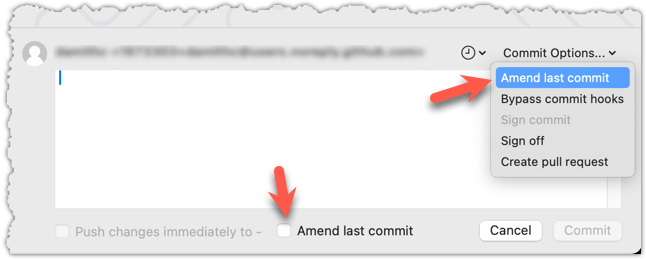
Sourcetree will populate the text box with the previous commit message. Edit it as needed, and click the Commit button to update the commit.
Updating changes in the commit
One reliable method is to perform a 'soft reset' of the last commit, update the staging area as needed, and commit again.
'Updating' a commit does not really update that commit; instead, it creates a new commit with the new data. The original commit remains and is 'left behind' in the repo, and will be garbage-collected after a while if it is not referenced by anything else.
Tour 5: Fine-Tuning the Revision History
Tour Outro:
At this point: You should now be able to create more meaningful commits from the start, and also refine them further after they’ve been created.
To see the full tour as one page, click here.
What's next: Tour 6: Branching Locally
Tour Intro:
Target Usage: To make use of multiple timelines of work in a local repository.
Motivation: At times, you need to do multiple parallel changes to files (e.g., to try two alternative implementations of the same feature).
To work in parallel timelines, you can use Git branches.
Often, we need to make multiple parallel changes to files in a repository without one change affecting the others.
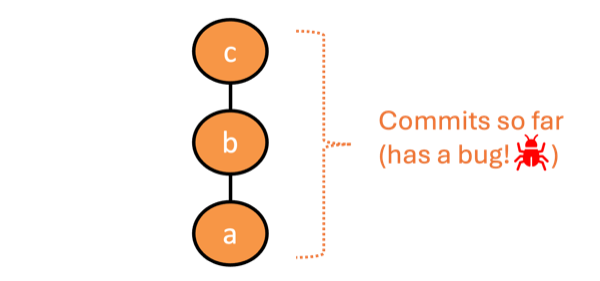
One such situation is when you want to experiment with multiple alternative fixes to a bug in parallel.
For example, suppose you notice a bug after a few commits, as shown on the left, and want to try alternative fixes.
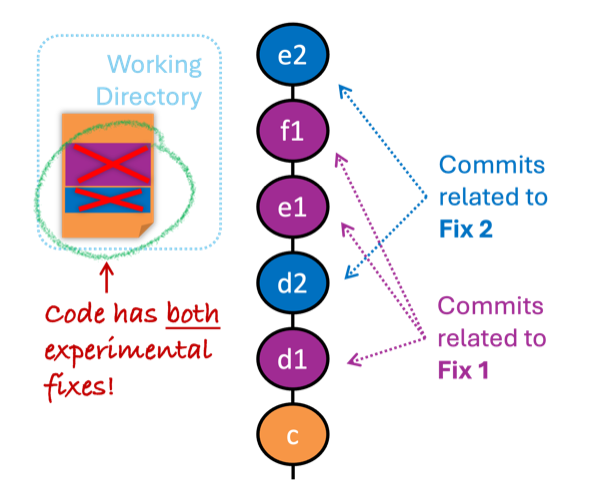
If you simply create more commits, the two fixes can mix together, interfere with each other, and get tangled with your main code.
You could copy the repository into two folders and try one fix in each. But then you would have three repositories to manage and would need to copy changes manually when choosing a fix.
Instead, we need a way to maintain multiple parallel timelines in the same repository.
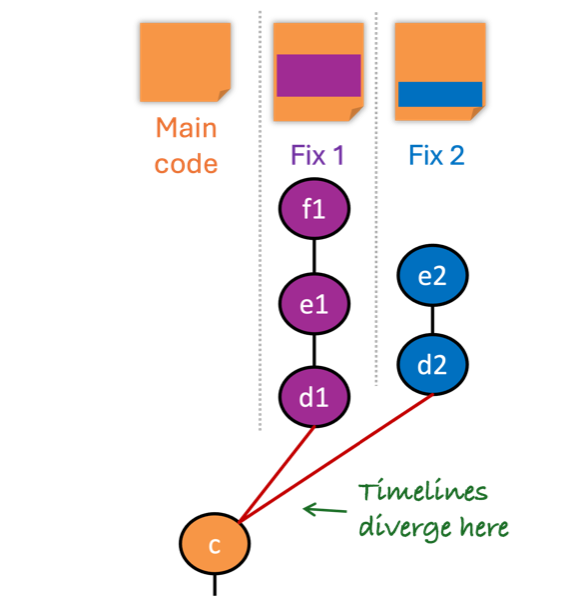
Because Git revision graphs are implemented as , they can already maintain multiple parallel timelines. For example, Git can maintain two timelines that diverge from the main timeline at commit c, one for each bug fix. You can then switch between them, compare the fixes, and choose which one to keep.
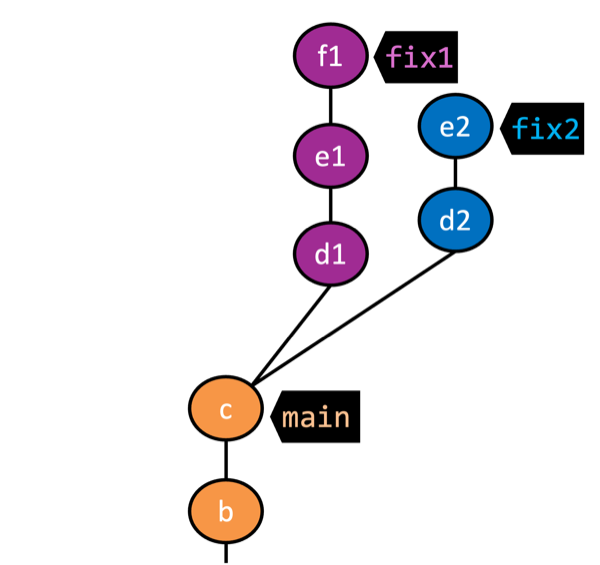
Branches let us manage diverged timelines in a practical way. A branch name points to the latest commit in a timeline, making that timeline easy to refer to.
Therefore, a branch is conceptually a named timeline of commits, implemented as a label/reference (ref for short) that points to the latest commit in that timeline. In the example on the left, there are three branches: main, fix1, and fix2.
The latest commit that a points to is called the tip of the branch. For example, c is the tip of the main branch while f1 is the tip of the fix1 branch.
All commits reachable from the branch ref are considered part of the branch. Reachability follows each commit's 'parent' link. In the example below, commits c, b, and a are on main because Git can start from the ref main and traverse to those commits through parent links. Similarly, commits f1, e1, d1, c, b, and a are on fix1.
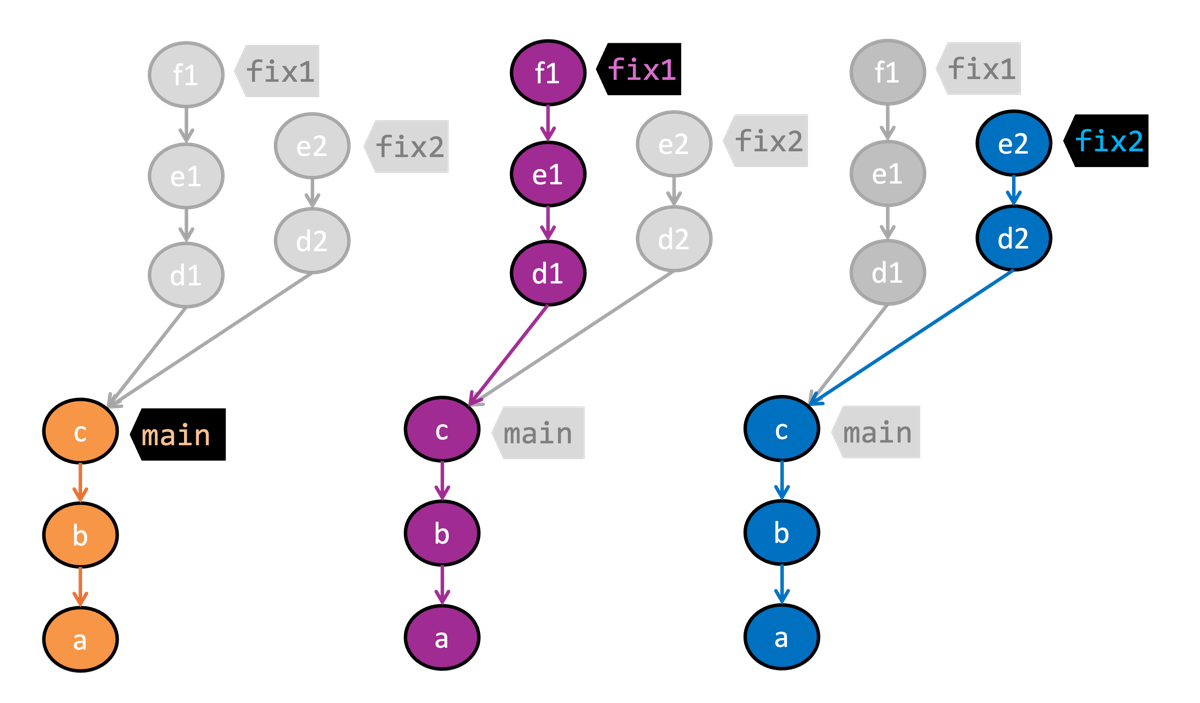
Clarification on the 'start' of a branch
We often call the point where a branch diverges from another branch the 'start' of the branch. However, technically, a branch doesn't have a start point. Since all commits reachable from a branch ref are part of the branch, the branch could be said to start at any of those commits.
In the examples above, commit c could be called the start of branches fix1 and fix2, although commits a and b are also in those branches.
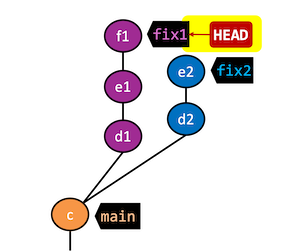
The HEAD is a special ref that points to the branch ref of the branch you are currently on, also called the current branch or the active branch. In the example on the left, fix1 is the active branch.
Git automatically updates the working directory to match the branch tip. As a result, changes made only in other diverged branches do not pollute it. This lets you work on one timeline in isolation.
Caveat: When switching branches, uncommitted changes may be carried across, conflict, or block the switch. More on this later.
In the example below, observe how the file in the working directory changes as we change the active branch.
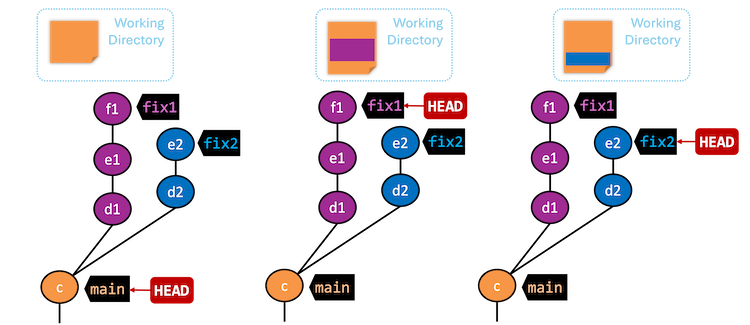
Next, let us look at how branches behave as you add commits.

After you initialize a repo, Git already has a HEAD ref pointing to a branch ref. master is Git's default name for that initial branch, although you can configure another default. main is more common these days (and is the default used by Git-Mastery), so we will use it here.
At the start, you already have a branch but without any commits on it.

When you create the first commit, the main branch ref points to it, making that commit the tip of main.
The first commit of a repo doesn't have a parent commit.
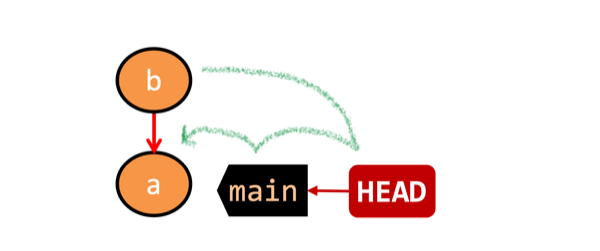
When you add a new commit, two things happen:
- First, the new commit uses the commit
HEADpoints to as its parent. Here, the new commit uses commitaas its parent.
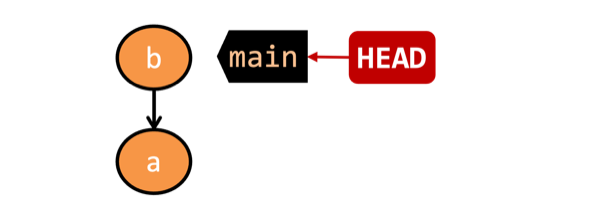
- Second, the branch ref that
HEADpoints to moves to the new commit. In this example, themainbranch ref will move to the new commitb.
TheHEADcontinues to point to the same branch ref, which means themainbranch is still the active branch.
New commits go into the branch you are currently on, and the branch ref moves to the new commit, so HEAD too points to the new commit through that branch ref.
Next, let's add branches beyond Git's initial branch.
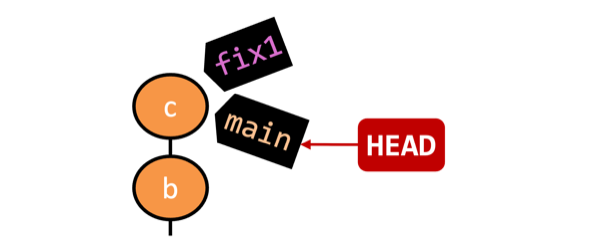
When you add a new branch, Git adds a branch ref pointing to a commit. Unless you specify another commit, it points to the tip of the current branch.
In the example on the left, the new fix1 branch ref points to the same commit as main.
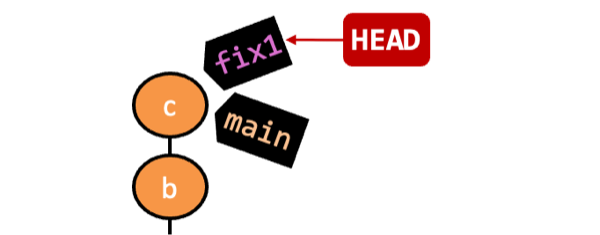
If you want subsequent commits to go into the new branch, make it active by switching to it. Then, HEAD points to the new branch ref.
In the example on the left, HEAD now points to fix1, making fix1 active.
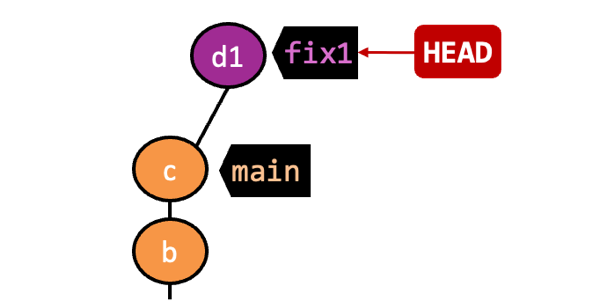
Now, a new commit d1 has been added to fix1. The fix1 ref has moved to the new commit, and HEAD points to it via the fix1 branch ref. The main branch ref remains where it is.
Revision graphs vary by Git client, so your graph's colors, positions, and orientation might not match these diagrams exactly.
Preparation
1 Observe that you are on the branch called main.
git status
On branch main
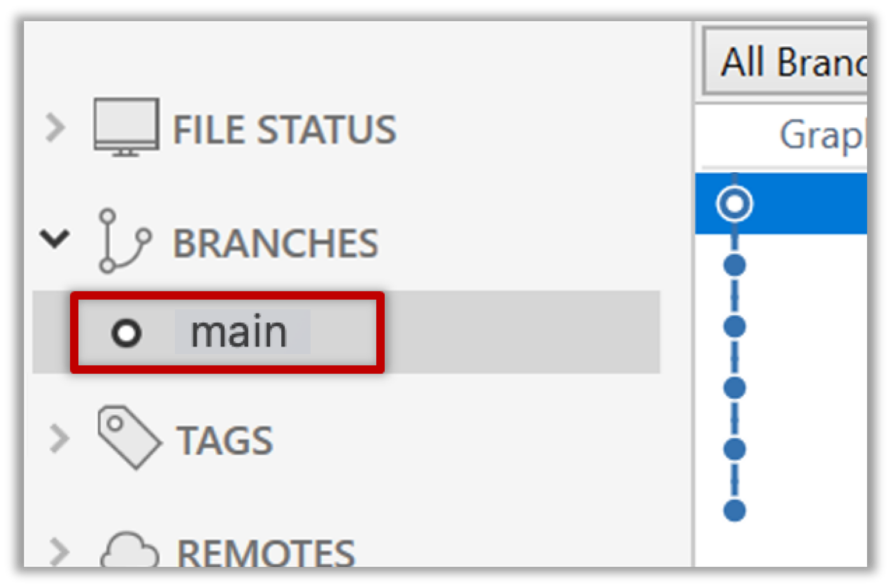
2 Start a branch named feature1 and switch to the new branch.
Use git branch to create a branch and git checkout to switch to it.
git branch feature1
git checkout feature1
Shortcut to create and switch in one step:
git checkout -b feature1
Switched to a new branch 'feature1'
The new switch command
You can use the more modern alternative git switch instead of git checkout.
To create a new branch and switch to it:
git branch feature1
git switch feature1
One-step shortcut (by using -c or --create flag):
git switch -c feature1
To list the branches in the repo, use the git branch (or the more specific git branch --list) command:
git branch
* feature1
main
The * indicates the current branch. The main branch is still there, but you are now on the feature1 branch.
Click on the Branch button on the main menu. In the next dialog, enter the branch name and click Create Branch.

Note that feature1 is now the current branch. Sourcetree switches automatically when Checkout New Branch was selected in the dialog.
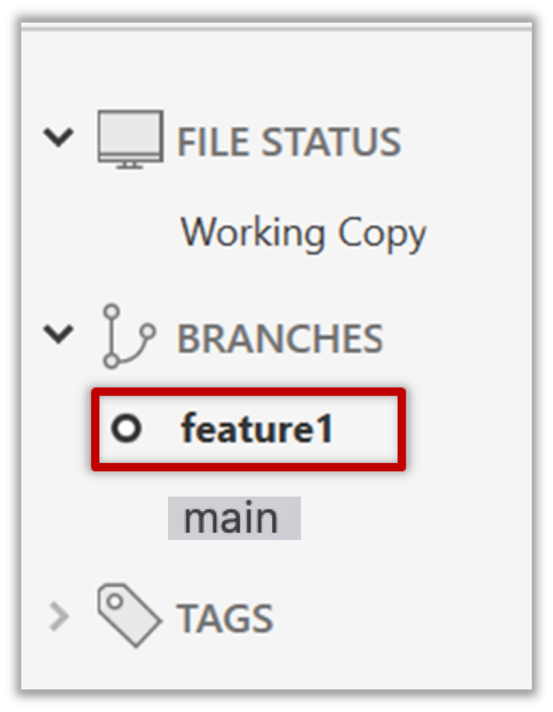
3 Create some commits in the new branch, as follows.
- Add a file named
boxing.txt, stage it, and commit it.echo "Muhammad Ali" > boxing.txt git stage boxing.txt git commit -m "Add boxing.txt" - Observe how commits you add while on
feature1become part of that branch.
Observe how thefeature1ref andHEADref move to the new commit.
As before, you can use the git log --oneline --decorate command for this.
- Sourcetree sometimes represents the local repo's
HEADref as , as shown below:
- The
HEADref is not shown in the UI if it is already pointing at the active branch.
- Add more text to
boxing.txt, stage the changes, and commit it. This commit is also added tofeature1.echo "Mike Tyson" >> boxing.txt git commit -am "Add Tyson to boxing.txt"
4 Switch to the main branch. Note how the changes you made in the feature1 branch are no longer in the working directory.
git switch main
Double-click the main branch.
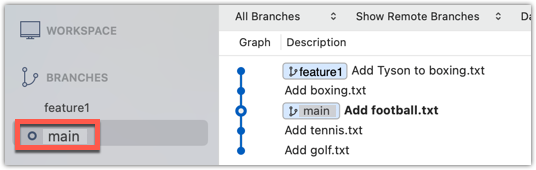
5 Add a commit to the main branch. Let’s imagine it’s a bug fix.
To keep things simple for the time being, this commit should not involve the boxing.txt file that you changed in the feature1 branch. Of course, this is easily done, as the boxing.txt file you added in the feature1 branch is not even visible when you are in the main branch.
echo "Martina Navratilova" >> tennis.txt
git commit -am "Add Martina to tennis.txt"
gitGraph BT:
%%{init: { 'theme': 'default', 'gitGraph': {'mainBranchName': 'main'}} }%%
commit id: "m0"
commit id: "m1"
commit id: "m2"
branch feature1
commit id: "f1"
commit id: "[feature1] f2"
checkout main
commit id: "[HEAD → main] m3"
checkout feature1
6 Switch between the two branches and see how the working directory changes. You now have two parallel timelines that you can freely switch between.
done!
You can also start a branch from an earlier commit, not only from the latest commit in the current branch. Check out the commit you want the new branch to start from.
Preparation
Option 2: Continue with the sports repo from the previous hands-on practical
Scenario Suppose we want a branch with an alternative version of the feature1 content.
Target Create a new branch from the commit where feature1 started, as shown below:
gitGraph BT:
%%{init: { 'theme': 'default', 'gitGraph': {'mainBranchName': 'main'}} }%%
commit id: "m0"
commit id: "m1"
commit id: "m2"
branch feature1
branch feature1-alt
checkout feature1
commit id: "f1"
commit id: "[feature1] f2"
checkout main
commit id: "[HEAD → main] m3"
checkout feature1-alt
commit id: "[HEAD → feature1-alt] a1"
Avoid this rookie mistake!
Before creating a branch, make sure you are at the commit where the new branch should start, as that is where Git will create the new branch by default.
1 Switch to the main branch.
2 Check out the commit where feature1 diverged from main (e.g., git checkout HEAD~1). This creates
a 'detached' HEAD. You are now at the commit where the new branch should diverge.
3 Create a new branch feature1-alt and switch to it (e.g., git switch -c feature1-alt). HEAD now points to this new branch and is no longer 'detached'.
PRO-TIP: Moving and creating a branch in one shot
Suppose you are on feature1 and want to create feature2 from main, then switch to it. Normally, that takes two steps:
git switch main # switch to the intended base branch first
git switch -c feature2 # create the new branch and switch to it
Use git switch -c <new-branch> <start-point> to do both in one step:
git switch -c feature2 main
Similarly, the following will create the new branch to start from one commit behind the tip of the main branch:
git switch -c feature2 main~1
4 Add a commit on the new branch. Example:
echo "Venus Williams" >> tennis.txt
git commit -am "Add Venus to tennis.txt"
done!
Most work done on branches eventually gets merged together.
Merging combines the changes from one branch into another, bringing their diverged timelines back together.
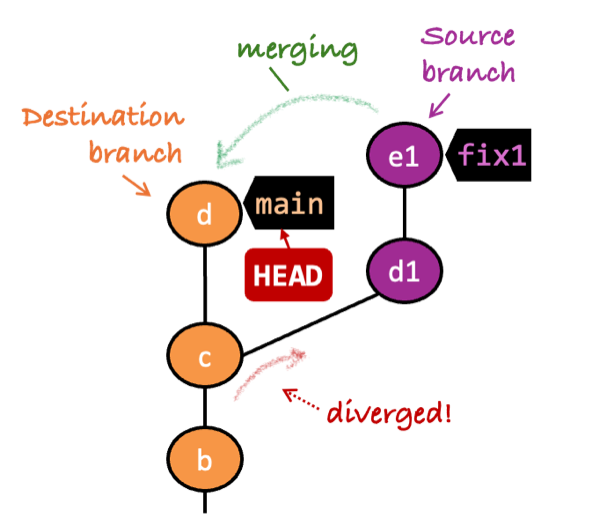
The branch you are merging into (the branch you are currently on) is called the destination branch (other terms: receiving branch, target branch).
The branch you are merging is the source branch (other terms: incoming branch, merge branch).
In our example, main is the destination branch and fix1 is the source branch.
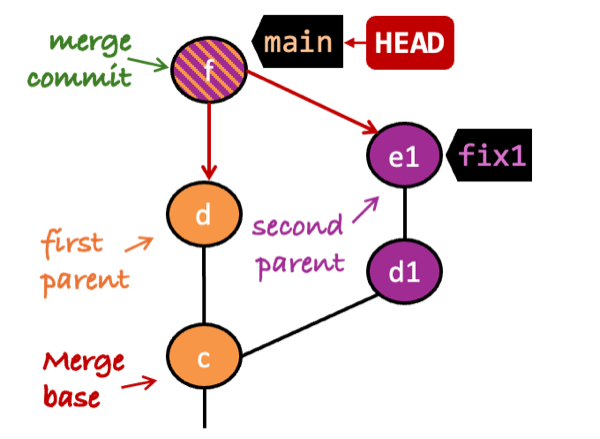
When you merge, Git compares how the two branches have diverged since their merge base (the most recent common ancestor commit). In the example on the left, commit c is their merge base.
Git then applies the source branch's changes to your current branch. Normally, this creates a new commit in the destination branch . That merge commit records the combined changes.
A typical two-branch merge commit has two parent commits. In the example above, merge commit f has both d and e as parents. The parent commit on the is the first parent, and the parent commit on the is the second parent. In our example, when fix1 is merged into main, d is the first parent and e1 is the second parent.
Merging is directional. Merging fix1 into main is not the same as merging main into fix1, as illustrated below.
fix1 into main]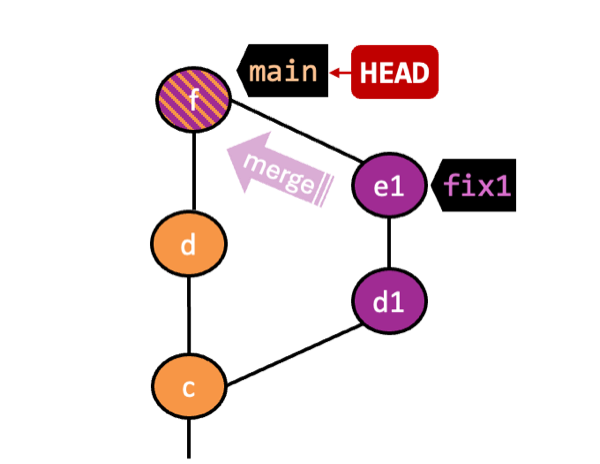
Changes made in d1 and e1 are available on main, but changes made in d are not available on fix1.
main into fix1]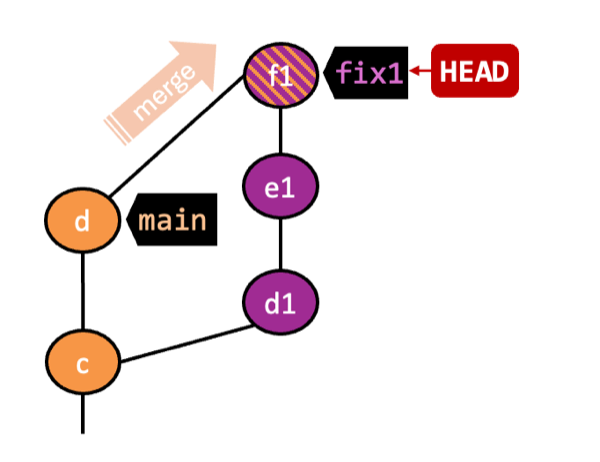
Changes made in d are available on fix1, but changes made in d1 and e1 are not available on main.
Scenario You have a repo with two unmerged branches main and feature1.
gitGraph BT:
%%{init: { 'theme': 'default', 'gitGraph': {'mainBranchName': 'main'}} }%%
commit id: "m0"
commit id: "m1"
commit id: "m2"
branch feature1
commit id: "f1"
commit id: "[feature1] f2"
checkout main
commit id: "[HEAD → main] m3"
checkout feature1
Target Merge each branch into the other.
Preparation
1 Switch back to the feature1 branch.
gitGraph BT:
%%{init: { 'theme': 'default', 'gitGraph': {'mainBranchName': 'main'}} }%%
commit id: "m1"
commit id: "m2"
branch feature1
commit id: "f1"
commit id: "[HEAD → feature1] f2"
checkout main
commit id: "[main] m3"
checkout feature1
2 Merge the main branch into the feature1 branch, producing this result . Git creates a merge commit, shown as mc1 below.
gitGraph BT:
%%{init: { 'theme': 'default', 'gitGraph': {'mainBranchName': 'main'}} }%%
commit id: "m1"
commit id: "m2"
branch feature1
commit id: "f1"
commit id: "f2"
checkout main
commit id: "[main] m3"
checkout feature1
merge main id: "[HEAD → feature1] mc1"
git merge main
Right-click on the main branch and choose merge main into the current branch. Click OK in the next dialog.
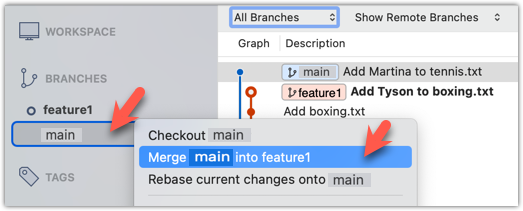
If a confirmation dialog pops up, choose as follows:
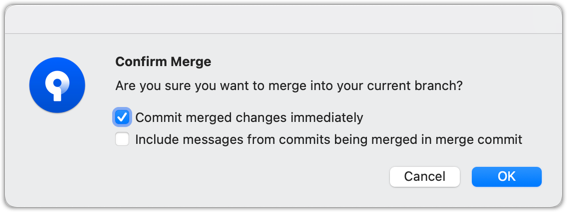
The revision graph should now look like this (colors and line alignment might vary):
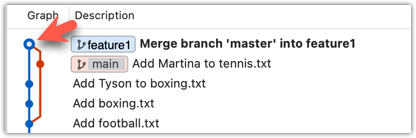
Observe that the changes from main (the imaginary bug fix in m3) are now available in feature1.
Running git diff HEAD^1 HEADExplanation of the command should show the changes from main introduced into feature1 (here, commit m3, the only new commit in main).
3 Add another commit to the feature1 branch by changing boxing.txt.
echo "Manny Pacquiao" >> boxing.txt
git commit -am "Add Manny to boxing.txt"
Switch to the main branch and add one more commit.
git switch main
echo "Lionel Messi" >> football.txt
git commit -am "Add Messi to football.txt"
gitGraph BT:
%%{init: { 'theme': 'default', 'gitGraph': {'mainBranchName': 'main'}} }%%
commit id: "m1"
commit id: "m2"
branch feature1
commit id: "f1"
commit id: "f2"
checkout main
commit id: "m3"
checkout feature1
merge main id: "mc1"
commit id: "[feature1] f3"
checkout main
commit id: "[HEAD → main] m4"
4 Merge feature1 into the main branch, producing this result:
gitGraph BT:
%%{init: { 'theme': 'default', 'gitGraph': {'mainBranchName': 'main'}} }%%
commit id: "m1"
commit id: "m2"
branch feature1
commit id: "f1"
commit id: "f2"
checkout main
commit id: "m3"
checkout feature1
merge main id: "mc1"
commit id: "[feature1] f3"
checkout main
commit id: "m4"
merge feature1 id: "[HEAD → main] mc2"
git merge feature1
Right-click on the feature1 branch and choose Merge.... The resulting revision graph should look like this:
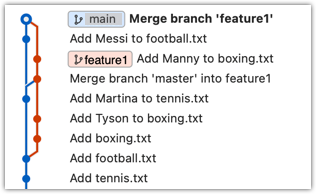
The changes you made in feature1 are now available in main.
done!
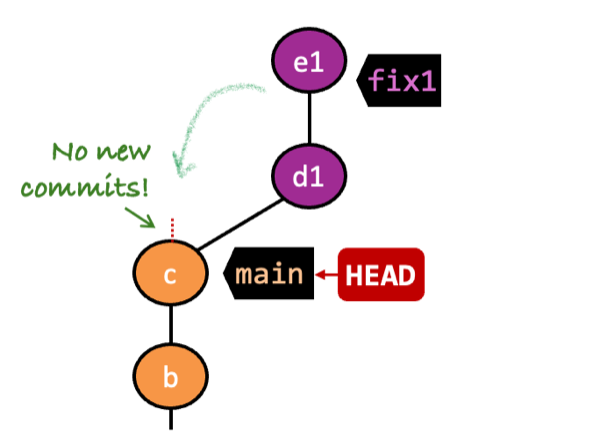
When the destination branch hasn't diverged -- meaning it has no new commits since the merge base commit -- Git can bring in the source branch's changes more directly.
In the example on the left, the main branch has not changed since the merge base commit (i.e., c).
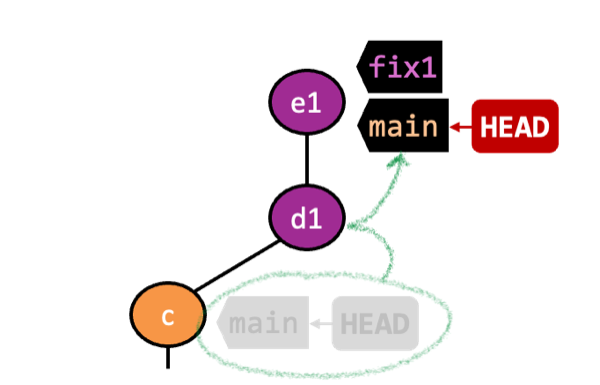
Git can merge by moving the destination branch pointer forward to include the new commits in the source branch. This is called a fast-forward merge because Git "fast-forwards" the branch ref to the tip of the other branch.
The example on the left shows how the main branch ref is moved during a fast-forward merge of the fix1 branch into the main branch.
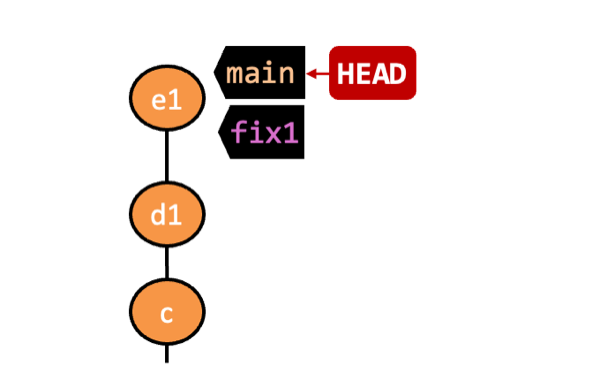
After the fast-forward merge, the revision graph looks as if all changes were made directly on main. Git no longer records where fix1 previously diverged from main.
One downside of a fast-forward merge is that the revision graph does not show when the branch was merged (as there is no merge commit). This can make the project history harder to understand.
Scenario You have a repo with an unmerged branch add-swimming. The main branch has not diverged from the add-swimming branch yet.
gitGraph BT:
%%{init: { 'theme': 'default', 'gitGraph': {'mainBranchName': 'main'}} }%%
commit id: "more commits ..."
commit id: "[main] mc2"
branch add-swimming
commit id: "a1"
commit id: "[HEAD → add-swimming] a2"
Target Do a fast-forward merge of the add-swimming branch into the main branch.
Preparation
Target Do a fast-forward merge of the add-swimming branch.
1 Ensure you are on the main branch.
gitGraph BT:
%%{init: { 'theme': 'default', 'gitGraph': {'mainBranchName': 'main'}} }%%
commit id: "more commits ..."
commit id: "[HEAD → main] mc2"
branch add-swimming
commit id: "a1"
commit id: "[add-swimming] a2"
2 Merge the add-swimming branch into the main branch. Observe that there is no merge commit: the main branch ref (and HEAD) moved to the tip of add-swimming (a2), so both branches now point to a2.
gitGraph BT:
%%{init: { 'theme': 'default', 'gitGraph': {'mainBranchName': 'main (and add-swimming)'}} }%%
commit id: "more commits ..."
commit id: "mc2"
commit id: "a1"
commit id: "[HEAD → main][add-swimming] a2"
done!
You can force Git to create a merge commit even if fast-forwarding is possible. This keeps branch-merge points visible in the revision graph.
To prevent Git from fast-forwarding, use the --no-ff switch when merging. Example:
git merge --no-ff add-swimming
Two other useful git merge options:
--ff-only: Merge only if a fast-forward merge is possible.--ff: Prefer a fast-forward merge, but allow a merge commit if fast-forwarding is not possible. This is Git's default behavior, so the option is useful only if the default has been changed.
Select the box shown below when you merge a branch:
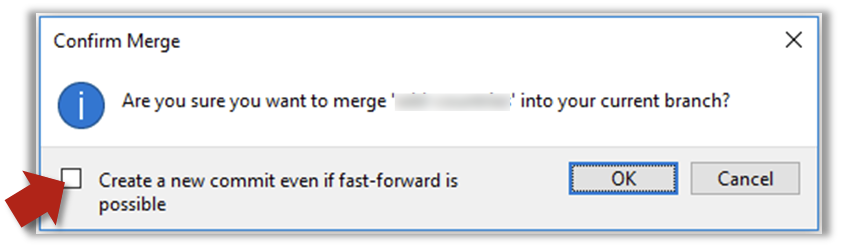
Trigger the branch operation using the following menu button:
In the next dialog, tick the following option:
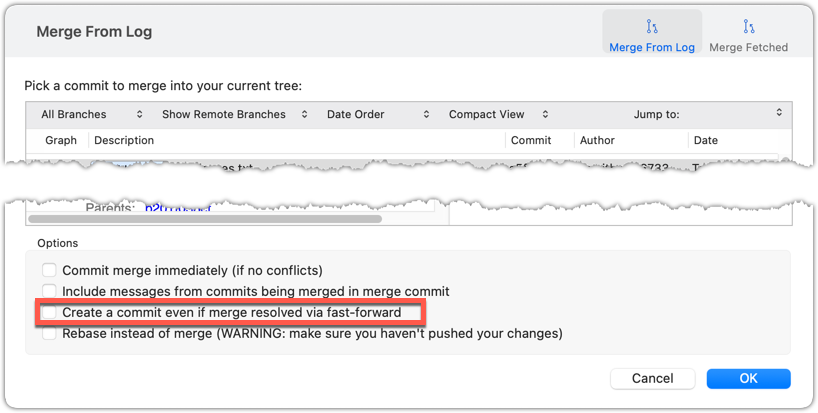
To permanently prevent fast-forwarding:
- Go to Sourcetree
Settings. - Navigate to the
Gitsection. - Select the box
Do not fast-forward when merging, always create commit.
A squash merge combines all changes from the source branch into a single commit on the destination branch. Use it when the source branch's commits would clutter history (e.g., many experimental commits).
fix1 into main]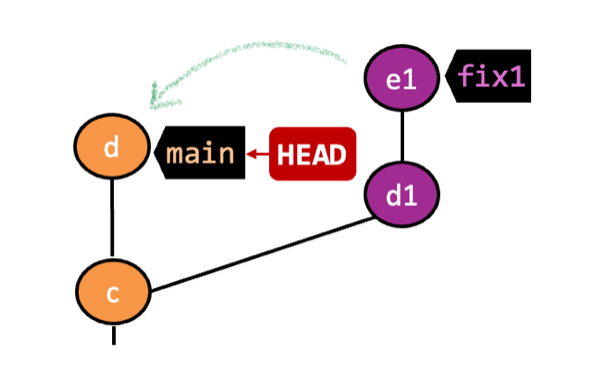
fix1 into main]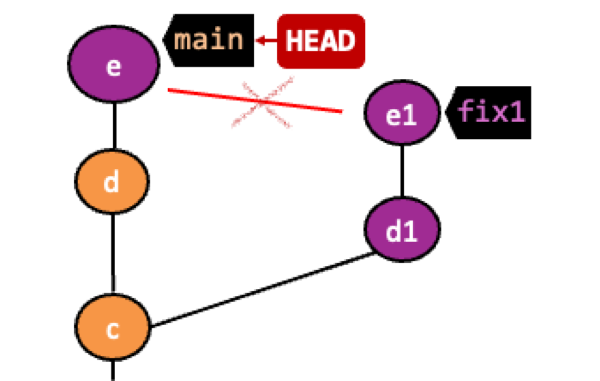
fix1]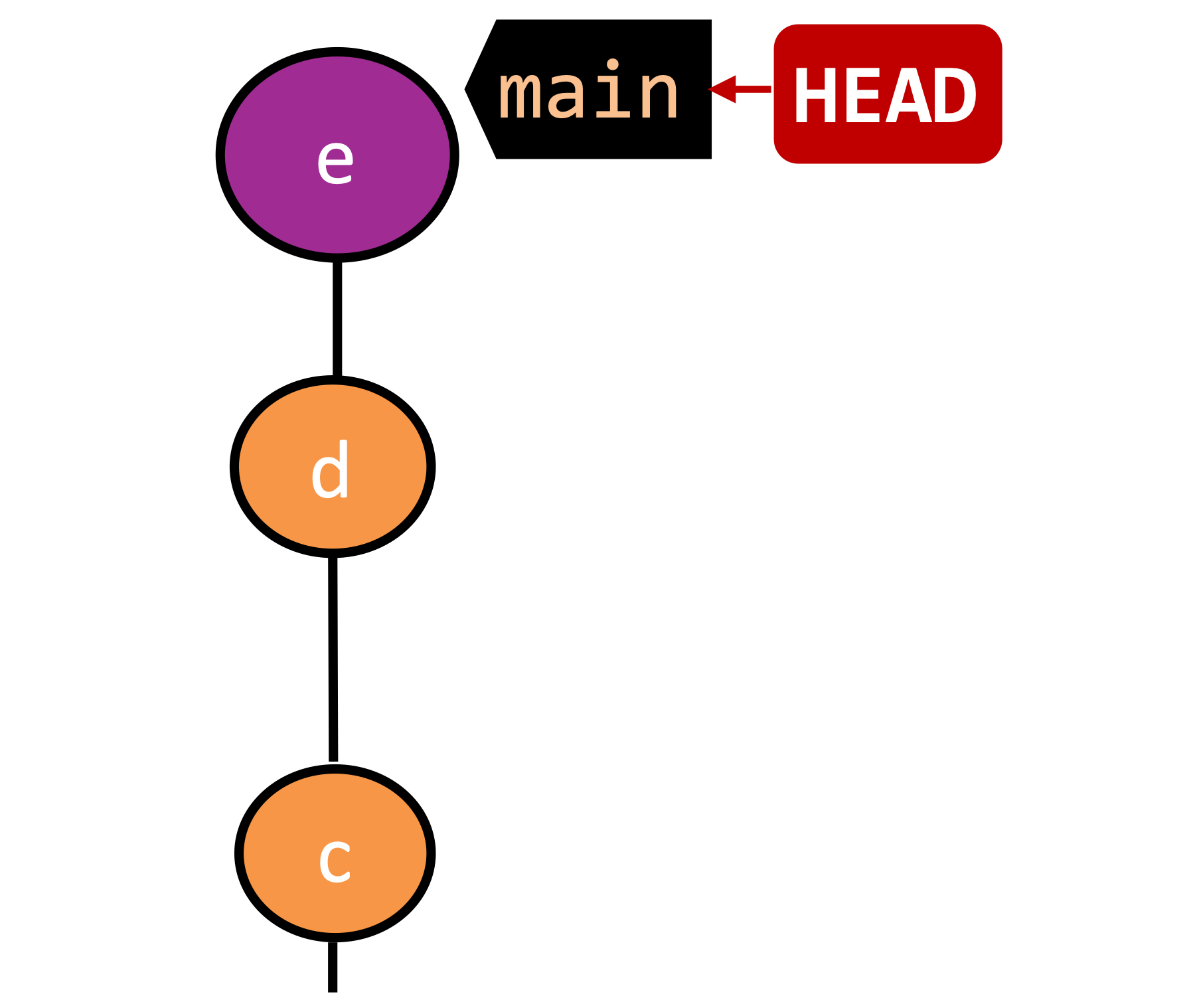
In the example above, fix1 has been squash-merged into main, creating a single 'squashed' commit e from the commits in fix1. The 'squashed' commit is a regular commit with one parent, not a merge commit with two parents.
After a squash merge, you typically delete the source branch, so its individual commits no longer appear in the repo's history (you'll learn how to delete branches in an upcoming lesson). The destination branch stays linear because one regular commit in the destination branch replaces the source branch's work, with no second-parent link to that branch from that commit.
Here is a comparison of the three merge types covered here: regular merging with a merge commit, fast-forward merging, and squash merging.
gitGraph BT:
%%{init: { 'theme': 'default', 'gitGraph': {'mainBranchName': 'main'}} }%%
commit id: "more commits ..."
commit id: "[HEAD → main] m1"
branch feature
checkout feature
commit id: "f1"
commit id: "[feature] f2"
checkout main
merge feature
with a merge commit]
gitGraph BT:
%%{init: { 'theme': 'default', 'gitGraph': {'mainBranchName': 'main'}} }%%
commit id: "more commits ..."
commit id: "m1"
commit id: "f1"
commit id: "[HEAD → main][feature] f2"
gitGraph BT:
%%{init: { 'theme': 'default', 'gitGraph': {'mainBranchName': 'main'}} }%%
commit id: "more commits ..."
commit id: "m1"
commit id: "[HEAD → main] s1 (same as f1+f2)"
deleting the source branch]
The detour below covers the mechanics of a squash merge.
DETOUR: Undoing a Merge
- Ensure you are in the .
- Hard-reset that branch to its , rewinding the branch to its pre-merge state.
In the example below, you merged main into feature1.
If you want to undo that merge,
- Ensure you are in the
feature1branch (because that's the destination branch). - Reset
feature1to the commit that was its tip just before you mergedmaininto it.
Use this reset-based undo only for local/unshared merges; if the merge has been pushed/shared, prefer reverting to avoid rewriting shared history.
Branches can be renamed, for example, to fix a mistake in the branch name.
Local branches can be renamed easily. Renaming a branch changes the branch reference (i.e., the name used to identify the branch). This is a cosmetic change: the commits, file contents, and merge relationships stay the same; only the name pointing to the branch tip changes.
Target You want to rename fantasy (not yet merged) and textbooks (merged), as shown below:
gitGraph BT:
%%{init: { 'theme': 'default', 'gitGraph': {'mainBranchName': 'main'}} }%%
commit id: "m1"
branch textbooks
checkout textbooks
commit id: "[textbooks] t1"
checkout main
branch fantasy
checkout fantasy
commit id: "[fantasy] f1"
checkout main
merge textbooks id: "[HEAD → main] mc1"
→
[rename branches]
gitGraph BT:
%%{init: { 'theme': 'default', 'gitGraph': {'mainBranchName': 'main'}} }%%
commit id: "m1"
branch study-books
checkout study-books
commit id: "[study-books] t1"
checkout main
branch fantasy-books
checkout fantasy-books
commit id: "[fantasy-books] f1"
checkout main
merge study-books id: "[HEAD → main] mc1"
Preparation
steps:
To rename a branch, use the git branch -m <current-name> <new-name> command (-m stands for 'move'):
git branch -m fantasy fantasy-books
git branch -m textbooks study-books
git log --oneline --decorate --graph --all # verify the changes
* 443132a (HEAD -> main) Merge branch textbooks
|\
| * 4969163 (study-books) Add textbooks.txt
|/
| * 0586ee1 (fantasy-books) Add fantasy.txt
|/
* 7f28f0e Add horror.txt
Note these additional switches to the git log command:
--all: Shows all branches, not just the current branch.--graph: Shows a graph-like visualization.*indicates a commit, and vertical lines indicate branches.
Right-click the branch name and choose Rename.... Provide the new branch name in the next dialog.
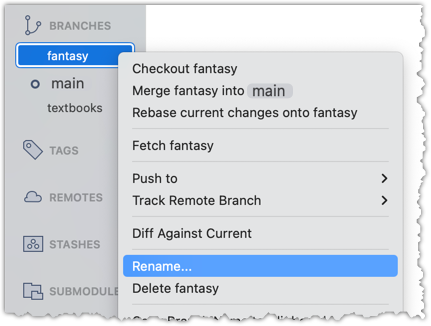
done!
SIDEBAR: Branch naming conventions
Branch names can contain lowercase letters, numbers, /, dashes (-), underscores (_), and dots (.).
You can also use uppercase letters, but many teams avoid them for consistency.
A common branch naming convention is to prefix branch names with <category>/. Some examples:
feature/login-form— for new features (origin/feature/login-formcould be the matching remote-tracking branch)bugfix/profile-photo— for fixing bugshotfix/payment-crash— for urgent production fixesrelease/2.0— for preparing a releaseexperiment/ai-chatbot— for “just trying stuff”
Although a forward slash (/) in the prefix doesn't create folders in Git, some tools treat it like a path, which lets you group related branches when you run git branch. The example below shows how Sourcetree groups branches with the same prefix.
Branches can be deleted to get rid of them when they are no longer needed.
Deleting a branch deletes the corresponding branch ref from the revision history (it does not delete any commits). The impact of the loss of the branch ref depends on whether the branch has been merged.
When you delete a branch that has been merged, the commits of the branch will remain in the history and be safe. Only the branch ref is lost.
gitGraph BT:
%%{init: { 'theme': 'default', 'gitGraph': {'mainBranchName': 'main'}} }%%
commit id: "m1"
branch bug-fix
checkout bug-fix
commit id: "[bug-fix] b1"
checkout main
merge bug-fix id: "[HEAD → main] mc1"
→
[delete branch bug-fix]
gitGraph BT:
%%{init: { 'theme': 'default', 'gitGraph': {'mainBranchName': 'main'}} }%%
commit id: "m1"
branch _
checkout _
commit id: "b1"
checkout main
merge _ id: "[HEAD → main] mc1"
In the above example, the deletion only removes the branch ref bug-fix. All commits remain reachable via the main branch, and the revision history is otherwise unchanged.
In fact, some prefer to delete the branch soon after merging it, to reduce clutter from branch references in the revision history.
When you delete a branch that has not been merged, the loss of the branch ref can render some commits unreachable (you may still be able to inspect or recover them for a while if you know their commit ID), putting them at risk of being lost eventually.
gitGraph BT:
%%{init: { 'theme': 'default', 'gitGraph': {'mainBranchName': 'main'}} }%%
commit id: "[HEAD → main] m1"
branch bug-fix
checkout bug-fix
commit id: "[bug-fix] b1"
checkout main
→
[delete branch bug-fix]
gitGraph BT:
%%{init: { 'theme': 'default', 'gitGraph': {'mainBranchName': 'main'}} }%%
commit id: "[HEAD → main] m1"
branch _
checkout _
commit id: "b1"
checkout main
In the above example, the commit b1 is no longer reachable .
SIDEBAR: What makes a commit 'unreachable'?
Recall that a commit only has a pointer to its parent commit (not its descendant commits).
A commit is considered reachable if you can get to it by starting at a branch, tag, or other ref and walking backward through its parent commits. 'Reachable' is the normal state for commits — they are part of the visible history of a branch or tag.
If no branch, tag, or ref in the repo can be used as the starting point to reach a certain commit, that commit is unreachable. This often happens when you delete a branch or rewrite history (e.g., with reset or rebase), leaving some commits "orphaned" (or "dangling") without a ref pointing to them.
In the example below, C4 is unreachable (i.e., cannot be reached by starting at any of the three refs: v1.0 or main or ←HEAD), but the other three are all reachable.
Unreachable commits are not deleted immediately — Git keeps them for a while before cleaning them up. By default, Git retains unreachable commits for at least 30 days, during which they can still be recovered if you know their SHA. After that, they will be garbage-collected and lost for good.
Scenario You have the following repo, named samplerepo-books-2.
gitGraph BT:
%%{init: { 'theme': 'default', 'gitGraph': {'mainBranchName': 'main'}} }%%
commit id: "m1"
branch textbooks
checkout textbooks
commit id: "[textbooks] t1"
checkout main
branch fantasy
checkout fantasy
commit id: "[fantasy] f1"
checkout main
merge textbooks id: "[HEAD → main] mc1"
The work in the textbooks branch has been completed, and the branch has been merged, so there is no need to keep that branch anymore.
The work in the fantasy branch is no longer needed, so there is no need for that branch either.
Target Delete the textbooks (merged) and fantasy branches (unmerged).
Preparation
1 Delete the (merged) textbooks branch.
Use the git branch -d <branch> command to delete a local branch safely. This command will fail if the branch has unmerged commits. In this case, it will succeed because the branch has no unmerged commits.
git branch -d textbooks
git log --oneline --decorate --graph --all # check the current revision graph
* 443132a (HEAD -> main) Merge branch textbooks
|\
| * 4969163 Add textbooks.txt
|/
| * 0586ee1 (fantasy) Add fantasy.txt
|/
* 7f28f0e Add horror.txt
Right-click on the branch name and choose Delete <branch>:
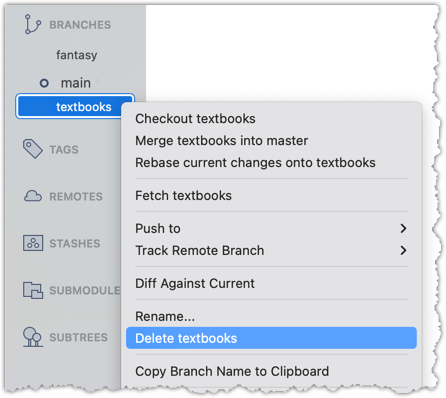
In the next dialog, click OK:
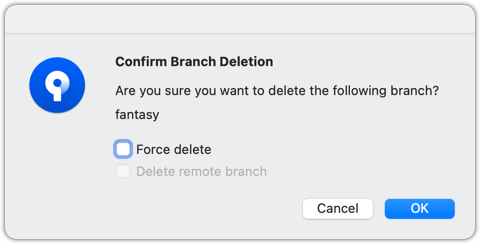
Observe that all commits remain. The only thing missing is the textbooks ref.
2 Make a copy of the SHA of the tip of the (unmerged) fantasy branch.
3 Delete the fantasy branch.
Attempt to delete the branch. It should fail, as shown below:
git branch -d fantasy
error: the branch 'fantasy' is not fully merged
hint: If you are sure you want to delete it, run 'git branch -D fantasy'
As the error message suggests, you can replace -d with -D to force the deletion.
git branch -D fantasy
Now, check the revision graph:
git log --oneline --decorate --graph --all
* 443132a (HEAD -> main) Merge branch textbooks
|\
| * 4969163 Add textbooks.txt
|/
* 7f28f0e Add horror.txt
Attempt to delete the branch as you did before. It will fail because the branch has unmerged commits.
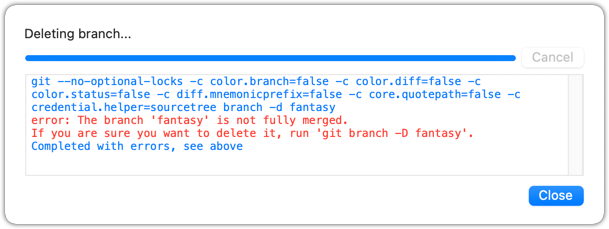
Try again, but this time select the Force delete option, which will force Git to delete the unmerged branch:
Observe how the branch ref fantasy is gone, and the branch's unmerged commits are no longer visible in the commit graph (e.g., if you run git log --all).
4 Attempt to view the 'unreachable' commit whose SHA you noted in step 2.
For example, git show 32b34fb (use the SHA you copied earlier)
Observe how the commit still exists, and you are still able to inspect it using its commit ID (for now).
done!
This is a good time to attempt exercises that combine knowledge from multiple branch-management lessons in this tour:
Tour 6: Branching Locally
Tour Outro:
At this point: Now you can create, maintain, and merge multiple parallel branches in a local repo, and use worktrees to work with multiple branches in separate folders. This tour covered only the basic use of Git branches. More advanced usage will be covered in other tours.
To see the full tour as one page, click here.
What's next: Tour 7: Keeping Branches in Sync
Tour Intro:
Target Usage: To keep branches in a local repository synchronized with each other, as needed.
Motivation: While working on one branch, you might want to have access to changes introduced in another branch (e.g., to take advantage of a bug fix introduced in another branch).
Tour 7: Keeping Branches in Sync
Tour Outro:
At this point: You should now be able to bring changes from one branch to another in your local repository.
To see the full tour as one page, click here.
What's next: Tour 8: Working with Remote Branches
Tour Intro:
Target Usage: To synchronize branches in the local repo with a remote repo's branches.
Motivation: It is useful to be able to have another copy of branches in a remote repo.
Local branches can be replicated in a remote.
Pushing a copy of local branches to the corresponding remote repo makes those branches available remotely.
In a previous lesson, we saw how to push the default branch to a remote repository and have Git set up tracking between the local and remote branches using a remote-tracking reference. Pushing any other local branch to a remote works the same way as pushing the default branch — you simply specify the target branch instead of the default branch. After that, you can push new commits from that local branch to the corresponding remote branch in the same way.
gitGraph BT:
%%{init: { 'theme': 'default', 'gitGraph': {'mainBranchName': 'main'}} }%%
commit id: "m1"
branch bug-fix
checkout main
commit id: "[origin/main][HEAD → main] m2"
checkout bug-fix
commit id: "[bug-fix] b1"
checkout main
[bug-fix branch does not exist in the remote origin]
→
gitGraph BT:
%%{init: { 'theme': 'default', 'gitGraph': {'mainBranchName': 'main'}} }%%
commit id: "m1"
branch bug-fix
checkout main
commit id: "[origin/main][HEAD → main] m2"
checkout bug-fix
commit id: "[origin/bug-fix][bug-fix] b1"
checkout main
[after pushing bug-fix branch to origin,
and setting up a remote-tracking branch]
Preparation
Now, the repo should look something like this:
gitGraph BT:
%%{init: { 'theme': 'default', 'gitGraph': {'mainBranchName': 'main'}} }%%
commit id: "m1"
commit id: "m2"
branch track-sales
checkout track-sales
commit id: "[origin/track-sales] s1"
checkout main
commit id: "[origin/main][origin/HEAD][HEAD → main] m3"
The origin/HEAD remote-tracking ref indicates where the HEAD ref is in the remote origin.
1 Create a new branch called hiring, and add a commit to that branch. The commit can contain any changes you want.
Here are the commands you can run in the terminal to do this step in one shot:
git switch -c hiring
echo "Receptionist: Pam" >> employees.txt
git commit -am "Add Pam to employees.txt"
gitGraph BT:
%%{init: { 'theme': 'default', 'gitGraph': {'mainBranchName': 'main'}} }%%
commit id: "m1"
commit id: "m2"
branch track-sales
checkout track-sales
commit id: "[origin/track-sales] s1"
checkout main
commit id: "[origin/main][origin/HEAD][main] m3"
branch hiring
checkout hiring
commit id: "[HEAD → hiring] h1"
The resulting revision graph should look like the one above.
2 Push the hiring branch to the remote.
You can use the usual git push <remote> -u <branch> command to push the branch to the remote, and set up a remote-tracking branch at the same time.
git push origin -u hiring
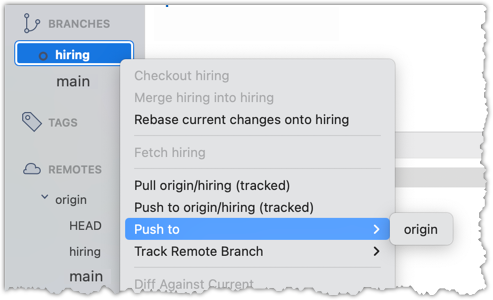
3 Verify that the branch has been pushed to the remote by visiting the fork on GitHub, and looking for the origin/hiring remote-tracking ref in the local repo.
done!
Branches in a remote can be replicated in the local repo, and maintained in sync with each other.
Sometimes we need to create a local copy of a branch from a remote repository, make further changes to it, and keep it synchronized with the remote branch. Let's explore how to handle this in a few common use cases:
Use case 1: Working with branches that already existed in the remote repo when you cloned it to your computer.
When you clone a repository,
- Git checks out the default branch. You can start working on this branch immediately. This branch is tracking the default branch in the remote, which means you can easily synchronize changes in this branch with the remote by pulling and pushing.
- Git also fetches all the other branches from the remote. These other branches are not immediately available as local branches, but they are visible as remote-tracking branches.
You can think of remote-tracking branches as read-only references to the state of those branches in the remote repository at the time of cloning. They allow you to see what work has been done on those branches without yet making local copies of them.
To work on one of these branches, you can create a new local branch based on the remote-tracking branch. Once you do this, your local branch will usually be configured to track the corresponding branch on the remote, so you can easily synchronize your work later.
Preparation
1 Verify that the remote-tracking branch origin/track-sales exists in the local repo, but there is no local copy of it.
You can use the git branch -a command to list all local and tracking branches.
git branch -a
* hiring
main
remotes/origin/HEAD -> origin/main
remotes/origin/hiring
remotes/origin/main
remotes/origin/track-sales
The * in the output above indicates the currently active branch.
Note how there is no track-sales in the list of branches (i.e., no local branch named track-sales), but there is a remotes/origin/track-sales (i.e., the remote-tracking branch)
Observe how the branch track-sales appears under REMOTES → origin but not under BRANCHES.
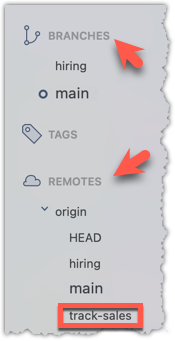
2 Create a local copy of the remote branch origin/track-sales.
You can use the git switch -c <branch> <remote-branch> command for this e.g.,
git switch -c track-sales origin/track-sales
The above command does several things:
- Creates a new branch
track-sales. - Sets the new branch to track the remote branch
origin/track-sales, which means,
a) the local branchtrack-salesknows that it is associated withorigin/track-sales, and as a result,
b) pulling and pushing of this branch can be done without specifying the remote branch. - Switches to the newly-created branch, making it the current branch.
The shorter command git switch track-sales achieves the same result as git switch -c track-sales origin/track-sales, provided,
a) you have already run git fetch, and
b) a remote branch origin/track-sales exists, and
c) you don’t already have a local branch named track-sales.
Locate the track-sales remote-tracking branch (look under REMOTES → origin), right-click, and choose Checkout....
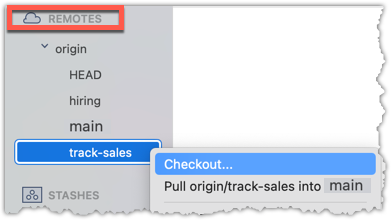
In the next dialog, choose as follows:
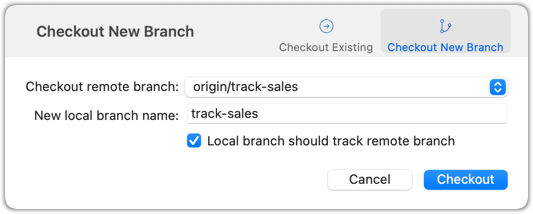
The above action does several things:
- Creates a new branch
track-sales. - Sets the new branch to track the remote branch
origin/track-sales, which means,
a) the local branchtrack-salesknows that it is associated withorigin/track-sales, and as a result,
b) pulling and pushing of this branch can be done without specifying the remote branch. - Switches to the newly-created branch, making it the current branch.
3 Add a commit to the track-sales branch and push to the remote, to verify that the local branch is tracking the remote branch.
Commands to perform this step in one shot:
echo "5 reams of paper" >> sales.txt
git commit -am "Update sales.txt"
git push origin track-sales
done!
Use case 2: Working with branches that were added to the remote repository after you cloned it e.g., a branch someone else pushed to the remote after you cloned.
Simply fetch to update your local repository with information about the new branch. After that, you can create a local copy of it and work with it just as you did in Use Case 1.
Fetching was covered in Lesson T3L3. Downloading Data Into a Local Repo.
New commits can appear in a remote branch after you have set up a local branch to track it (as per use case 1 or 2 given above). e.g., a branch someone else pushed a commit to the remote branch after you pulled the previous version of it. Often you would want to update your local copy of the branch with those new commits.
Here is an example:
gitGraph BT:
%%{init: { 'theme': 'default', 'gitGraph': {'mainBranchName': 'main'}} }%%
commit id: "m1"
branch bug-fix
checkout main
commit id: "m2"
checkout bug-fix
commit id: "[origin/bug-fix][HEAD → bug-fix] b1"
checkout main
[local repo: bug-fix branch is unaware
of the commit b2 in the remote]
gitGraph BT:
%%{init: { 'theme': 'default', 'gitGraph': {'mainBranchName': 'main'}} }%%
commit id: "m1"
branch bug-fix
checkout main
commit id: "m2"
checkout bug-fix
commit id: "b1"
commit id: "[bug-fix] b2"
checkout main
[remote repo: has an extra commit
in the bug-fix branch]
To bring the missing commits to the local branch, simply pull the remote branch from your local branch.
If you fetch first (or if your Git GUI is set to auto-fetch periodically) the local repo will be as follows, before and after the pull.
gitGraph BT:
%%{init: { 'theme': 'default', 'gitGraph': {'mainBranchName': 'main'}} }%%
commit id: "m1"
branch bug-fix
checkout main
commit id: "m2"
checkout bug-fix
commit id: "[HEAD → bug-fix] b1"
commit id: "[origin/bug-fix] b2"
checkout main
[local repo: bug-fix branch is aware
of the commit b2]
→
[pull, or just merge]
gitGraph BT:
%%{init: { 'theme': 'default', 'gitGraph': {'mainBranchName': 'main'}} }%%
commit id: "m1"
branch bug-fix
checkout main
commit id: "m2"
checkout bug-fix
commit id: "b1"
commit id: "[origin/bug-fix][HEAD → bug-fix] b2"
checkout main
[local repo: now has the commit b2]
If both the local branch and the remote-tracking branch have new commits that the other does not, Git will try to combine the two diverged histories when you do a pull. By default, this is done by creating a merge commit, although this behavior can be changed (for example, to use rebasing instead).
In the example below, the local branch bug-fix has a new commit b3 while its remote tracking branch has a new commit b2. After pulling, Git has combined the two diverged branches with a merged commit.
gitGraph BT:
%%{init: { 'theme': 'default', 'gitGraph': {'mainBranchName': 'main'}} }%%
commit id: "m1"
branch bug-fix
checkout main
commit id: "m2"
checkout bug-fix
commit id: "[origin/bug-fix] b1"
commit id: "[HEAD → bug-fix] b3"
checkout main
[local repo: bug-fix has a new commit b3]
→
[pull]
gitGraph BT:
%%{init: { 'theme': 'default', 'gitGraph': {'mainBranchName': 'main'}} }%%
commit id: "m1"
branch bug-fix
checkout main
commit id: "m2"
checkout bug-fix
commit id: "b1"
branch _
checkout _
commit id: "b2"
checkout bug-fix
commit id: "b3"
merge _ id: "[HEAD → bug-fix] merge commit"
checkout main
[local repo: now has b2, and a merge commit]
Often, you'll need to delete a branch in a remote repo after it has served its purpose.
To delete a branch in a remote repository, you simply tell Git to remove the reference to that branch from the remote. This does not delete the branch from your local repository — it only removes it from the remote, so others won’t see it anymore. This is useful for cleaning up old or merged branches that are no longer needed on the remote.
Preparation
1 Create a local copy of the fantasy branch in your clone.
Follow instructions in Lesson T8L2. Pulling Branches from a Remote.
2 Delete the remote branch fantasy.
You can use the git push <remote> --delete <branch> command to delete a branch in a remote. This is similar to pushing changes in a branch to a remote, except the --delete switch tells Git to delete the branch instead.
git push origin --delete fantasy
Locate the remote branch under REMOTES → origin, right-click on the branch name, and choose Delete...:
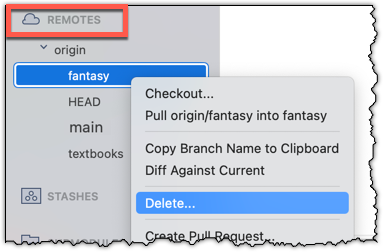
3 Verify that the branch was deleted from the remote, by going to the fork on GitHub and checking the branches page https://github.com/{YOUR_USERNAME}/gitmastery-samplerepo-books/branches
e.g., (if your username is https://github.com/[[username: JohnDoe]]/gitmastery-samplerepo-books/branches.
Also verify that the local copy has not been deleted.
4 Restore the remote branch from the local copy.
Push the local branch to the remote, while enabling the tracking option (as if pushing the branch to the remote for the first time), as covered in Lesson T8L1. Pushing Branches to a Remote.
In the above steps, we first created a local copy of the branch before deleting it in the remote repo. Doing so is optional. You can delete a remote branch without ever checking it out locally — you just need to know its name on the remote. Deleting the remote branch directly without creating a local copy is recommended if you simply want to clean up a remote branch you no longer need.
done!
Tour 8: Working with Remote Branches
Tour Outro:
At this point: You should now be able to work with branches in a remote repo, and keep them synchronized with branches in the local repo.
To see the full tour as one page, click here.
What's next: Tour 9: Working with Pull Requests
Tour Intro:
Target Usage: To contribute to a project using GitHub's pull request mechanism.
Motivation: Pull Request (PR) is the most common way to contribute to a project hosted on GitHub.
Another way to contribute to a GitHub project is by giving input via a pull request review.
PR reviews are a collaborative process in which project members examine and provide feedback on PRs submitted to a remote repo. After an initial review, the reviewer may suggest improvements or identify issues, prompting the submitter to refine and update their code in the PR. This review-refine-update cycle can repeat several times, with reviewers reassessing each new iteration until all feedback is addressed and the code meets the team’s expectations. Once approved, the PR can be merged, making the changes an official part of the codebase.
Preparation If you do not have access to a PR that you can review, you can create one for yourself as follows:
- Create a branch in a repo that you have forked and cloned (e.g., samplerepo-pr-practice).
- Make some changes in the branch.
- Push the branch to the remote repo.
- Create a PR within your fork, from the new branch to the
mainbranch.
1 Locate the PR:
- Go to the GitHub page of the repo.
- Click on the Pull requests tab.
- Click on the PR you want to review.
2Read the PR description. It might contain information relevant to reviewing the PR.
3Click on the Files changed tab to see the diff view.
You can use the following setting to try the two different views available (Unified vs Split) and pick the one you like. You can enable the Minimize comments feature to hide comments given by others (if they are getting in your way)
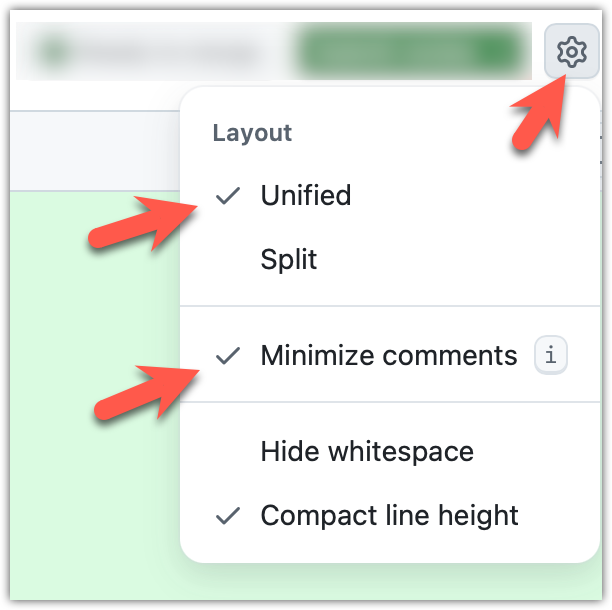
4Add review comments:
- Hover over the line you want to comment on and click on the icon that appears on the left margin. That should create a text box for you to enter your comment.
- To give a comment related to multiple lines, click-and-drag the icon. The result will look like this:
- To give a comment related to multiple lines, click-and-drag the icon. The result will look like this:
- Enter your comment.
- This page @SE-EDU/guides has some best practices PR reviewers can follow.
- To suggest an in-line code change, click on this icon:
After that, you can proceed to edit thesuggestioncode block generated by GitHub (as seen in the screenshot above).
The comment will look like this to the viewers:
- After typing in the comment, click on the Start a review button (not the Add single comment button. This way, your comment is saved but not visible to others yet. It will be visible to others only when you have finished the entire review.
- Repeat the above steps to add more comments.
5Submit the review:
- When there are no more comments to add, click on the Submit review __ button (on the top right of the diff page).
- Type in an overall comment about the PR, if any. e.g.,
Overall, I found your code easy to read for the most part, except in a few places where the nesting was too deep. I noted a few minor coding standard violations too. Some of the classes are getting quite long. Consider splitting into smaller classes if that makes sense.LGTMis often used in such overall comments, to indicateLooks good to me(orLooks good to merge).
nit(as in nit-picking) is another such term, used to indicate minor flaws e.g.,LGTM. Just a few nits to fix.. - Choose the
Approve,Comment, orRequest changesoption as appropriate and click on the Submit review button.
done!
If you have an appropriate level of access to a GitHub repo, you can merge pull requests.
A project member with sufficient access to the remote repo can merge a PR, incorporating proposed changes into the main codebase. Merging a PR is similar to performing a Git merge in a local repo, except that it occurs in the remote repository.
Preparation If you would like to try merging a PR yourself, you can create a dummy PR using these steps.
- Create a branch in a repo that you have forked and cloned (e.g., samplerepo-pr-practice).
- Make some changes in the branch.
- Push the branch to the remote repo.
- Create a PR within your fork, from the new branch to the
mainbranch.
1 Locate the PR to be merged in your repo's GitHub page.
2 Click on the Conversation tab and scroll to the bottom. You'll see a panel containing the PR status summary.
3 If the PR is not merge-able in the current state, the Merge pull request will not be green. Here are the possible reasons and remedies:
- Problem: The PR code is out-of-date, indicated by the message This branch is out-of-date with the base branch. That means the repo's
mainbranch has been updated since the PR code was last updated.- If the PR author has allowed you to update the PR and you have sufficient permissions, GitHub will allow you to update the PR simply by clicking the Update branch on the right side of the 'out-of-date' error message. If that option is not available, post a message in the PR requesting the PR author to update the PR.
- Problem: There are merge conflicts, indicated by the message This branch has conflicts that must be resolved. That means the repo's
mainbranch has been updated since the PR code was last updated, in a way that the PR code conflicts with the currentmainbranch. Those conflicts must be resolved before the PR can be merged.- If the conflicts are simple, GitHub might allow you to resolve them using the Web interface.
- If that option is not available, post a message in the PR requesting the PR author to update the PR.
4 Merge the PR by clicking on the Merge pull request button, followed by the Confirm merge button. You should see a Pull request successfully merged and closed message after the PR is merged.
- You can choose between three merging options by clicking on the down-arrow in the Merge pull request button. If you are new to Git and GitHub, the
Create merge commitoption is recommended.
done!
After a PR is merged, you need to sync other related repos. Merging a PR updates only the upstream remote repository where it was merged. The PR author (and other repo members) need to pull the merged code from the upstream repo to their local repos, then push it to their forks to sync those forks with the upstream repo.
Tour 9: Working with Pull Requests
Tour Outro:
At this point: Now you can contribute to a GitHub project by creating, reviewing, and even merging PRs in a GitHub repository.
To see the full tour as one page, click here.
What's next: Tour 10: Managing Git-Based Projects
Tour Intro:
Target Usage: To manage a multi-person project on GitHub
Motivation: To manage a multi-person project on GitHub, one needs to know some additional project management features GitHub offers.
A branch-based forking workflow is common in open-source projects and other large projects.
In a branch-based forking workflow, the official code lives in a designated 'main' repo, while each developer works in their own fork (hence, the name) and submits pull requests from separate branches (either long-lived branches or short-term branches) back to the main repo. That is, it is a combination of the forking model and the feature-branch strategy. Not only is this workflow common for OSS projects and other large-team projects, it provides a good foundation for learning Git workflows (because other workflows are simpler than this, once you learn this workflow, it is easy to move to other workflows).
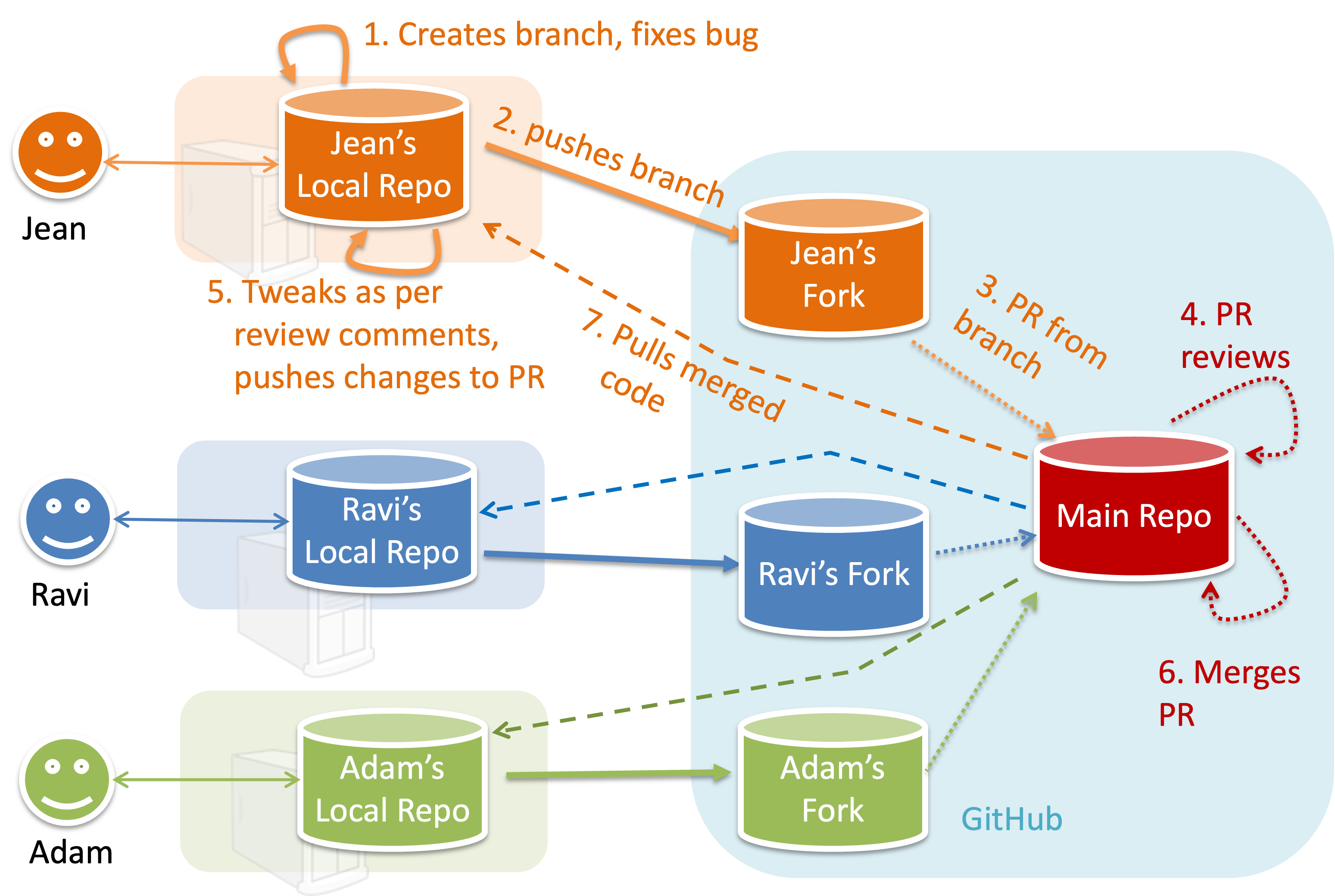
To illustrate how the workflow goes, let’s assume Jean wants to fix a bug in the code. Here are the steps:
- Jean creates a separate branch in her local repo and fixes the bug in that branch.
Common mistake: Doing the proposed changes in themainbranch -- if Jean does that, she will not be able to have more than one PR open at any time because any changes to themainbranch will be reflected in all open PRs. - Jean pushes the branch to her fork.
- Jean creates a pull request from that branch in her fork to the main repo.
- Other members review Jean’s pull request.
- If reviewers suggested any changes, Jean updates the PR accordingly.
- When reviewers are satisfied with the PR, one of the members (usually the team lead or a designated 'maintainer' of the main repo) merges the PR, which brings Jean’s code to the main repo.
- Other members (and Jean), realizing there is new code in the upstream repo, sync their forks with the new upstream repo (i.e., the main repo). This is done by pulling the new code to their own local repo and pushing the updated code to their own fork. If there are unmerged branches in the local repo, they can be updated too e.g., by merging the new
mainbranch to each of them.
Potential mistake: Creating another 'reverse' PR from the team repo to the team member's fork to sync the member's fork with the merged code. PRs are meant to go from downstream repos to upstream repos, not in the other direction.
One main benefit of this workflow is that it does not require most contributors to have write permissions to the main repository. Only those who are merging PRs need write permissions. The main drawback of this workflow is the extra overhead of sending everything through forks.
This practical is best done as a team.
Preparation One member: set up the team org and the team repo.
Create a GitHub organization for your team, if you don't have one already. The org name is up to you. We'll refer to this organization as team org from now on.
Add a team called
developersto your team org.Add team members to the
developersteam.Fork git-mastery/samplerepo-workflow-practice to your team org. We'll refer to this as the team repo.
Add the forked repo to the
developersteam. Give write access.
1 Each team member: create PRs via own fork.
Fork that repo from your team org to your own GitHub account.
Create a branch named
add-{your name}-info(e.g.add-johnTan-info) in the local repo.Add a file
yourName.mdinto themembersdirectory (e.g.,members/johnTan.md) containing some info about you into that branch.Push that branch to your fork.
Create a PR from that branch to the
mainbranch of the team repo.
2 For each PR: review, update, and merge.
[A team member (not the PR author)] Review the PR by adding comments (can be just dummy comments).
[PR author] Update the PR by pushing more commits to it, to simulate updating the PR based on review comments.
[Another team member] Approve and merge the PR using the GitHub interface.
[All members] Sync your local repo (and your fork) with upstream repo. In this case, your upstream repo is the repo in your team org.
- The basic mechanism for this has two steps (which you can do using Git CLI or any Git GUI):
(1) First, pull from the upstream repo -- this will update your clone with the latest code from the upstream repo.
If there are any unmerged branches in your local repo, you can update them too e.g., you can merge the newmainbranch to each of them.
(2) Then, push the updated branches to your fork. This will also update any PRs from your fork to the upstream repo. - Some alternative mechanisms to achieve the same can be found in this GitHub help page.
If you are new to Git, we recommend that you use the two-step mechanism above instead, so you get a clearer view of what is happening behind the scenes.
- The basic mechanism for this has two steps (which you can do using Git CLI or any Git GUI):
3 Create conflicting PRs.
[One member]: Update README: In the
mainbranch, remove John Doe and Jane Doe from theREADME.md, commit, and push to the main repo.[Each team member] Create a PR to add yourself under the
Team Memberssection in theREADME.md. Use a new branch for the PR e.g.,add-johnTan-name.
4 Merge conflicting PRs one at a time. Before merging a PR, you’ll have to resolve conflicts.
[Optional] A member can inform the PR author (by posting a comment) that there is a conflict in the PR.
[PR author] Resolve the conflict locally:
- Pull the
mainbranch from the repo in your team org. - Merge the pulled
mainbranch to your PR branch. - Resolve the merge conflict that crops up during the merge.
- Push the updated PR branch to your fork.
- Pull the
[Another member or the PR author]: Merge the de-conflicted PR: When GitHub does not indicate a conflict anymore, you can go ahead and merge the PR.
done!
Tour 10: Managing Git-Based Projects
Tour Outro:
At this point: You are now able to use an appropriate workflow for your project, and also, make use of other project management features offered by GitHub.
To see the full tour as one page, click here.
What's next: This is the last of the Git-Mastery tours!