Git can tell you the net effect of changes between two points in history.
Git's diff feature can show you what changed between two points in the revision history. Here are some use cases.
Usage 1: Comparing two commits at different points of the revision graph
Example use case: Suppose you're trying to improve the performance of a piece of software by experimenting with different code tweaks. You commit after each change (as you should). After several commits, you now want to review the overall effect of those changes on the code.
Target Compare two commits in a repo.
Preparation
You can use the git diff <commit1> <commit2> command for this.
- You may use any valid way to refer to commits (e.g., SHA, tag, or
HEAD~n). - You may also use the
..notation to specify the commit range, e.g.,0023cdd..fcd6199,HEAD~2..HEAD.
git diff v0.9 HEAD
diff --git a/colours.txt b/colours.txt
index 55c8449..435e81d 100644
--- a/colours.txt
+++ b/colours.txt
@@ -1 +1,4 @@
a file for colours
+blue
# rest of the diff ...
Swap the commit order in the command and see what happens.
git diff HEAD v0.9
diff --git a/colours.txt b/colours.txt
index 435e81d..55c8449 100644
--- a/colours.txt
+++ b/colours.txt
@@ -1,4 +1 @@
a file for colours
-blue
# rest of the diff ...
As you can see, the diff is directional, i.e., diff <commit1> <commit2> shows what changes are needed to get from <commit1> to <commit2>. If you swap <commit1> and <commit2>, the output will change accordingly; for example, lines previously shown as 'added' will now be shown as 'deleted'.
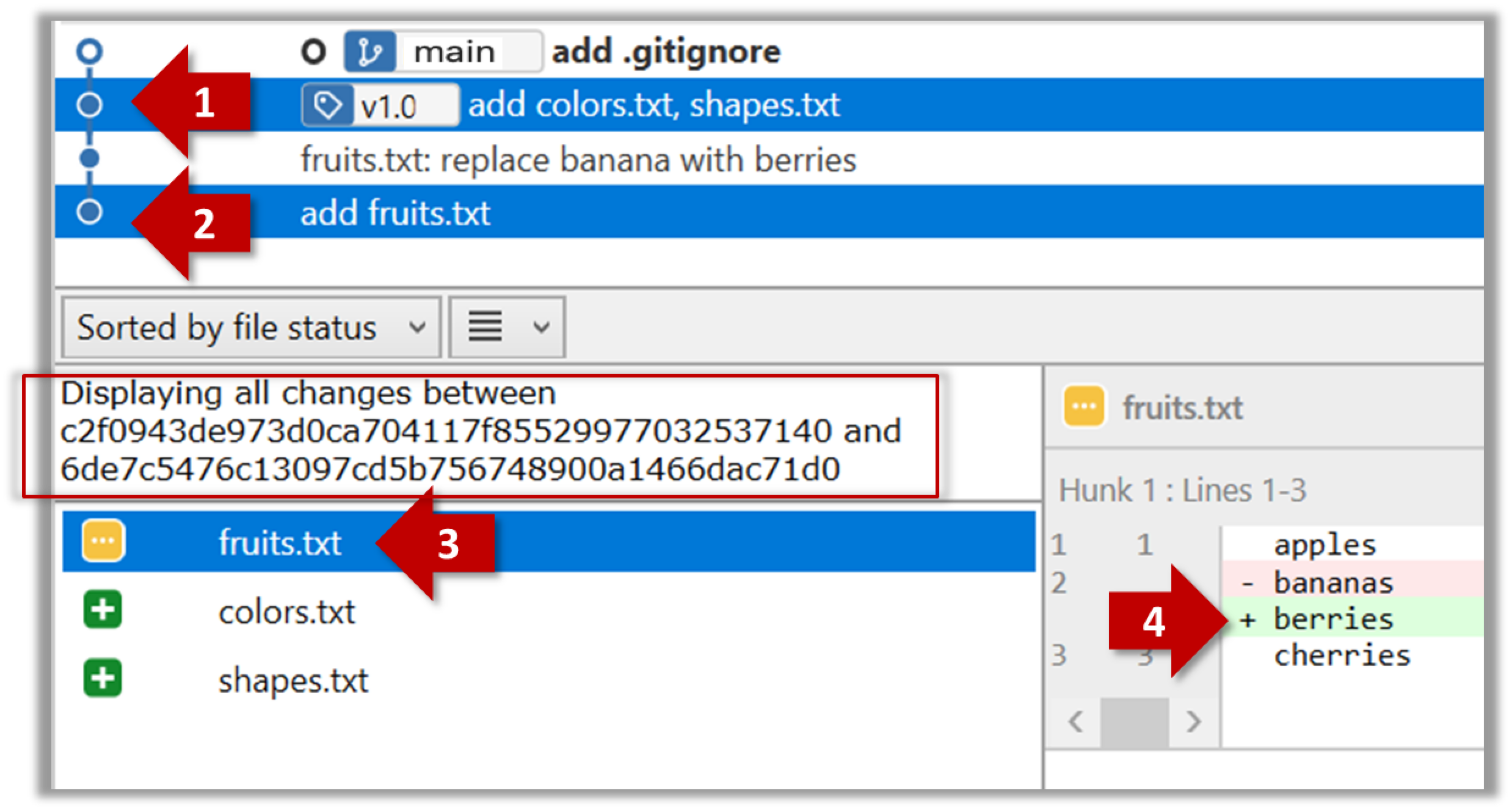
Select the two commits: Click on one commit, and Ctrl-Click (or Cmd-Click) on the second commit. The changes between the two selected commits will appear in the other panels, as shown below:
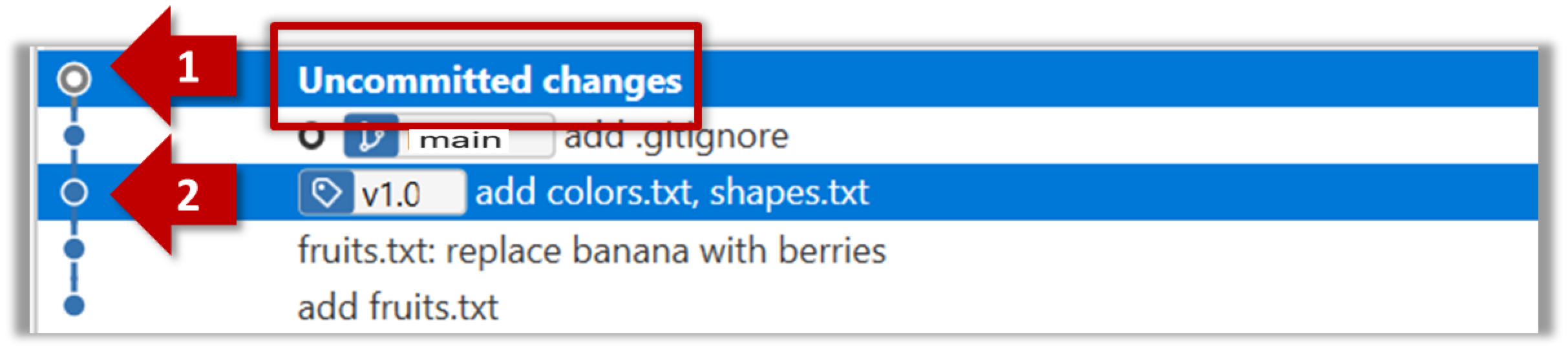
The same method can be used to compare the current state of the working directory (which might have uncommitted changes) to a point in the history.
done!
Usage 2: Examining changes in the working directory
Example use case: You want to verify that the next commit will include exactly what you intend it to include.
Preparation
Option 2: Continue with the things repo from the previous hands-on practical
1 Make some changes to the working directory. Stage some (but not all) changes. For example, you can run the following commands.
echo -e "blue\nred\ngreen" >> colours.txt
git add . # a shortcut to stage all changes
echo "no shapes added yet" >> shapes.txt
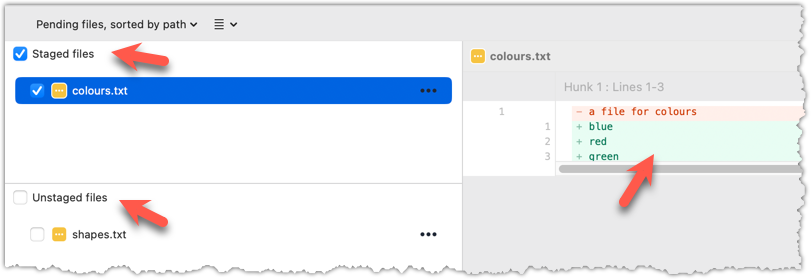
2 Examine the staged and unstaged changes.
The git diff command shows unstaged changes in tracked files in the working directory. The output of the diff command is a diff view (introduced in this lesson).
git diff
diff --git a/shapes.txt b/shapes.txt
index 4bc044e..1971ab8 100644
--- a/shapes.txt
+++ b/shapes.txt
@@ -3,3 +3,4 @@ circle
oval
rectangle
square
+no shapes added yet
The git diff --staged command shows the staged changes (same as git diff --cached).
git diff --staged
Select the two commits: Click on one commit, and Ctrl-Click (or Cmd-Click) on the second commit. The changes between the two selected commits will appear in the other panels, as shown below:
done!
Usage 3: Examining changes to a specific file
Example use case: This is similar to the earlier use cases, but focuses on a specific file.
Target Examine the changes made to a file between two different points in the version history (including the working directory).
Preparation
1 Examine changes to a specific file between specific points in history.
Add -- path/to/file to a previous diff command to narrow the output to a specific file. Some examples:
git diff -- andy/history.txt # unstaged changes to andy/history.txt
git diff --staged -- list.txt # staged changes to list.txt
git diff HEAD~2..HEAD -- list.txt # changes to list.txt between commits
The -- tells Git that what follows it should be interpreted as a file path, not a branch, commit, ref, or tag.
More about the -- in Git commands
Sourcetree UI shows changes to one file at a time by default; just click on the file to view changes to that file. To view changes to multiple files, Ctrl-Click (or Cmd-Click) on multiple files to select them.
done!