Git can also reset the revision history to a specific point so that you can start over from that point.
Suppose you realize your last few commits have gone in the wrong direction, and you want to go back to an earlier commit and continue from there, as if the "bad" commits never happened. Git's reset feature can help you do that.
Git reset moves the of the current branch to a specific commit, optionally adjusting your staged and unstaged changes to match. This effectively rewrites the branch's history by discarding any commits that came after that point.
Resetting is different from the checkout feature:
- Reset: Lets you start over from a past state. It rewrites history by moving the branch ref to a new location.
- Checkout: Lets you explore a past state without rewriting history. It just moves the
HEADref.
→
[reset to C2...]
main branch!There are three types of resets: soft, mixed, and hard. All three move the branch pointer (and HEAD) to a new commit, but they vary based on what happens to the staging area and the working directory.
- soft reset: Moves the cumulative changes from the discarded commits into the staging area. Any staged and unstaged changes that existed before the reset will remain unchanged.
→ It is as if you did all the changes in the discarded commits and staged them, but never committed them. - mixed reset: Cumulative changes from the discarded commits, and any existing staged changes, are moved into the working directory. After the reset, no changes are staged.
→ It is as if you did all the changes in the discarded commits, but never staged or committed them. - hard reset: All staged and unstaged changes are discarded. Both the working directory and the staging area are aligned with the target commit.
→ It is as if no changes were made after the target commit.
Scenario Imagine the following scenario. After working with the things repo for a while, you realized that you made the following mistakes.
i) First, you added four 'bad' commits (i.e., commits that shouldn't have been created) -- shown as B1 to B4 in the revision graph given below.
iii) Last, you did a 'bad' change in `shapes.txt`, but didn't stage it yet.
Target Rewrite the repo history to get rid of the 'bad' commits/changes listed above.
Preparation
Now we have some 'bad' commits and some 'bad' changes in both the staging area and the working directory. Let's use reset to get rid of all of them in three steps, so that you can learn all three types of resets.
1 Do a soft reset to B2 (i.e., discard the last two commits). Verify that:
- the
mainbranch is now pointing atB2. - the changes that were in the discarded commits (i.e.,
B3andB4) are now in the staging area.
Use the git reset --soft <commit> command to do a soft reset.
git reset --soft HEAD~2
You can run the following commands to verify the current status of the repo is as expected.
git status # check overall status
git log --oneline --decorate # check the branch tip
git diff # check unstaged changes
git diff --staged # check staged changes
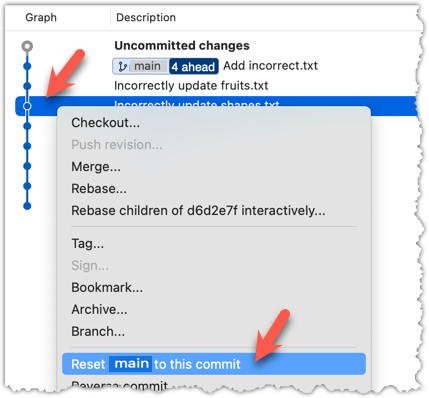
Right-click on the commit that you want to reset to, and choose the Reset <branch-name> to this commit option.
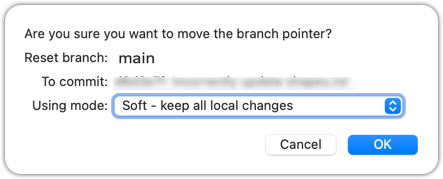
In the next dialog, choose Soft - keep all local changes.
2 Do a mixed reset to commit B1. Verify that:
- the
mainbranch is now pointing atB1. - the staging area is empty.
- the accumulated changes from all three discarded commits (including those from the previous soft reset) now appear as unstaged changes in the working directory.
Note howincorrect.txtappears as an 'untracked' file -- this is because unstaging a change of type 'add file' results in an untracked file.
Use the git reset --mixed <commit> command to do a mixed reset. The --mixed flag is the default, and can be omitted.
git reset HEAD~1
Verify the repo status, as before.
Similar to the previous reset, but choose the Mixed - keep working copy but reset index option in the reset dialog.

3 Do a hard reset to commit C4. Verify that:
- the
mainbranch is now pointing atC4, i.e., all 'bad' commits are gone. - the staging area is empty.
- there are no unstaged changes (except for the untracked file
incorrect.txt-- Git leaves untracked files alone, as untracked files are not meant to be under Git's control).
Use the git reset --hard <commit> command.
git reset --hard HEAD~1
Verify the repo status, as before.
Similar to the previous reset, but choose the Hard - discard all working copy changes option.
done!
Rewriting history can cause your local repo to diverge from its remote counterpart. For example, if you discard earlier commits and create new ones in their place, and you've already pushed the original commits to a remote repository, your local branch history will no longer match the corresponding remote branch. Git refers to this as a diverged history.
To protect the integrity of the remote, Git will reject attempts to push a diverged branch using a normal push. If you want to overwrite the remote history with your local version, you must perform a force push.
Scenario You have a local repo that is linked to a remote repo on GitHub. You have pushed all local commits to the remote repo (i.e., the two are in sync).
Target You want to rewrite the last commit in the local repo and update the remote repo to match the local repo.
Preparation
1 Rewrite the last commit as follows: Reset the current branch back by one commit, and add a new commit.
For example, you can use the following commands.
git reset --hard HEAD~1
echo "water" >> drinks.txt
git add .
git commit -m "Add drinks.txt"
2 Observe how the local branch has diverged.
git log --oneline --graph --all
* 9ff4d04 (HEAD -> main) Add drinks.txt
| * d086f15 (origin/main) shapes.txt: Add some shapes
|/
* 01472c4 colours.txt: Add some colours
* 4d6714c Update fruits list
* 55be601 Add colours.txt, shapes.txt
* fb8d75d Add elderberries and figs into fruits.txt
* 16cad65 Add fruits.txt
3 Attempt to push to the remote. Observe that Git rejects the push.
git push origin main
To https://github.com/.../things.git
! [rejected] main -> main (non-fast-forward)
error: failed to push some refs to 'https://github.com/.../gitmastery-samplerepo-things.git'
hint: Updates were rejected because the tip of your current branch is behind
hint: its remote counterpart. If you want to integrate the remote changes,
hint: ...
4 Do a force-push.
You can use the --force (or -f) flag to force push.
git push -f origin main
A safer alternative to --force is --force-with-lease, which overwrites the remote branch only if it has not changed since you last fetched it (i.e., if the remote does not have recent changes that you are unaware of):
git push --force-with-lease origin main
done!
DETOUR: Resetting Uncommitted Changes
At times, you might need to get rid of uncommitted changes so that you have a fresh start for the next commit.
To get rid of uncommitted changes, you can reset the repo to the last commit (i.e., HEAD):
The command git reset (without specifying a commit) defaults to git reset HEAD.
git reset: moves any staged changes to the working directory (i.e., unstages them).git reset --hard: gets rid of any staged and unstaged changes.
DETOUR: Undoing/Deleting Recent Commits
How do you undo or delete the last few commits if you realize they were incorrect, unnecessary, or done too soon?
You can undo or delete recent n commits with Git's reset feature.
- To delete recent
ncommits and discard those changes entirely, do ahardreset to the commitHEAD~n, e.g.,git reset --hard HEAD~3 - To undo recent
ncommits, but keep changes staged, do asoftreset to the commitHEAD~n, e.g.,git reset --soft HEAD~3 - To undo recent
ncommits, and move changes to the working directory, do amixedreset to the commitHEAD~n, e.g.,git reset --mixed HEAD~3
To do the above for the most recent commit only, use HEAD~1 (or just HEAD~).
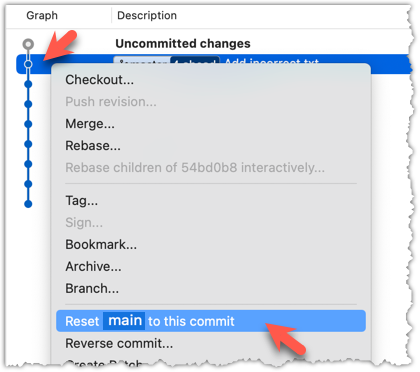
To undo the last commit, right-click on the commit just before it, and choose Reset current branch to this commit.
In the next dialog, choose the Mixed - keep working copy but reset index mode. This will make the offending commit disappear but will keep the changes that you included in that commit intact.
If you use the Soft - ... mode instead, the last commit will be undone as before, but the changes included in that commit will stay in the staging area.
To delete the last commit entirely (i.e., undo the commit and also discard the changes included in that commit), follow the same steps but choose the Hard - ... mode instead.
To undo/delete the last n commits, right-click on the commit just before the last n commits, and repeat the same steps.