Branches in a remote can be replicated in the local repo, and maintained in sync with each other.
Sometimes we need to create a local copy of a branch from a remote repository, make further changes to it, and keep it synchronized with the remote branch. Let's explore how to handle this in a few common use cases:
Use case 1: Working with branches that already existed in the remote repo when you cloned it to your computer.
When you clone a repository,
- Git checks out the default branch. You can start working on this branch immediately. This branch is tracking the default branch in the remote, which means you can easily synchronize changes in this branch with the remote by pulling and pushing.
- Git also fetches all the other branches from the remote. These other branches are not immediately available as local branches, but they are visible as remote-tracking branches.
You can think of remote-tracking branches as read-only references to the state of those branches in the remote repository at the time of cloning. They allow you to see what work has been done on those branches without yet making local copies of them.
To work on one of these branches, you can create a new local branch based on the remote-tracking branch. Once you do this, your local branch will usually be configured to track the corresponding branch on the remote, so you can easily synchronize your work later.
Preparation
1 Verify that the remote-tracking branch origin/track-sales exists in the local repo, but there is no local copy of it.
You can use the git branch -a command to list all local and tracking branches.
git branch -a
* hiring
main
remotes/origin/HEAD -> origin/main
remotes/origin/hiring
remotes/origin/main
remotes/origin/track-sales
The * in the output above indicates the currently active branch.
Note how there is no track-sales in the list of branches (i.e., no local branch named track-sales), but there is a remotes/origin/track-sales (i.e., the remote-tracking branch)
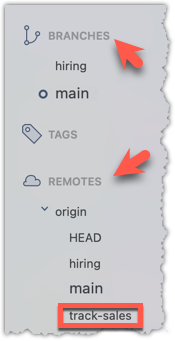
Observe how the branch track-sales appears under REMOTES → origin but not under BRANCHES.
2 Create a local copy of the remote branch origin/track-sales.
You can use the git switch -c <branch> <remote-branch> command for this e.g.,
git switch -c track-sales origin/track-sales
The above command does several things:
- Creates a new branch
track-sales. - Sets the new branch to track the remote branch
origin/track-sales, which means,
a) the local branchtrack-salesknows that it is associated withorigin/track-sales, and as a result,
b) pulling and pushing of this branch can be done without specifying the remote branch. - Switches to the newly-created branch, making it the current branch.
The shorter command git switch track-sales achieves the same result as git switch -c track-sales origin/track-sales, provided,
a) you have already run git fetch, and
b) a remote branch origin/track-sales exists, and
c) you don’t already have a local branch named track-sales.
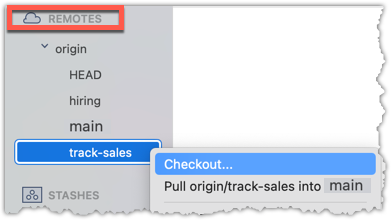
Locate the track-sales remote-tracking branch (look under REMOTES → origin), right-click, and choose Checkout....
In the next dialog, choose as follows:
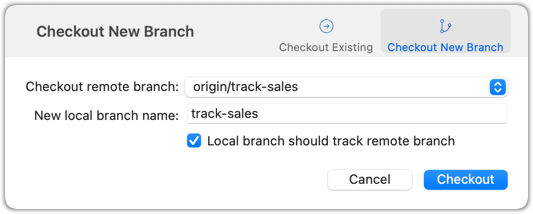
The above action does several things:
- Creates a new branch
track-sales. - Sets the new branch to track the remote branch
origin/track-sales, which means,
a) the local branchtrack-salesknows that it is associated withorigin/track-sales, and as a result,
b) pulling and pushing of this branch can be done without specifying the remote branch. - Switches to the newly-created branch, making it the current branch.
3 Add a commit to the track-sales branch and push to the remote, to verify that the local branch is tracking the remote branch.
Commands to perform this step in one shot:
echo "5 reams of paper" >> sales.txt
git commit -am "Update sales.txt"
git push origin track-sales
done!
Use case 2: Working with branches that were added to the remote repository after you cloned it e.g., a branch someone else pushed to the remote after you cloned.
Simply fetch to update your local repository with information about the new branch. After that, you can create a local copy of it and work with it just as you did in Use Case 1.
Fetching was covered in Lesson T3L3. Downloading Data Into a Local Repo.
New commits can appear in a remote branch after you have set up a local branch to track it (as per use case 1 or 2 given above). e.g., a branch someone else pushed a commit to the remote branch after you pulled the previous version of it. Often you would want to update your local copy of the branch with those new commits.
Here is an example:
gitGraph BT:
    %%{init: { 'theme': 'default', 'gitGraph': {'mainBranchName': 'main'}} }%%
    commit id: "m1"
    branch bug-fix
    checkout main
    commit id: "m2"
    checkout bug-fix
    commit id: "[origin/bug-fix][HEAD → bug-fix] b1"
    checkout main
[local repo: bug-fix branch is unaware
of the commit b2 in the remote]
gitGraph BT:
    %%{init: { 'theme': 'default', 'gitGraph': {'mainBranchName': 'main'}} }%%
    commit id: "m1"
    branch bug-fix
    checkout main
    commit id: "m2"
    checkout bug-fix
    commit id: "b1"
    commit id: "[bug-fix] b2"
    checkout main
[remote repo: has an extra commit
in the bug-fix branch]
To bring the missing commits to the local branch, simply pull the remote branch from your local branch.
If you fetch first (or if your Git GUI is set to auto-fetch periodically) the local repo will be as follows, before and after the pull.
gitGraph BT:
    %%{init: { 'theme': 'default', 'gitGraph': {'mainBranchName': 'main'}} }%%
    commit id: "m1"
    branch bug-fix
    checkout main
    commit id: "m2"
    checkout bug-fix
    commit id: "[HEAD → bug-fix] b1"
    commit id: "[origin/bug-fix] b2"
    checkout main
[local repo: bug-fix branch is aware
of the commit b2]
→
[pull, or just merge]
gitGraph BT:
    %%{init: { 'theme': 'default', 'gitGraph': {'mainBranchName': 'main'}} }%%
    commit id: "m1"
    branch bug-fix
    checkout main
    commit id: "m2"
    checkout bug-fix
    commit id: "b1"
    commit id: "[origin/bug-fix][HEAD → bug-fix] b2"
    checkout main
[local repo: now has the commit b2]
If both the local branch and the remote-tracking branch have new commits that the other does not, Git will try to combine the two diverged histories when you do a pull. By default, this is done by creating a merge commit, although this behavior can be changed (for example, to use rebasing instead).
In the example below, the local branch bug-fix has a new commit b3 while its remote tracking branch has a new commit b2. After pulling, Git has combined the two diverged branches with a merged commit.
gitGraph BT:
    %%{init: { 'theme': 'default', 'gitGraph': {'mainBranchName': 'main'}} }%%
    commit id: "m1"
    branch bug-fix
    checkout main
    commit id: "m2"
    checkout bug-fix
    commit id: "[origin/bug-fix] b1"
    commit id: "[HEAD → bug-fix] b3"
    checkout main
[local repo: bug-fix has a new commit b3]
→
[pull]
gitGraph BT:
    %%{init: { 'theme': 'default', 'gitGraph': {'mainBranchName': 'main'}} }%%
    commit id: "m1"
    branch bug-fix
    checkout main
    commit id: "m2"
    checkout bug-fix
    commit id: "b1"
    branch _
    checkout _
    commit id: "b2"
    checkout bug-fix
    commit id: "b3"
    merge _ id: "[HEAD → bug-fix] merge commit"
    checkout main
[local repo: now has b2, and a merge commit]