To work in parallel timelines, you can use Git branches.
Git branches let you develop multiple versions of your work in parallel — effectively creating diverged timelines of your repository’s history. For example, one team member can create a new branch to experiment with a change, while the rest of the team continues working on another branch. Branches can have meaningful names, such as main, release, or draft.
A Git branch is simply a ref (a named label) that points to a commit and automatically moves forward as you add new commits to that branch. As you’ve seen before, the HEAD ref indicates which branch you’re currently working on, by pointing to the corresponding branch ref.
When you add a commit, it goes into the branch you are currently on, and the branch ref moves to the new commit, effectively making the HEAD ref point to the new commit as well (via the branch ref).
Git creates a branch named master by default (Git can be configured to use a different name e.g., main -- which is the more common choice these days, and is the default used by Git-Mastery).
Given below is an illustration of how branch refs move as branches evolve. Refer to the text below it for explanations of each stage.
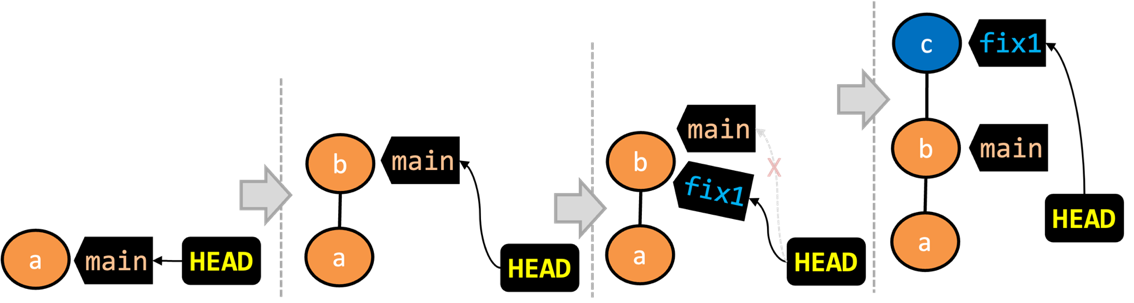
- There is only one branch (i.e.,
main) and there is only one commit on it. TheHEADref is pointing to themainbranch (as we are currently on that branch). - A new commit has been added. The
mainhas moved to the new commit.HEADcontinues to be attached to themainref, thus pointing to the new commit as well. - A new branch
fix1has been added. The repo has switched to the new branch too (hence, theHEADref is now attached to thefix1branch). - A new commit (
c) has been added. The current branch reffix1has moved to the new commit.HEADis also pointing to the new commit, as it remains attached to thefix1branch ref.
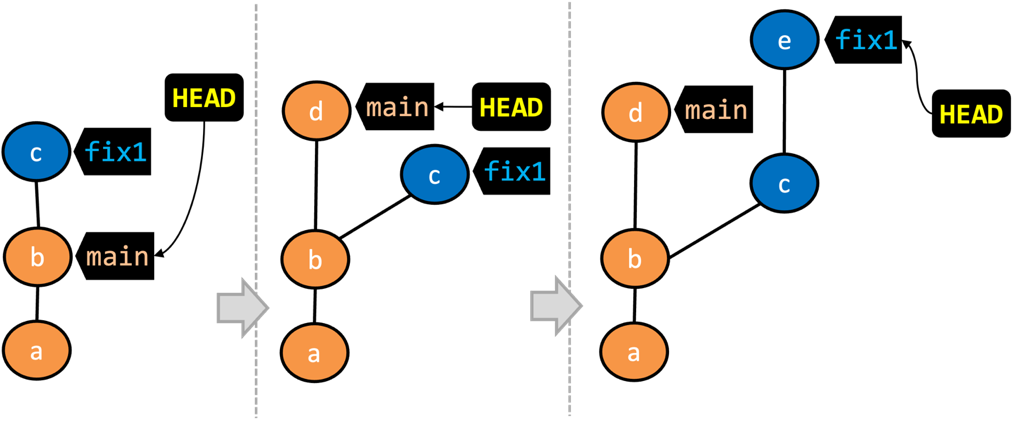
- The repo has switched back to the
mainbranch. Hence, theHEADis now pointing to themainbranch ref, and via that, to commitbthat is at the of that branch.
As a result, the repo's working directory now reflects the code at commitb(notc). - A new commit (
d) has been added. Themainand theHEADrefs now point to that commit. - The repo has switched back to the
fix1branch and added a new commiteto it. The branch reffix1(together withHEAD) are now pointing to the new commitewhile the branch refmainstill points tod.
Appearance of the revision graph (colors, positioning, orientation etc.) varies based on the Git client you use, and might not match the exact diagrams given above.
Preparation
1 Observe that you are on the branch called main.
git status
On branch main
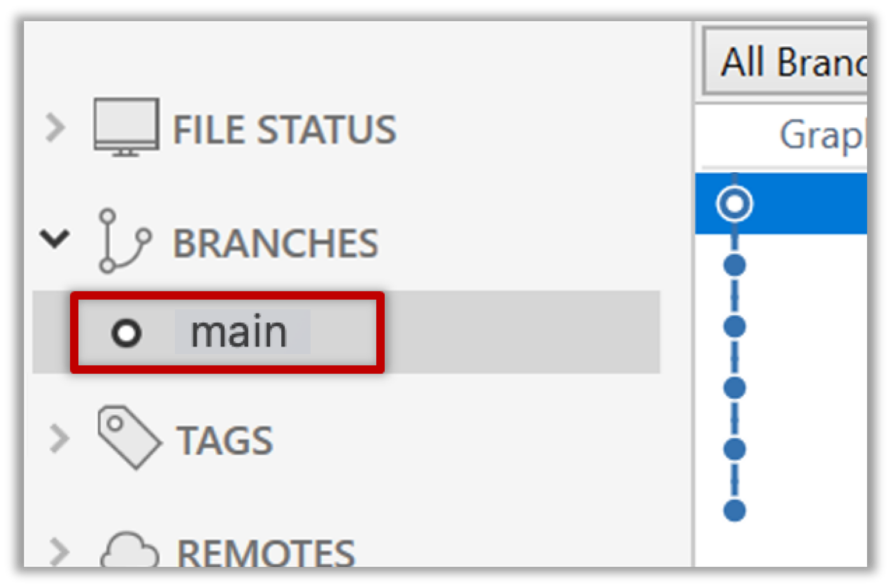
2 Start a branch named feature1 and switch to the new branch.
You can use the branch command to create a new branch and the checkout command to switch to a specific branch.
git branch feature1
git checkout feature1
One-step shortcut to create a branch and switch to it at the same time:
git checkout -b feature1
Switched to a new branch 'feature1'
The new switch command
Git recently introduced a switch command that you can use instead of the checkout command given above.
To create a new branch and switch to it:
git branch feature1
git switch feature1
One-step shortcut (by using -c or --create flag):
git switch -c feature1
Click on the Branch button on the main menu. In the next dialog, enter the branch name and click Create Branch.

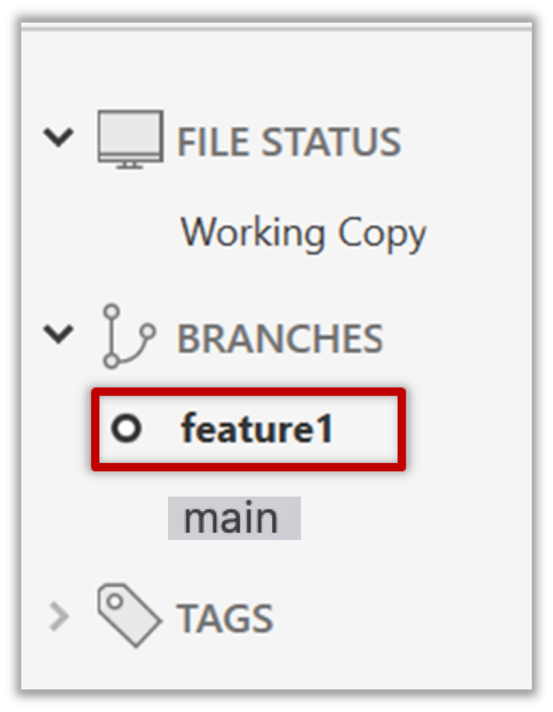
Note how the feature1 is indicated as the current branch (reason: Sourcetree automatically switches to the new branch when you create a new branch, if the Checkout New Branch was selected in the previous dialog).
3 Create some commits in the new branch, as follows.
- Add a file named
boxing.txt, stage it, commit it.echo -e "Muhammad Ali" > boxing.txt git stage boxing.txt git commit -m "Add boxing.txt" - Observe how commits you add while on
feature1branch will becomes part of that branch.
Observe how thefeature1ref and theHEADref move to the new commit.
As before, you can use the git log --oneline --decorate command for this.
- At times, the
HEADref of the local repo is represented as in Sourcetree, as illustrated in the screenshot below .
. - The
HEADref is not shown in the UI if it is already pointing at the active branch.
- Add some more texts to
boxing.txt, stage the changes, and commit it. This commit too will be added to thefeature1branch.echo -e "Mike Tyson" >> boxing.txt git commit -am "Add Tyson to boxing.txt"
4 Switch to the main branch. Note how the changes you made in the feature1 branch are no longer in the working directory.
git switch main
Double-click the main branch.
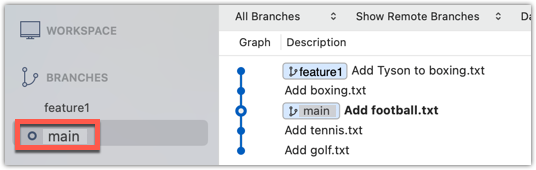
Revisiting main vs origin/main
In the screenshot above, you see a main ref and a origin/main ref for the same commit. The former identifies the of the local main branch while the latter identifies the tip of the main branch at the remote repo named origin. The fact that both refs point to the same commit means the local main branch and its remote counterpart are with each other.
Similarly, origin/HEAD ref appearing against the same commit indicates that of the remote repo is pointing to this commit as well.
5 Add a commit to the main branch. Let’s imagine it’s a bug fix.
To keep things simple for the time being, this commit should not involve the boxing.txt file that you changed in the feature1 branch. Of course, this is easily done, as the boxing.txt file you added in the feature1 branch is not even visible when you are in the main branch.
echo -e "Martina Navratilova" >> tennis.txt
git commit -am "Add Martina to tennis.txt"
gitGraph BT:
    %%{init: { 'theme': 'default', 'gitGraph': {'mainBranchName': 'main'}} }%%
    commit id: "m1"
    commit id: "m2"
    branch feature1
    commit id: "f1"
    commit id: "[feature1] f2"
    checkout main
    commit id: "[HEAD → main] m3"
    checkout feature1
6 Switch between the two branches and see how the working directory changes accordingly. That is, now you have two parallel timelines that you can freely switch between.
done!
You can also start a branch from an earlier commit, instead of the latest commit in the current branch. For that, simply check out the commit you wish to start from.
Preparation
Option 2: Continue with the sports repo from the previous hands-on practical
Scenario Suppose we want to create a branch containing an alternative version of the content we added in the feature1 branch.
Target Create a new branch that starts from the same commit the feature1 branch started from, as shown below:
gitGraph BT:
    %%{init: { 'theme': 'default', 'gitGraph': {'mainBranchName': 'main'}} }%%
    commit id: "m1"
    commit id: "m2"
    branch feature1
    branch feature1-alt
    checkout feature1
    commit id: "f1"
    commit id: "[feature1] f2"
    checkout main
    commit id: "[HEAD → main] m3"
    checkout feature1-alt
    commit id: "[HEAD → feature1-alt] a1"
Avoid this rookie mistake!
Always remember to switch back to the main branch before creating a new branch. If not, your new branch will be created on top of the current branch.
1 Switch to the main branch.
2 Checkout the commit at which the feature1 branch diverged from the main branch (e.g. git checkout HEAD~1). This will create
a 'detached' HEAD.
3 Create a new branch called feature1-alt and switch to it (e.g., git switch -c feature1-alt). The HEAD will now point to this new branch (i.e., no longer 'detached').
PRO-TIP: Creating a branch based on another branch in one shot
Suppose you are currently on branch b2 and you want to create a new branch b3 that starts from b1. Normally, you can do that in two steps:
git switch b1 # switch to the intended base branch first
git switch -c b3 # create the new branch and switch to it
This can be done in one shot using the git switch -c <new-branch> <base-branch> command:
git switch -c b3 b1
4 Add a commit on the new branch. Example:
echo -e "Venus Williams" >> tennis.txt
git commit -am "Add Venus to tennis.txt"
done!