The third step of backing up a local repo on GitHub: push local commits to a branch in the remote repo.
You can push recorded Git history from one repository to another, usually from your local repo to a remote repo. Pushing sends commits and updates a branch in the remote repo, but it does not transfer unstaged changes or untracked files.
- To push, you need to have to the remote repo.
- Pushing is performed one branch at a time; you must specify which branch you want to push.
You can configure Git to remember which remote branch a local branch should push to by default, so later you can push from the same local branch without specifying the destination again. For example, you can set your local main branch to use the main branch on the remote repo origin as its corresponding branch. In the revision graph below, the ref origin/main is a remote-tracking branch that represents Git's latest known state of a corresponding branch in a remote repository. More precisely, a remote-tracking branch records the state of the corresponding remote branch at the time Git last updated that information, such as after a successful push. You can think of a remote-tracking branch as a bookmark that tells you where the corresponding branch in the remote repo was the last time you checked.
In this example, the main branch in the remote origin is also at the commit C3 (which means you have not created new commits after you pushed to the remote).
If you now create a new commit C4, the state of the revision graph will be as follows:
Explanation: When you create C4, the current branch main moves to C4, and HEAD moves along with it. However, the main branch in the remote origin remains at C3 (because you have not pushed C4 yet). That is, the remote-tracking branch origin/main is one commit behind the local branch main (or, the local branch is one commit ahead). The origin/main ref will move to C4 only after you push your local branch to the remote again.
Target Upload (i.e., push) the commits from a local branch to a branch in a remote repo.
Preparation
Option 2: Continue with the things local repo and the gitmastery-things remote repo from the previous hands-on practical
1 Push the main branch to the remote. Also instruct Git to track this branch pair.
Navigate inside the things folder.
Use git push -u <remote-repo-name> <local-branch-name> to push the commits in a local branch to a remote repository.
git push -u origin main
Explanation:
push: the Git sub-command that sends local commits to a remote repoorigin: name of the remotemain: branch to push-u(or--set-upstream): the flag that setsorigin/mainas the upstream branch of the localmainbranch. The upstream branch is Git's remembered default remote-tracking branch for this local branch; here,mainwill useorigin/mainas the upstream branch.
Click the Push button on the toolbar at the top.

In the next dialog, ensure the settings are as follows, select the Track option, and click the Push button on the dialog.

Note: Because the remote repo is empty, this push creates the main branch on the remote and uploads the commits to it. You can go to the repo page on GitHub to see the commits and the branch.
2 Observe the remote-tracking branch origin/main is now pointing at the same commit as the main branch.
Use git log --oneline --graph to see the revision graph.
* f761ea6 (HEAD -> main, origin/main) Add colours.txt, shapes.txt
* 2bedace Insert figs into fruits.txt
* d5f91de Add fruits.txt
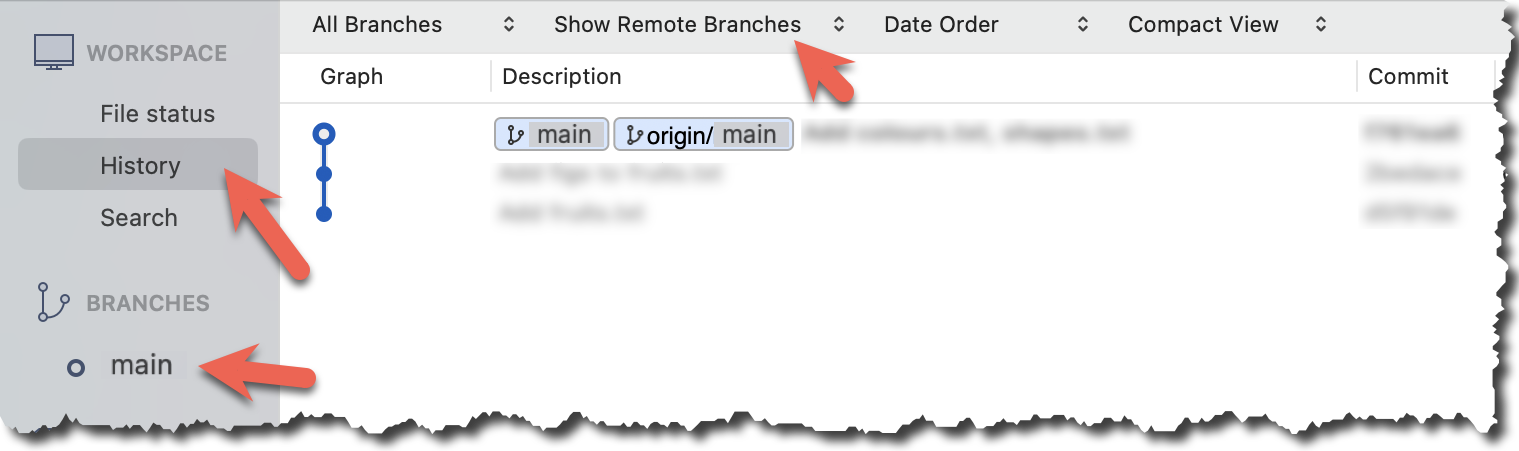
Click History to see the revision graph.
- In some versions of Sourcetree, the
HEADref may not be shown -- it is implied that theHEADref points to the same commit as the current branch ref. - If the remote-tracking branch ref (e.g.,
origin/main) is not showing up, you may need to enable theShow Remote Branchesoption.
done!
You can use the push command repeatedly to send further updates to the remote repo, e.g., to update the remote with commits you created since you pushed the first time.
Target Add a commit to the same local repo, and push it to the remote repo.
Preparation
Option 2: Continue with the things local repo and the gitmastery-things remote repo from the previous hands-on practical
1 Commit some changes in your local repo. Example:
echo "Elderberries" >> fruits.txt
git commit -am "Update fruits list"
-am is shorthand for -a -m. The -a option stages any changes to tracked files, and -m is for specifying the commit message. See here for a longer explanation.
Optionally, you can run the git status command, which should confirm that your local branch is 'ahead' by one commit (i.e., the local branch has commits that are not present in the corresponding branch in the remote repo).
git status
On branch main
Your branch is ahead of 'origin/main' by 1 commit.
(use "git push" to publish your local commits)
nothing to commit, working tree clean
You can also use the git log --oneline --graph command to see where the branch refs are. Note how the remote-tracking branch origin/main is one commit behind the local main.
e60deae (HEAD -> main) Update fruits list
f761ea6 (origin/main) Add colours.txt, shapes.txt
2bedace Insert figs into fruits.txt
d5f91de Add fruits.txt
Create commits as you did before.
Before pushing the new commit, Sourcetree will indicate that your local branch is 'ahead' by one commit (i.e., the local branch has one new commit that is not in the corresponding branch in the remote repo).

2 Push the new commits to your remote repo on GitHub.
To push the newer commit(s) in the current branch main to the remote origin, you can use any of the following commands:
git push origin maingit push origin
→ With the usual Git configuration used in this course, Git will push the current branch (e.g.,main) to the branch it tracks onorigin.git push
→ Because of the tracking you set up earlier, Git will push the current branch (e.g.,main) to its upstream branch onorigin.
After pushing, the revision graph should look something like the following (note how both local and remote-tracking branch refs are pointing to the same commit again).
e60deae (HEAD -> main, origin/main) Update fruits list
f761ea6 Add colours.txt, shapes.txt
2bedace Insert figs into fruits.txt
d5f91de Add fruits.txt
To push, click the Push button on the top toolbar, ensure the settings are as follows in the next dialog, and click the Push button in the dialog.
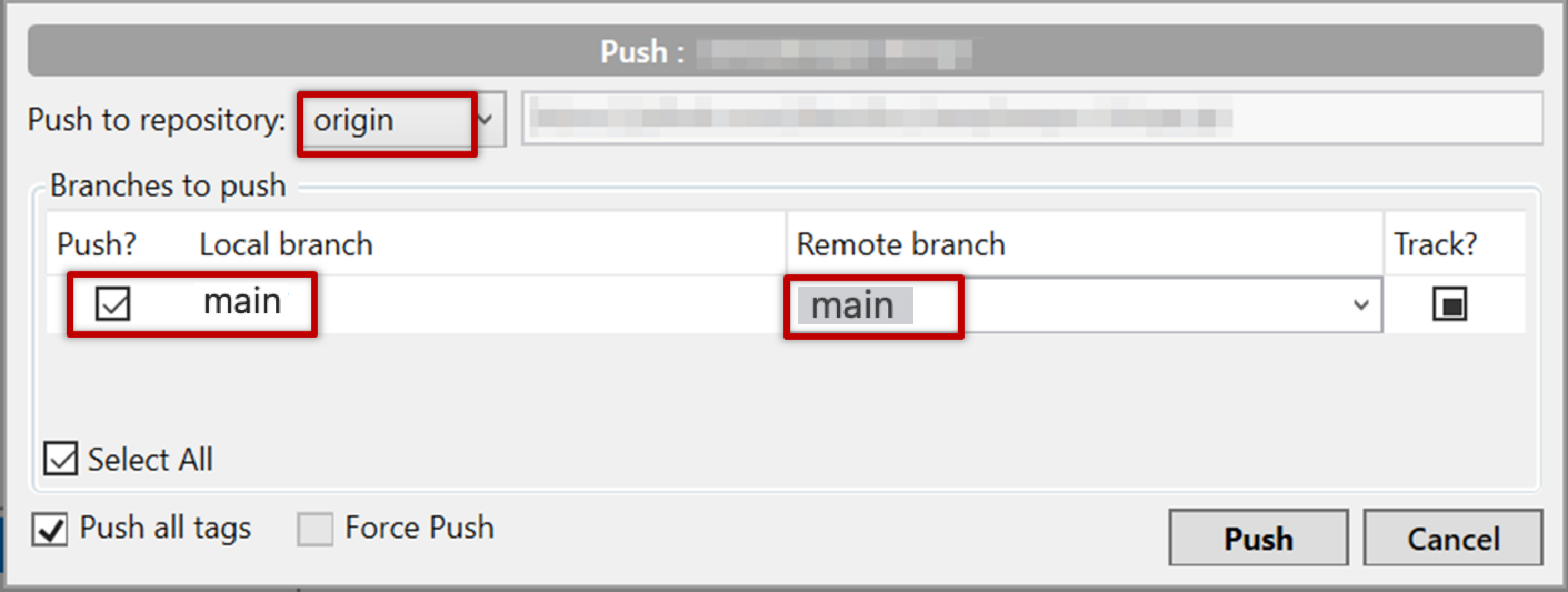
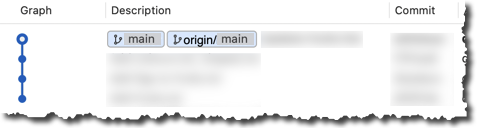
After pushing the new commit to the remote, the remote-tracking branch ref should move to the new commit:
done!
Can one push from any repo to any other repo?
When updating an existing branch on a remote, Git normally expects your local changes to build on the remote repo's current history. That is, you cannot normally push if the two repos are completely unrelated to each other. In this tour, the remote repo is empty, so the first push from a local repo goes through just fine.
DETOUR: Pushing to Multiple Repos
You can push to any number of repos, as long as the target repos and your repo have a shared history.
- Add the GitHub repo URL as a remote while giving a suitable name (e.g.,
upstream,central,production,backup...), if you haven't done so already. - Push to the target repo, remembering to select the correct target repo when you push.
e.g., git push backup main