To be able to save snapshots of a folder using Git, you must first put the folder under Git's control by initializing a Git repository in that folder.
Normally, we use Git to manage a revision history of a specific folder, which gives us the ability to revision-control any file in that folder and its subfolders.
To put a folder under Git's control, we initialize a (short name: repo) in that folder. This lets us create repos in different folders and revision-control different clusters of files independently of each other, e.g., files belonging to different projects.
You can follow the hands-on practical below to learn how to initialize a repo in a folder.
What is this? HANDS-ON panels contain hands-on activities you can do as you learn Git. If you are new to Git, we strongly recommend that you do them yourself (even if they appear straightforward), as hands-on usage will help you internalize the concepts and operations better.
Preparation Choose a folder to put under Git's control. The folder may or may not contain any files. For this practical, let us create a folder named things for this purpose.
You can use the Git-Mastery app to for this practical, or create the sandbox manually. The instructions below cover both options.
Avoid putting Git repos inside cloud-synced (e.g., OneDrive, Dropbox) folders. Multiple tools trying to detect/sync changes in the same folder can cause conflicts and unexpected behavior.
If you want to access project files from multiple computers, use Git instead of cloud syncing tools.
1 Then, cd into it. What is cd? For example,
cd hp-init-repo/things
2 Run the git status command to check the status of the folder.
git status
fatal: not a git repository (or any of the parent directories): .git
Don't panic. The error message is expected. It confirms that the folder currently does not have a Git repo.
3 Now, initialize a repository in that folder.
Use git init to initialize the repo.
git init
Initialized empty Git repository in <path-to-repo>/things/.git/
Note how the output mentions the repo being created in things/.git/ (not things/). More on that later.
Click File → Clone/New…, then click the + Create button on the top menu bar.
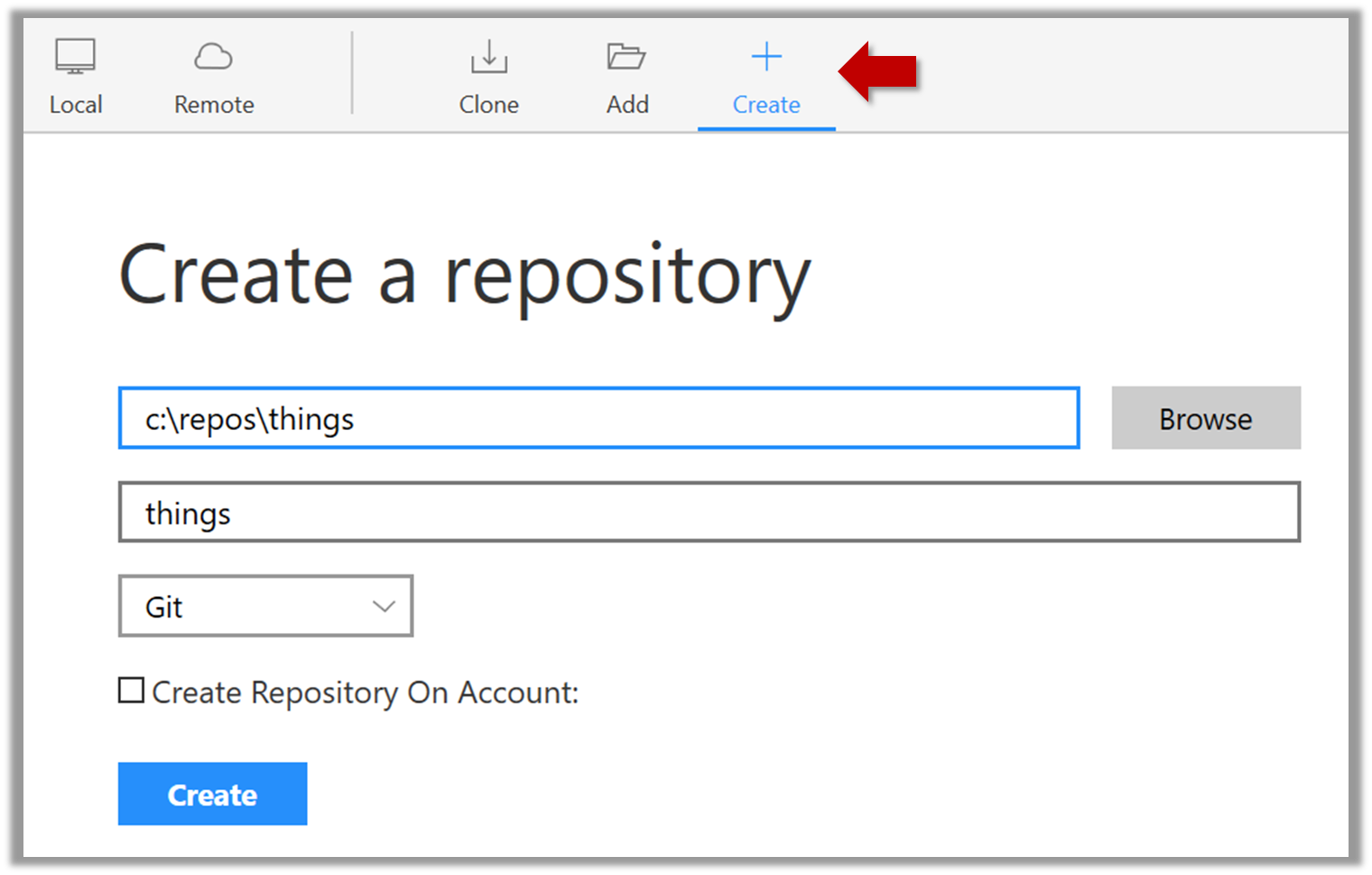
Enter the location of the directory and click Create.
To open an existing repo in Sourcetree, click Fie → Open and select the folder location of the repo (i.e., the folder containing the hidden .git folder).
File→New...to open the dialog for creating a new repo.- In that dialog, click on the
New...dropdown and chooseCreate Local Repository(orCreate New Repository).
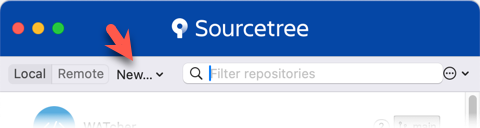
- Click the
...button to select the folder location for the repository. After selecting the folder location, click theCreatebutton.
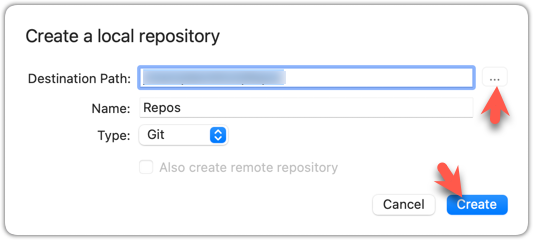
To open an existing repo in Sourcetree, click Fie → Open... and select the folder location of the repo (i.e., the folder containing the hidden .git folder).
done!
Initializing a repo results in two things:
- First, Git now recognizes this folder as a Git repository, which means it can now help you track the version history of files inside this folder.
To confirm, you can run the git status command. It should respond with something like the following:
git status
On branch main
No commits yet
nothing to commit (create/copy files and use "git add" to track)
Don't worry if you don't understand the output (we will learn about these details later) or if your output is slightly different (e.g., master instead of main); what matters is that it no longer gives an error message as it did before.
done!
- Second, Git created a hidden subfolder named
.gitinside thethingsfolder. This folder will be used by Git to store metadata about this repository.
A Git-controlled folder is divided into two main parts:
What is this? EXERCISE panels contain a Git-Mastery exercise that you can download using the Git-Mastery app, and you can use the same app to verify that your solution is correct.
If you are doing Git-Mastery exercises as a course requirement, note that your Git-Mastery exercise progress will not be visible to your course instructors until you go past Tour 2, Lesson 2 (in which you will be taught how to enable the progress sync feature of the Git-Mastery app). Your progress will be saved in your computer until then and uploaded to a location visible to others only at that time.
What is this? DETOUR panels contain related directions you can optionally explore. We recommend that you only skim them the first time you are going through a tour (i.e., just to know what each detour covers); you can revisit them later, to deepen your knowledge further, or when you encounter a use case related to the concepts covered by the detour.