Git allows you to specify which files should be omitted from revision control.
You can specify which files Git should ignore when deciding what to track. While you can always omit files from revision control simply by not staging them, an 'ignore-list' is more convenient, especially when the working directory contains files that are not suitable for revision control (e.g., temporary log files) or files you want to avoid accidentally committing (e.g., files containing confidential information).
A repo-specific ignore-list of files can be specified in a .gitignore file, stored in the root of the repo folder.
The .gitignore file itself can either be tracked by Git or ignored.
- To keep it under version control (the more common choice, which allows you to track how the
.gitignorefile changes over time), simply commit it as you would commit any other file. - To ignore it, simply add its name to the
.gitignorefile itself.
The .gitignore file supports file patterns; e.g., adding temp/*.tmp to the .gitignore file prevents Git from tracking any .tmp files in the temp directory.
SIDEBAR: .gitignore File Syntax
Blank lines: Ignored and can be used for spacing.
Comments: Begin with
#(lines starting with # are ignored).# This is a commentWrite the name or pattern for each file/directory to ignore.
log.txt # Ignores a file named log.txtWildcards:
*matches any number of characters, except/(i.e., for matching a string within a single directory level):abc/*.tmp # Ignores all .tmp files in abc directory**matches any number of characters (including/)**/foo.tmp # Ignores all foo.tmp files in any directory?matches a single characterconfig?.yml # Ignores config1.yml, configA.yml, etc.[abc]matches a single character (a, b, or c)file[123].txt # Ignores file1.txt, file2.txt, file3.txt
Directories:
Add a trailing
/to match directories only.logs/ # Ignores the logs directory (and everything under it)Patterns without
/are not anchored and are matched at any directory level.*.bak # Ignores all .bak files anywhere in the repositoryPatterns starting with
/are relative to the location of the.gitignorefile./secret.txt # Only ignores secret.txt in the repository root
Negation: Use
!at the start of a line to stop ignoring something.*.log # Ignores all .log files !important.log # Except important.log
Example:
# Ignore all log files
*.log
# Ignore node_modules folder
node_modules/
# Don’t ignore main.log
!main.log
.gitignore is a 'hidden' file!
Files with a name starting with . (such as .gitignore) are considered hidden files by macOS and Linux. Git tools on Windows are also likely to mark the .gitignore file as a hidden file. Therefore, if the .gitignore file is not visible to you, you'll need to look for it among 'hidden' files.
How to do that in: Windows | macOS | Linux
Target Get Git to ignore some files in a repo.
Preparation
1 Configure Git to ignore those files:
Create a file named .gitignore in the working directory root and add the text temp.txt into it.
echo "temp.txt" >> .gitignore
temp.txt
Observe how temp.txt is no longer detected as 'untracked' by running the git status command (but now it will detect the .gitignore file as 'untracked').
Update the .gitignore file as follows:
temp.txt
*.tmp
Observe how .tmp files are no longer detected as 'untracked' by running the git status command.
The file should currently be listed under Unstaged files. Right-click it and choose Ignore.... Choose Ignore exact filename(s) and click OK.
Also note the other options available, e.g., Ignore all files with this extension. They may be useful in future.
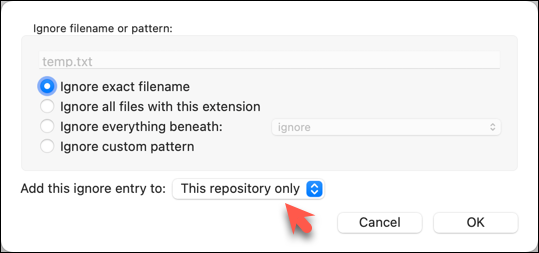
Note how temp.txt is no longer listed under Unstaged files. Observe that a file named .gitignore has been created in the working directory root and has the following line in it. This new file is now listed under Unstaged files.
temp.txt
Right-click on any of the .tmp files you added, and choose Ignore... as you did previously. This time, choose the option Ignore files with this extension.
Note how .tmp files are no longer shown as unstaged files, and the .gitignore file has been updated as given below:
temp.txt
*.tmp
2 Optionally, stage and commit the .gitignore file.
done!
Files recommended to be omitted from version control
- Binary files generated when building your project, e.g.,
*.class,*.jar,*.exe
Reasons:- There is no need to version control these files, as they can be generated again from the source code.
- Revision control systems are optimized for tracking text-based files, not binary files.
- Temporary files e.g., log files generated while testing the product
- Local files, i.e., files specific to your own computer e.g., local settings of your IDE (
.idea/) - Auto-fetched files, i.e., files automatically downloaded by build tools and package managers e.g.,
node_modules/for Node.js projects - Sensitive content, i.e., files containing sensitive or personal information e.g., credential files, personal identification data (especially if there is a risk of those files leaking through the revision control system).