The first step of backing up a local repo on GitHub: create an empty repository on GitHub.
You can create a remote repository based on an existing local repository to serve as a remote copy of your local repo. For example, suppose you created a local repo and worked with it for a while, but now you want to upload it to GitHub. The first step is to create an empty repository on GitHub.
Target Create an empty repo named gitmastery-things in your GitHub account.
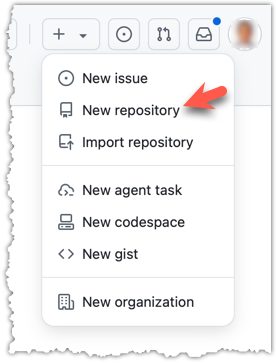
1 Log in to your GitHub account and choose to create a new repo.
2 On the next screen, provide gitmastery-things as the name for your repo. Refer to the screenshot below for which options to choose for the remaining fields.
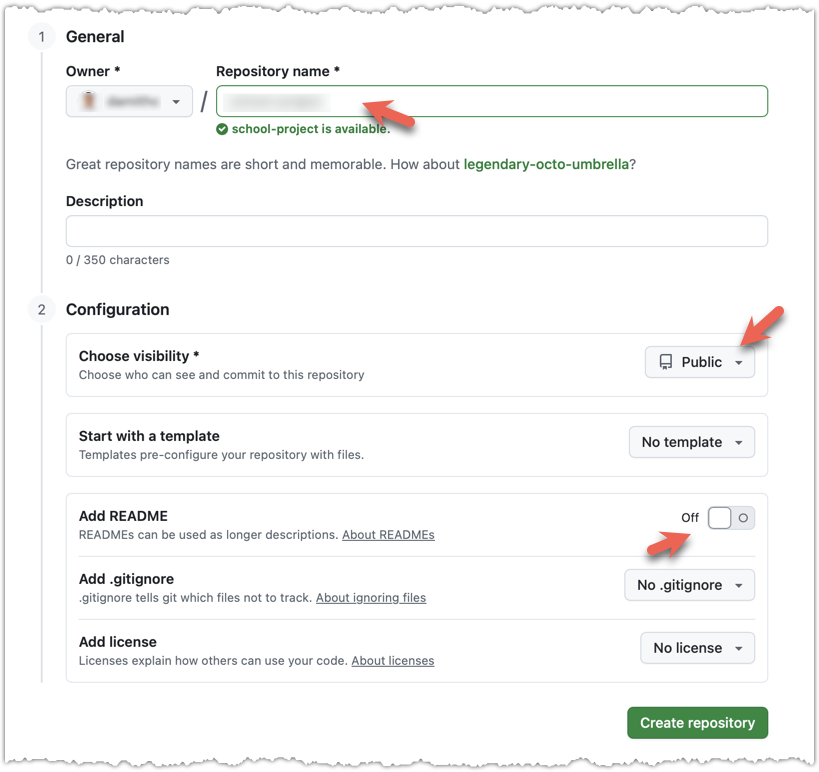
Click the Create repository button to create the new repository. What's the difference between public and private repos?
If you enable any of the three Add _____ options shown above, GitHub will not only create a repo but also initialize it with some initial content. That is not what we want here. To create an empty remote repo, keep those options disabled.
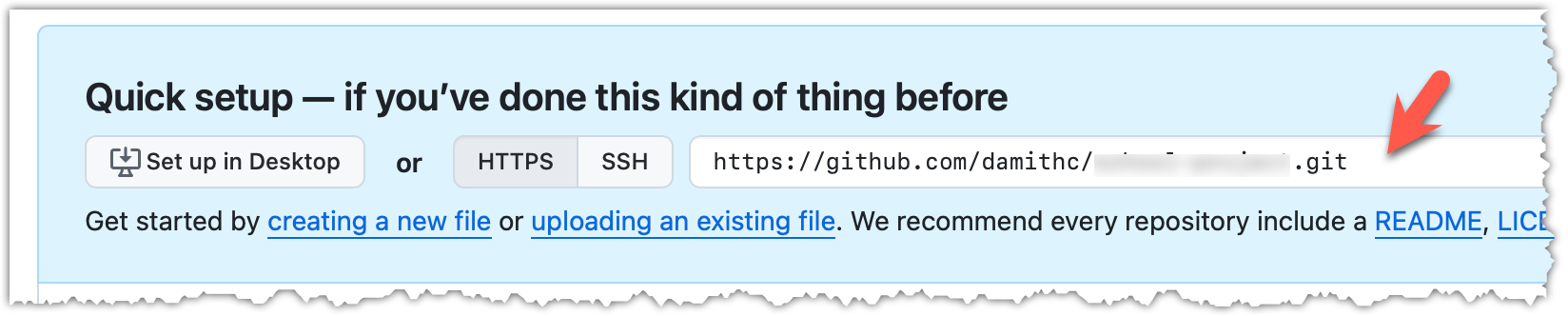
3 Note the URL of the repo. It will be of the form
https://github.com/{your_user_name}/{repo_name}.git.
e.g., https://github.com/[[username: JohnDoe]]/gitmastery-things.git (note the .git at the end)
Your GitHub username :
Note: Type your GitHub username in the blank above so that we can customize sample commands to fit you.
done!