Another useful revision control feature is the ability to view the working directory as it was at a specific point in history by checking out a commit created at that point.
Suppose you added a new feature to a software product, and while testing it, you noticed that another feature added two commits ago doesn't handle a certain edge case correctly. Now you're wondering: did the new feature break the old one, or was it already broken? Can you go back to the moment you committed the old feature and test it in isolation, and come back to the present after you find the answer? With Git, you can.
To view the working directory at a specific point in history, you can check out the commit created at that point.
When you check out a commit, Git:
- Updates your working directory to match the snapshot in that commit, overwriting current files as needed.
- Moves the
HEADref to that commit, marking it as the current state you're viewing.
→
[check out commit C2...]
Checking out a specific commit puts you in a "detached HEAD" state: i.e., HEAD no longer points to a branch, but directly to a commit (see the above diagram for an example). This is not a problem by itself, but any commits you make in this state can be lost unless you take certain follow-up actions. It is perfectly fine to be in a detached state if you are only examining the state of the working directory at that commit.
To get out of a "detached HEAD" state, you can check out a branch, which "re-attaches" HEAD to the branch you checked out.
→
[check out main...]
Target Check out a few commits in a local repo, while examining the working directory to verify that it matches the state at the corresponding commit.
Preparation
1 Examine the revision tree, to get your bearings first.
git log --oneline --decorate
Reminder: You can use aliases to reduce typing Git commands.
6304a59 (HEAD -> main) shapes.txt: Add some shapes
9f68246 (tag: 1.0) colours.txt: Add some colours
2ef8852 Update fruits list
8ca5cc6 (tag: 0.9) Add colours.txt, shapes.txt
542668f Add elderberries and figs into fruits.txt
ec49b17 Add fruits.txt
2 Use the git checkout <commit-identifier> command to check out a commit other than the one currently pointed to by HEAD. You can use any of the following methods:
git checkout v1.0: checks out the commit taggedv1.0git checkout 0023cdd: checks out the commit with the hash0023cddgit checkout HEAD~2: checks out the commit two commits before the most recent commit.
git checkout HEAD~2
Note: switching to 'HEAD~2'.
You are in 'detached HEAD' state.
# rest of the warning about the detached HEAD ...
HEAD is now at 2ef8852 Update fruits list
3 Verify HEAD and the working directory have updated as expected.
HEADshould now be pointing at the target commit- The working directory should match the state it was in at that commit (i.e., changes made after that commit should not be in the folder).
git log --oneline --decorate
2ef8852 (HEAD) Update fruits list
8ca5cc6 (tag: 0.9) Add colours.txt, shapes.txt
542668f Add elderberries and figs into fruits.txt
ec49b17 Add fruits.txt
HEAD is indeed pointing at the target commit.
But note how the output does not show commits you added after the checked-out commit.
You can use the following command to verify that the missing commits still exist in the repo.
git log --oneline --decorate --all --date-order
2a6daee (main) shapes.txt: Add some shapes
b9a03c0 (tag: 1.0) colours.txt: Add some colours
b57ad18 (HEAD) Update fruits list
aff416b (tag: 0.9) Add colours.txt, shapes.txt
8998bfb Add elderberries and figs into fruits.txt
9d3b329 Add fruits.txt
The --all switch tells git log to show commits from all refs, not just those reachable from the current HEAD. This includes commits from other branches, tags, and remotes.
The --date-order switch tells git log to order commits primarily by commit date while ensuring it never shows a child commit before its parent. This keeps the output chronologically and topologically sensible
even when multiple commits have identical timestamps (a situation that can happen when commits are generated programmatically by a tool or script, e.g., Git-Mastery).
4 Go back to the latest commit by checking out the main branch again.
git checkout main
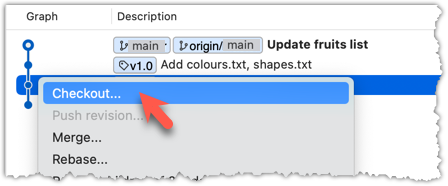
In the revision graph, double-click the commit you want to check out, or right-click on that commit and choose Checkout....
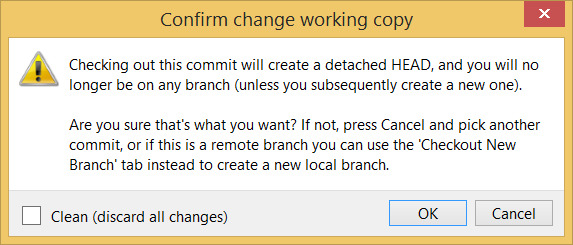
Click OK to the warning about 'detached HEAD' (similar to below).
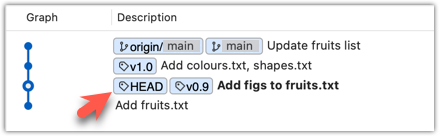
The specified commit is now loaded into the working directory, as indicated by the HEAD label.
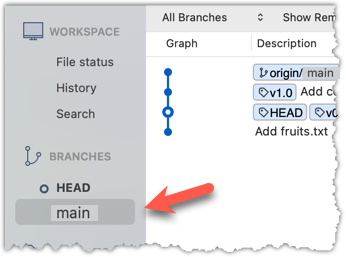
To go back to the latest commit on the main branch, double-click the main branch.
If you check out a commit that comes before the commit in which you added a certain file (e.g., temp.txt) to the .gitignore file, and if the .gitignore file is version controlled as well, Git will now show it under 'unstaged modifications' because at Git hasn't been told to ignore that file yet.
done!
If there are uncommitted changes in the working directory or staging area, Git proceeds with a checkout only if doing so would not overwrite or remove those changes. Here are some examples to illustrate this behavior:
- Example 1: There is a new uncommitted file in the working directory.
→ If the new file is untracked: Git proceeds with the checkout and keeps the file, provided the target commit does not contain a tracked file at the same path.
→ If the new file is staged: Git proceeds with the checkout only if the checkout would not overwrite or remove the staged version of the file. - Example 2: There is an uncommitted change to a file that would be overwritten by the version in the commit you want to check out.
→ Git aborts the checkout.
If these examples feel too abstract for now, the important thing to remember is that Git aims to prevent your uncommitted changes from being irrecoverably lost due to a checkout operation.
The Git stash feature temporarily sets aside uncommitted changes you've made (in your working directory and staging area), without committing them. This is useful when you're in the middle of some work, but you need to switch to another state (e.g., check out a previous commit), and your current changes are not yet ready to be committed or discarded. You can later reapply the stashed changes when you're ready to resume that work.