Branches can be renamed, for example, to fix a mistake in the branch name.
Local branches can be renamed easily. Renaming a branch changes the branch reference (i.e., the name used to identify the branch). This is a cosmetic change: the commits, file contents, and merge relationships stay the same; only the name pointing to the branch tip changes.
Target You want to rename fantasy (not yet merged) and textbooks (merged), as shown below:
gitGraph BT:
    %%{init: { 'theme': 'default', 'gitGraph': {'mainBranchName': 'main'}} }%%
    commit id: "m1"
    branch textbooks
    checkout textbooks
    commit id: "[textbooks] t1"
    checkout main
    branch fantasy
    checkout fantasy
    commit id: "[fantasy] f1"
    checkout main
    merge textbooks id: "[HEAD → main] mc1"
→
[rename branches]
gitGraph BT:
    %%{init: { 'theme': 'default', 'gitGraph': {'mainBranchName': 'main'}} }%%
    commit id: "m1"
    branch study-books
    checkout study-books
    commit id: "[study-books] t1"
    checkout main
    branch fantasy-books
    checkout fantasy-books
    commit id: "[fantasy-books] f1"
    checkout main
    merge study-books id: "[HEAD → main] mc1"
Preparation
steps:
To rename a branch, use the git branch -m <current-name> <new-name> command (-m stands for 'move'):
git branch -m fantasy fantasy-books
git branch -m textbooks study-books
git log --oneline --decorate --graph --all # verify the changes
* 443132a (HEAD -> main) Merge branch textbooks
|\
| * 4969163 (study-books) Add textbooks.txt
|/
| * 0586ee1 (fantasy-books) Add fantasy.txt
|/
* 7f28f0e Add horror.txt
Note these additional switches to the git log command:
--all: Shows all branches, not just the current branch.--graph: Shows a graph-like visualization.*indicates a commit, and vertical lines indicate branches.
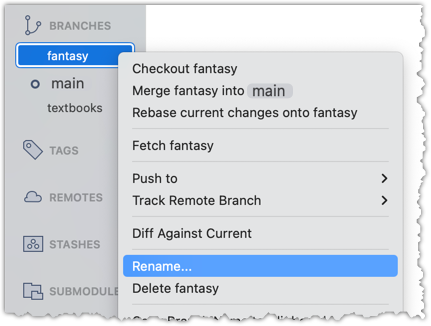
Right-click the branch name and choose Rename.... Provide the new branch name in the next dialog.
done!
SIDEBAR: Branch naming conventions
Branch names can contain lowercase letters, numbers, /, dashes (-), underscores (_), and dots (.).
You can also use uppercase letters, but many teams avoid them for consistency.
A common branch naming convention is to prefix branch names with <category>/. Some examples:
feature/login-form— for new features (origin/feature/login-formcould be the matching remote-tracking branch)bugfix/profile-photo— for fixing bugshotfix/payment-crash— for urgent production fixesrelease/2.0— for preparing a releaseexperiment/ai-chatbot— for “just trying stuff”
Although a forward slash (/) in the prefix doesn't create folders in Git, some tools treat it like a path, which lets you group related branches when you run git branch. The example below shows how Sourcetree groups branches with the same prefix.