To save a snapshot, you start by specifying what to include in it, also called staging.
Git provides an internal space called the staging area, which it uses to build the next snapshot. Another name for the staging area is the index.
Git treats new files that you add to the working directory as 'untracked', i.e., Git is aware of them, but they are not yet under Git's control. The same applies to files that existed in the working directory at the time you initialized the repo.
We can stage an untracked file to tell Git that we want its current version to be included in the next snapshot (in Git terminology, such a snapshot is called a commit). When asked to stage a file, Git copies that file from the working directory to the staging area. Once you stage an untracked file, it becomes a 'tracked' (i.e., under Git's control) file thereafter.
In the example below, you can see how staging files changes the status of the repo as you go from (a) to (c).
[empty]
├─ fruits.txt (untracked!)
└─ colours.txt (untracked!)
(a) State of the repo, just after initialization and creating two files. Both are untracked.
└─ fruits.txt
├─ fruits.txt (tracked)
└─ colours.txt (untracked!)
(b) State after staging
fruits.txt.├─ fruits.txt
└─ colours.txt
├─ fruits.txt (tracked)
└─ colours.txt (tracked)
(c) State after staging
colours.txt.Preparation
Option 2: Continue with the sandbox from the previous hands-on practical
1 Add a file (e.g., fruits.txt) to the things repo folder.
Here is an easy way to do that with a single terminal command.
Windows users: Use the Git Bash terminal to run the commands given in these lessons. Some of them might not work in other terminals such as PowerShell.
echo -e "apples\nbananas\ncherries" > fruits.txt
Explanation of the echo -e "apples\nbananas\ncherries" > fruits.txt command
apples
bananas
cherries
To see the content of the file, you can use the cat command (or open it in your favorite text editor):
cat fruits.txt
2 Stage the new file.
2.1 Check the status of the folder using the git status command.
git status
On branch main
No commits yet
Untracked files:
(use "git add <file>..." to include in what will be committed)
fruits.txt
nothing added to commit but untracked files present (use "git add" to track)
Git commands targeting a specific repo should be run inside the repo folder. (we use the term repo folder to loosely refer to the folder that we initialized the repo in). For example, to check the status of the things repo, you need to navigate to the things folder in your terminal before you run the git status command.
Remember this for future Git commands too.
2.2 Use the git add <file> command to stage the file.
git add fruits.txt
You can replace add with stage (e.g., git stage fruits.txt) and the result is the same (they are synonyms). Git-Mastery usually uses add, but sometimes uses stage to remind you that both are correct.
Windows users: When using the echo command to write to text files from Git Bash, you might see a warning LF will be replaced by CRLF the next time Git touches it when Git interacts with such a file. This warning is caused by the way line endings are handled differently by Git and Windows. You can ignore it, or suppress it in the future by running the following command:
git config --global core.safecrlf false
2.3 Check the status again. You should see that the file is no longer 'untracked'.
git status
On branch main
No commits yet
Changes to be committed:
(use "git rm --cached <file>..." to unstage)
new file: fruits.txt
As before, don't worry if you don't understand the output yet (we'll unpack it in a later lesson). The key point is that the file is no longer listed as 'untracked'.
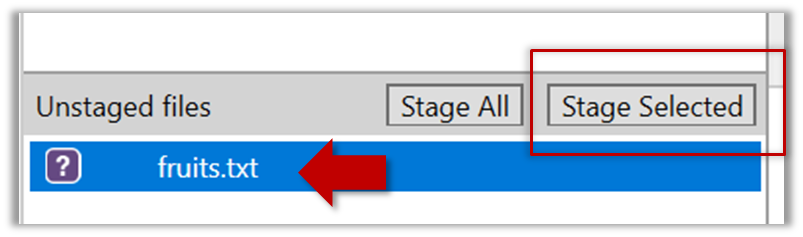
2.1 Note how the file is shown as 'unstaged'. The question mark icon indicates the file is untracked.

If the newly added file does not appear in the Sourcetree UI, refresh the UI (: F5
| ⌥+R)
Sourcetree screenshots/instructions: vs
Note that the Sourcetree UI can vary slightly between Windows and macOS versions. Some screenshots in our lessons are from the Windows version while others are from the macOS version.
In some cases, we have specified how they differ.
In other cases, you may need to adapt if the given screenshots/instructions are slightly different from what you are seeing in your Sourcetree.
2.2 Stage the file:
Select fruits.txt and click the Stage Selected button.
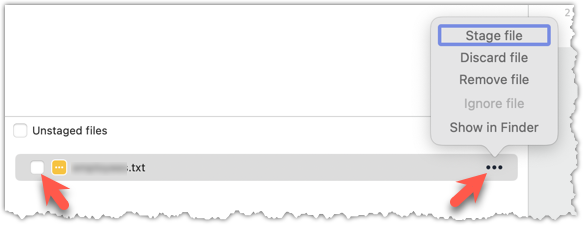
You can stage the file using checkboxes or the ... menu next to the file.
2.3 Note how the file is now staged, i.e., fruits.txt appears in the Staged files panel.
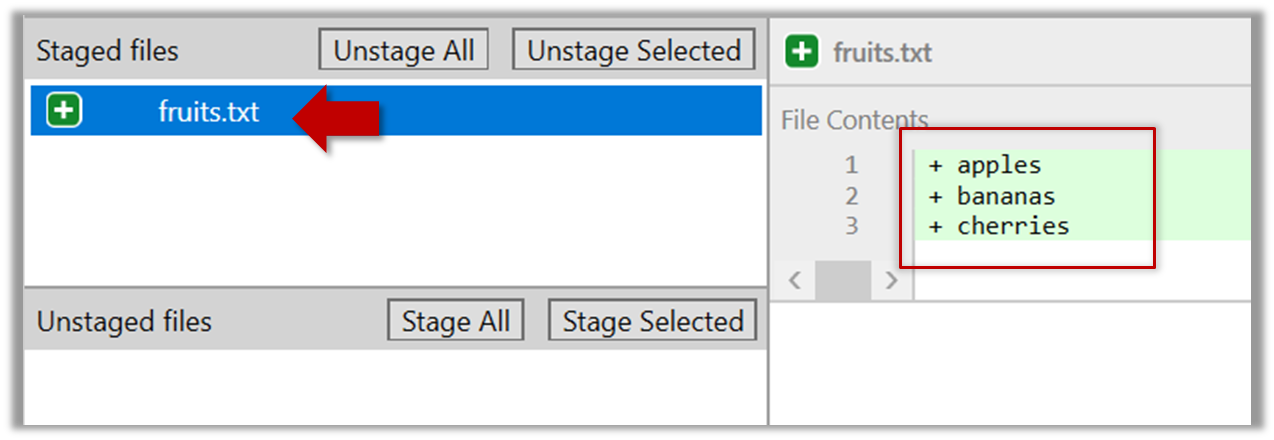
If Sourcetree shows a \ No newline at the end of the file message below the staged lines (i.e., below the cherries line in the above screenshot), it means you did not press enter after entering the last line of the file, so Git is not sure if that line is complete. To fix this, move the cursor to the end of the last line in that file and press enter, as if you were adding a blank line below it. This new change will now appear as an 'unstaged' change. Stage it as well.
done!
If you modify a staged file, Git views it as 'modified', i.e., the file contains changes that are not present in the staged copy waiting to be included in the next snapshot. If you wish to include these new changes in the next snapshot, you need to stage the file again, which will overwrite the copy of the file that was previously in the staging area.
The example below shows how the status of a file changes when it is modified after it was staged.
Alice
Alice
(a) The file names.txt is staged. The copy in the staging area is an exact match to the one in the working directory.
Alice
Alice
Bob
(b) State after adding a line to the file. Git indicates it as 'modified' because it now differs from the version in the staging area.
Alice
Bob
Alice
Bob
(c) After staging the file again, the staging area is updated with the latest copy of the file, and it is no longer marked as 'modified'.
Preparation
1 Now, verify that Git sees that file as 'modified'.
Use the git status command to check the status of the working directory.
git status
On branch main
No commits yet
Changes to be committed:
(use "git rm --cached <file>..." to unstage)
new file: fruits.txt
Changes not staged for commit:
(use "git add <file>..." to update what will be committed)
(use "git restore <file>..." to discard changes in working directory)
modified: fruits.txt
Note how fruits.txt now appears twice, once as new file: ... (representing the version of the file we staged earlier, which had only three lines) and once as modified: ... (representing the latest version of the file which now has a fourth line).
Note how fruits.txt appears in the Staged files panel as well as 'Unstaged files'.
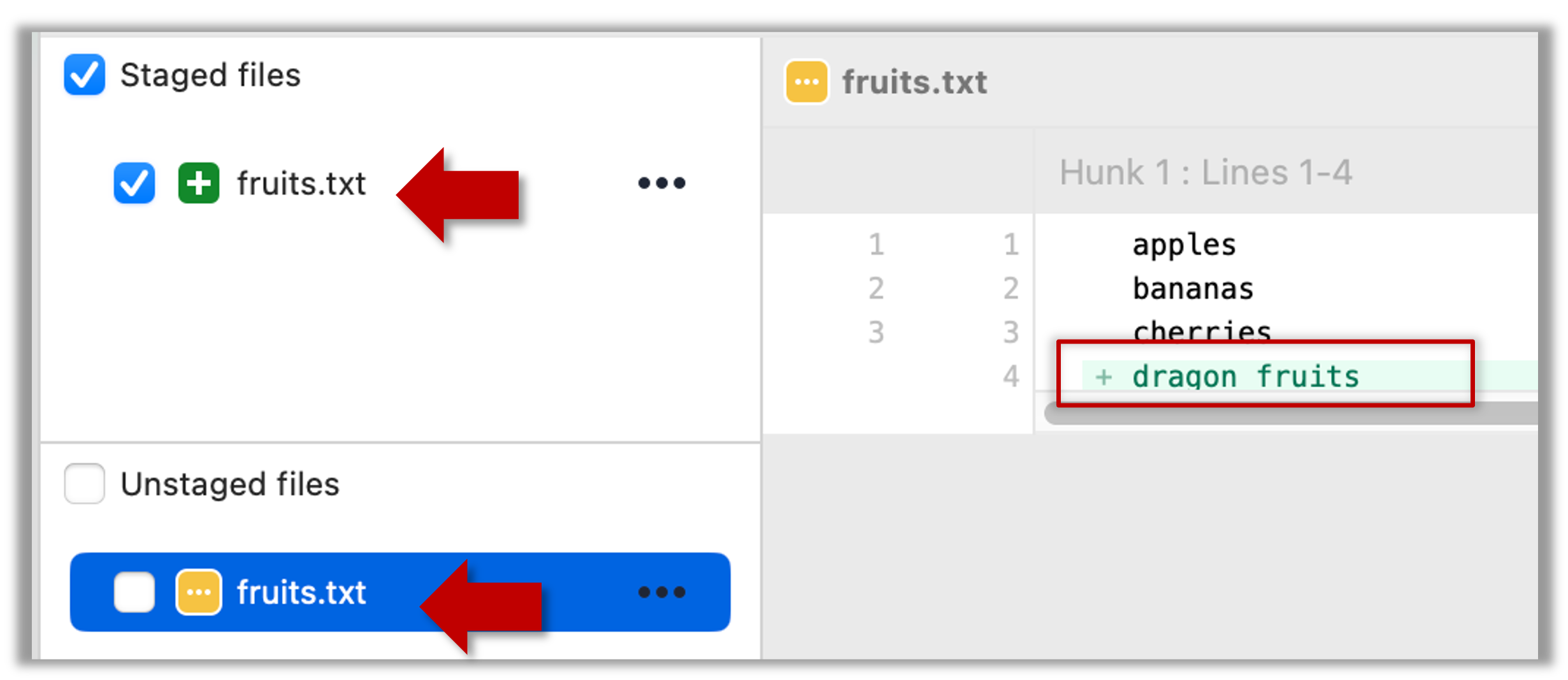
2 Stage the file again, the same way you added/staged it earlier.
3 Verify that Git no longer sees it as 'modified', as in step 1.
done!
Staging applies regardless of whether a file is currently tracked.
- Staging an untracked file will both begin tracking the file and include it in the next snapshot. Git creates a copy of the file in the working directory in the staging area.
- Staging an already tracked file marks its current changes for inclusion in the next commit. Git overwrites the version of that file in the staging area with a copy of that file in the working directory.
Git also supports fine-grained selective staging, i.e., staging only specific changes within a file while leaving other changes to the same file unstaged. A later lesson covers this.
Git does not track empty folders. It tracks only folders that contain tracked files.
You can test this by adding an empty subfolder inside the things folder (e.g., things/more-things) and checking if it shows up as 'untracked' (it will not). If you add a file to that folder (e.g., things/more-things/food.txt) and then stage that file (e.g., git add more-things/food.txt), the file and its path will now be included in the next snapshot.
PRO-TIP: Applying a Git command to multiple files in one go
When a Git command expects a list of files or paths as a parameter (as the git add command does), these parameters are known as pathspecs — patterns that tell Git which files or directories to operate on. Pathspecs can be simple file names, directory names, or more complex patterns.
Here are some common ways to write them, shown with examples using the git add <pathspec> command:
Specify multiple files, separated by spaces:
git add f1.txt f2.txt data/lists/f3.txt # stages the specified three filesUse a glob pattern:
git add '*.txt' # stages all .txt files in the current directoryWhen using glob patterns in Git commands, putting them inside quotes (
'*.txt'instead of*.txt) is recommended, to avoid your shell expanding the pattern before Git sees it.Use
.to indicate 'all in the current directory and subdirectories':git add . # stages all files in current directory and its subdirectoriesSpecify a directory to indicate 'this directory and its subdirectories':
git add path/to/dir # stages all files in path/to/dir and its subdirectoriesNegated pathspecs, to indicate 'except these':
git add . ':!*.log' # stage everything except .log files
Git supports combining these features — for example, you could add all .txt files except those in a certain folder using:
git add '*.txt' ':!docs/*.txt'
Staged changes can be unstaged to indicate that we no longer want them to be included in the next snapshot.