When there are new commits in the remote repo, you need to pull those commits down to your local repo.
Bringing changes from a remote repository into a local repository involves two steps: fetch and merge.
- Fetch is the act of downloading the latest changes from the remote repository, but without applying them to your current branch yet. It updates metadata in your repo so Git knows what has changed in the remote repo, but your own local branch remains untouched.
- Merge is the step after fetching that incorporates the fetched changes into your local branch. It combines your local branch with the changes from the corresponding branch in the remote repo.
Scenario You have cloned a remote repo. After you cloned it, two new commits were added to the remote. R and L1 in the diagram below represent this scenario.
gitGraph BT:
    %%{init: { 'theme': 'default', 'gitGraph': {'mainBranchName': 'main'}} }%%
    commit id: "add loans.txt"
    commit id: "add loan to Ben"
    commit id: "add assets.txt"
    commit id: "add goals.txt"
    commit id: "[HEAD → main] add loan to Chang"
origin]
gitGraph BT:
    %%{init: { 'theme': 'default', 'gitGraph': {'mainBranchName': 'main'}} }%%
    commit id: "add loans.txt"
    commit id: "add loan to Ben"
    commit id: "[HEAD → main][origin/main] add assets.txt"
2 commits behind the remote]
→
gitGraph BT:
    %%{init: { 'theme': 'default', 'gitGraph': {'mainBranchName': 'main'}} }%%
    commit id: "add loans.txt"
    commit id: "add loan to Ben"
    commit id: "add assets.txt"
    commit id: "add goals.txt"
    commit id: "[HEAD → main][origin/main] add loan to Chang"
the missing commits]
Target Now, you want to bring those missing commits into your clone, taking it from state L1 to state L2 (as shown in the diagram above).
Preparation
1 Verify Git has not yet learned about the extra commits in the remote.
git status
On branch main
Your branch is up to date with 'origin/main'.
nothing to commit, working tree clean
The revision graph should look like this:
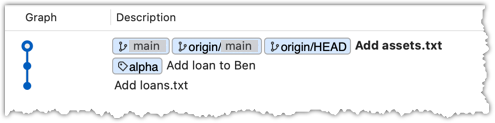
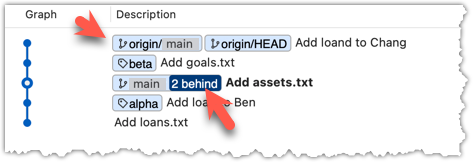
If it looks like the image below, Sourcetree may be auto-fetching data from the repo periodically.
2 Fetch from the new remote.
Use the git fetch <remote> command to fetch changes from a remote. If you do not specify <remote>, Git uses the default remote origin.
git fetch origin
remote: Enumerating objects: 8, done.
... # more output ...
afbe966..b201f03 main -> origin/main
Click on the Fetch button on the top menu:

3 Verify the fetch worked: the local repo is now aware of the two missing commits. Also observe that the local main branch ref, the staging area, and the working directory remain unchanged after the fetch.
Use the git status command to confirm the local repo now knows it is behind the remote repo.
git status
On branch main
Your branch is behind 'origin/main' by 2 commits, and can be fast-forwarded.
(use "git pull" to update your local branch)
nothing to commit, working tree clean
Now, the revision graph should look something like this. Note how the origin/main ref is now two commits ahead of the main ref.
4 Merge the fetched changes.
Use the git merge <remote-tracking-branch> command to merge the fetched changes. Check the status and the revision graph to verify that the branch tip has now moved by two more commits.
git merge origin/main
Updating afbe966..b201f03
Fast-forward
goals.txt | 1 +
loans.txt | 1 +
2 files changed, 2 insertions(+)
create mode 100644 goals.txt
Verify the status of the repo is as expected:
git status
On branch main
Your branch is up to date with 'origin/main'.
git log --oneline --decorate
b201f03 (HEAD -> main, origin/main, origin/HEAD) Add loan to Chang
1b923a4 Add goals.txt
afbe966 Add assets.txt
0434002 Add loan to Ben
fd96227 Add loans.txt
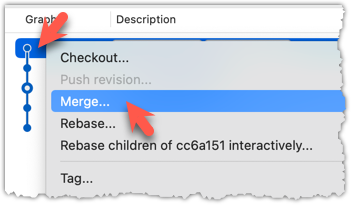
To merge the fetched changes, right-click on the latest commit on the origin/main branch and choose Merge.
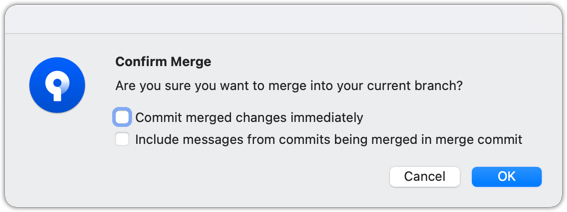
In the next dialog, choose as follows:
The final result should look something like this, matching state L2 in the diagram above:
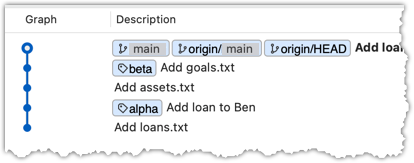
Note that merging fetched changes can get complicated when the repo has multiple branches, or when local commits conflict with remote commits. We will address such situations in a later lesson when we learn more about Git branches.
done!
Pull is a shortcut that combines fetch and merge: it fetches the latest changes from the remote and immediately merges them into your current branch. In practice, Git users usually pull instead of fetching and merging separately.
pull = fetch + merge
Scenario Use the same scenario as the previous hands-on practical.
Target Use the same target as in the previous hands-on practical, but fetch and merge in one step.
Preparation
1 Pull the newer commits from the remote instead of fetching and merging separately.
Use the git pull <remote> <branch> command to pull changes.
git pull origin main
remote: Enumerating objects: 8, done.
remote: Counting objects: 100% (8/8), done.
remote: Compressing objects: 100% (3/3), done.
remote: Total 6 (delta 1), reused 6 (delta 1), pack-reused 0 (from 0)
Unpacking objects: 100% (6/6), 557 bytes | 69.00 KiB/s, done.
From https://github.com/git-mastery/samplerepo-finances-2
* branch main -> FETCH_HEAD
afbe966..b201f03 main -> origin/main
Updating afbe966..b201f03
Fast-forward
goals.txt | 1 +
loans.txt | 1 +
2 files changed, 2 insertions(+)
create mode 100644 goals.txt
The following command also works. If you do not specify <remote> and <branch>, Git will pull into the current branch from the remote branch it tracks.
git pull
Click on the Pull button on the top menu:
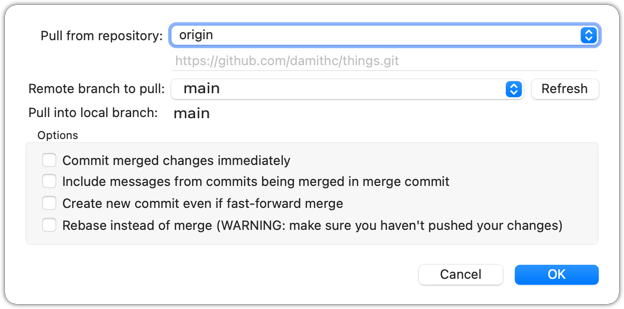
2 Verify that the outcome matches the fetch + merge steps you did in the previous hands-on practical.
done!
You can pull from multiple remote repos, as long as the repos have a shared history. This is useful when the upstream repo you forked from has new commits that you want to bring into your fork and local repo.
Scenario You have forked and cloned a remote repo. Since then, new commits have been added to the original remote repo that you forked from.
gitGraph BT:
    %%{init: { 'theme': 'default', 'gitGraph': {'mainBranchName': 'main'}} }%%
    commit id: "add loans.txt"
    commit id: "add loan to Ben"
    commit id: "add assets.txt"
    commit id: "add goals.txt"
    commit id: "[HEAD → main] add loan to Chang"
upstream: the original remote repo
that you forked]
gitGraph BT:
    %%{init: { 'theme': 'default', 'gitGraph': {'mainBranchName': 'main'}} }%%
    commit id: "add loans.txt"
    commit id: "add loan to Ben"
    commit id: "[HEAD → main] add assets.txt"
origin: your fork (remote),
2 commits behind upstream]
gitGraph BT:
    %%{init: { 'theme': 'default', 'gitGraph': {'mainBranchName': 'main'}} }%%
    commit id: "add loans.txt"
    commit id: "add loan to Ben"
    commit id: "[HEAD → main][origin/main] add assets.txt"
2 commits behind]
Target Now, you want to bring the new commits into your clone and then update your fork with them.
Preparation
1 Confirm your local repo is behind upstream by two commits. Here are two ways to do that:
a) Go to the upstream repo at https://github.com/git-mastery/samplerepo-finances-2, and navigate to the repo's commit list. Compare that list with the commits in your local copy.
OR
b) Do a fetch and examine the revision graph locally, as shown below.
git fetch upstream
git log --oneline --decorate --graph --all
* b201f03 (upstream/main, upstream/HEAD) Add loan to Chang
* 1b923a4 Add goals.txt
* afbe966 (HEAD -> main, origin/main, origin/HEAD) Add assets.txt
* 0434002 Add loan to Ben
* fd96227 Add loans.txt
2 Pull from the upstream repo. Git will bring any new commits into your local repo. For example:
git pull upstream main
3 Push to your fork. Any new commits you pulled from the upstream repo will now appear in your fork as well. For example:
git push origin main
This method is the standard way to synchronize a fork with the upstream repo. Platforms such as GitHub also provide alternatives, including GitHub's Sync fork feature.
done!
SIDEBAR: Distributed vs Centralized Revision Control
Revision control can follow either a centralized or a distributed model.
Centralized RCS uses a single central (server-hosted) repository that is shared by the team. Developers check out a working copy, make changes locally, and then commit directly to the central repository. Developers do not have their own copy of the entire repository history; they only have a working copy of files. One advantage of this model is having one clear "source of truth." A major disadvantage is that the central server becomes a critical dependency: if it's down, most operations (commits and history queries beyond the local working copy) are blocked. Older RCS tools such as CVS, Subversion, and Perforce follow this model.
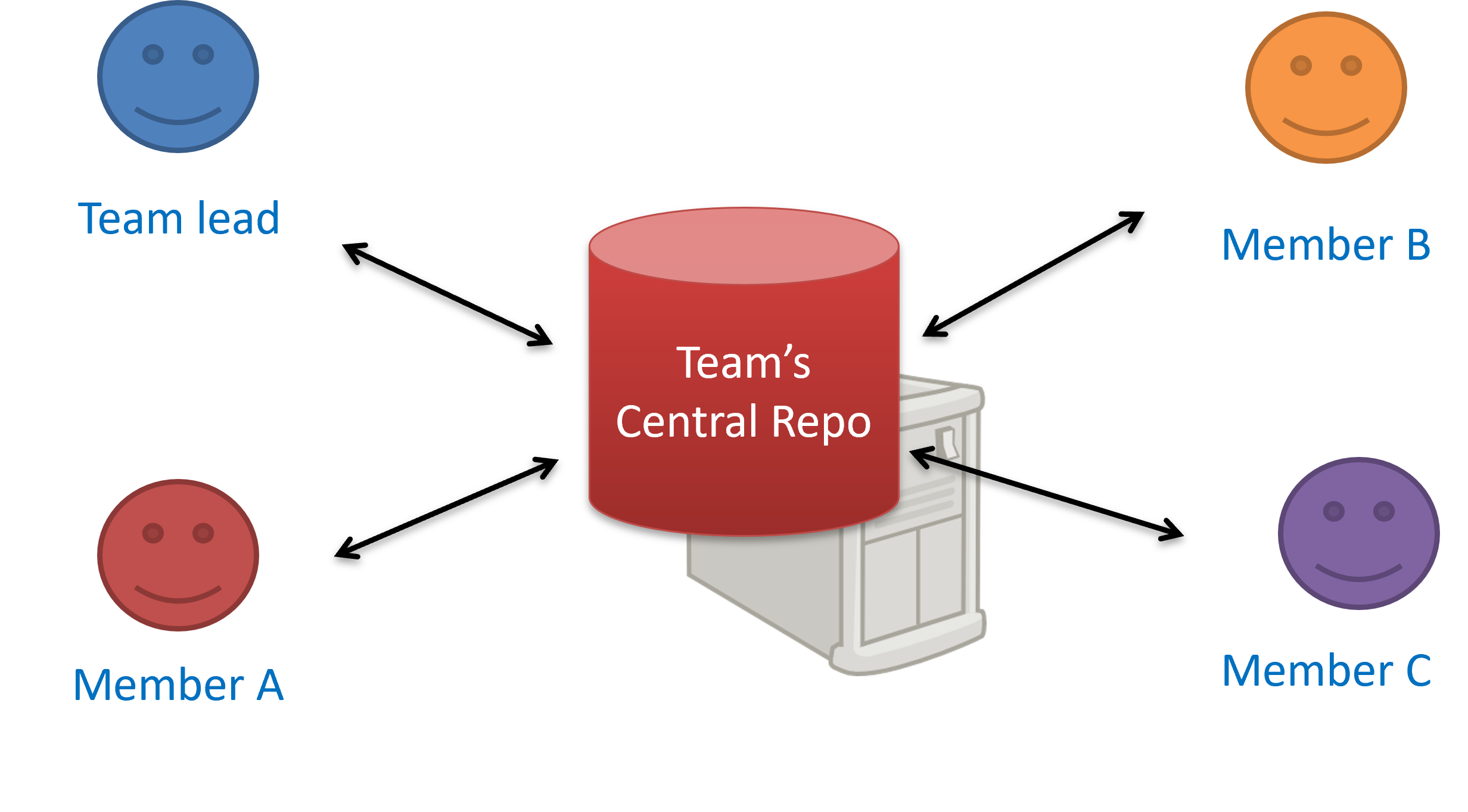
The centralized RCS approach
Distributed RCS (also known as decentralized RCS) allows multiple remote and local repositories to work together. Workflows vary by team. For example, each team member can have their own remote repository in addition to a local repository. This architecture enables offline work, fast local operations, and more flexible workflows. It also supports multiple integration points (e.g., forks or alternative remotes) and uses cryptographic checksums to ensure history integrity. The trade-offs include more conceptual complexity (multiple repositories, remotes, and sync patterns) and the need for conventions to establish an authoritative integration flow. Git and Mercurial are prominent RCS tools that support the distributed approach.
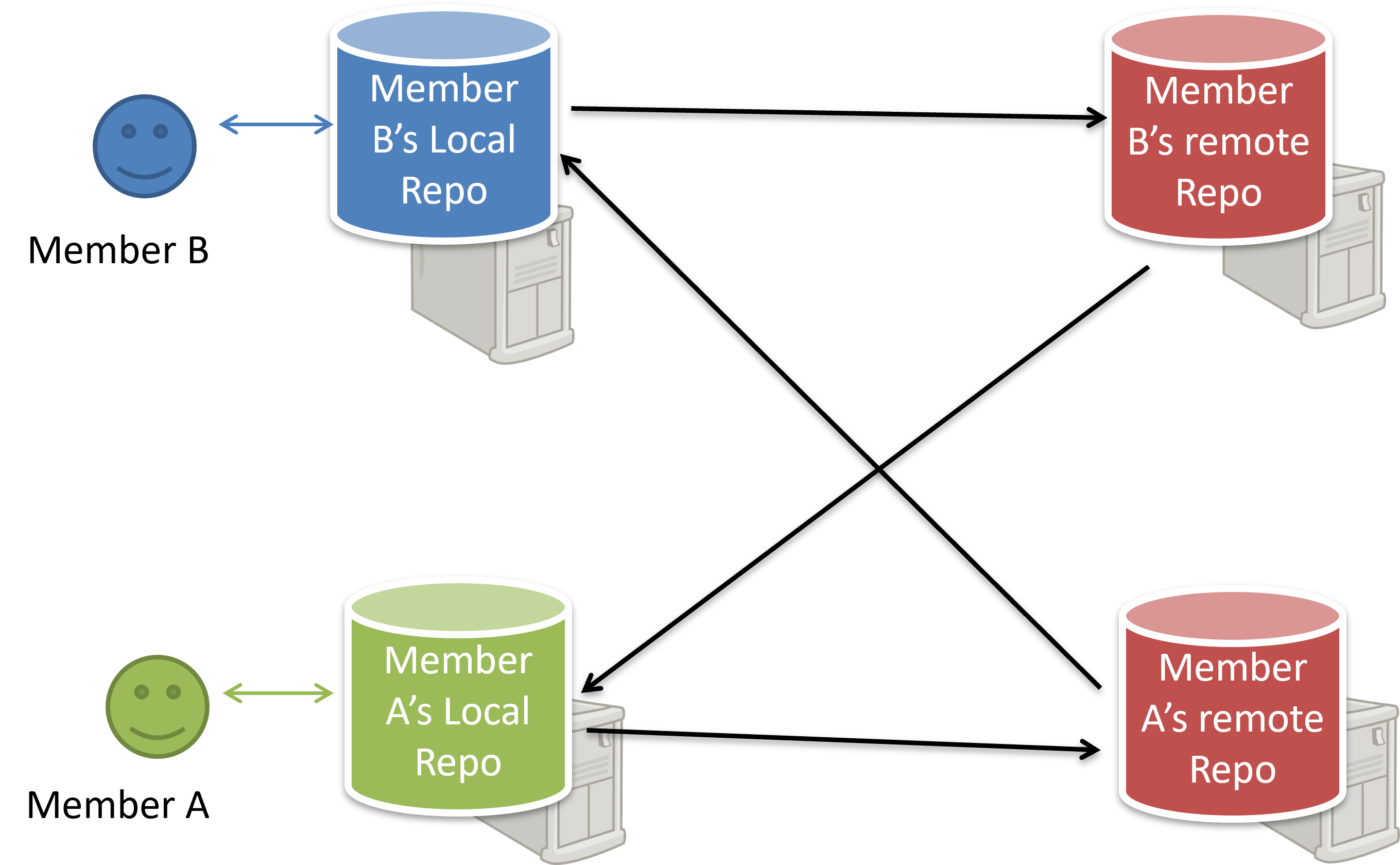
The decentralized RCS approach
Because Git uses multiple copies of a repository, Git is considered a distributed revision control system, as opposed to a centralized revision control system that keeps only a single repository.