The next step is to create a local copy of the remote repo, by cloning the remote repo.
You can clone a repository to create a full copy of it on your computer. This copy includes the entire revision history, branches, and files of the original, so it behaves just like the original repository. For example, you can clone a repository from a hosting service like GitHub to your computer, giving you a complete local version to work with.
Cloning a repo automatically creates a remote named origin which points to the repo you cloned from.
Conventions:
When configuring remotes for a Git repository, the following naming conventions are commonly used:
origin: The repository that you cloned from is usually given the remote nameorigin. Git sets this remote name automatically when you clone a repository (but you can change it to something else).upstream: In fork-based workflows, the repository you forked from is often added as a second remote namedupstream. This name is not created by Git automatically; it is a convention chosen by developers. Some use more specific name for this, for example,team-repo.
Separately from remote names, the term 'upstream' is also used informally to describe the direction of duplication between repositories. When one repository is created by duplicating another (for example, by forking or cloning), the original repository is said to be upstream of the duplicate.
Example:
- If you fork R1 to create R2, then R1 is upstream of R2.
- If you then clone R2 to create R3, both R1 and R2 are upstream of R3.
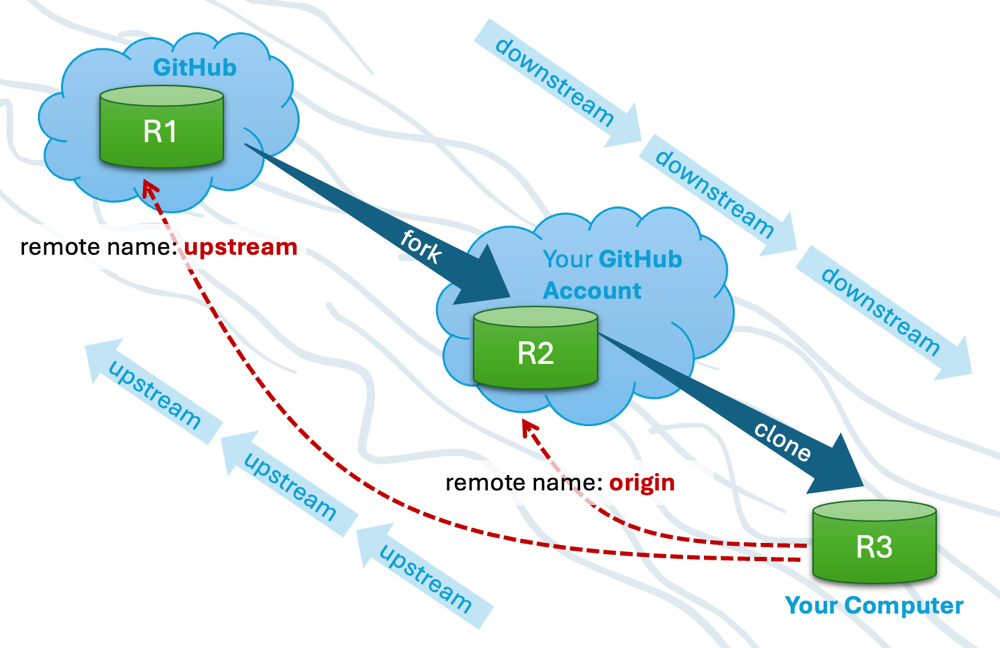
1 Clone the remote repo to your computer. For example, you can clone the samplerepo-things repo, or the fork you created from it in a previous lesson.
Note that the URL of the GitHub project is different from the URL you need to clone a repo in that GitHub project. e.g.
https://github.com/git-mastery/samplerepo-things # GitHub project URL
https://github.com/git-mastery/samplerepo-things.git # the repo URL
You can use the git clone <repository-url> [directory-name] command to clone a repo.
<repository-url>: The URL of the remote repository you want to copy.[directory-name](optional): The name of the folder where you want the repository to be cloned. If you omit this, Git will create a folder with the same name as the repository.
git clone https://github.com/git-mastery/samplerepo-things.git # if using HTTPS
git clone git@github.com:git-mastery/samplerepo-things.git # if using SSH
git clone https://github.com/foo/bar.git my-bar-copy # also specifies a dir to use
For exact steps for cloning a repo from GitHub, refer to this GitHub document.
File → Clone / New ... and provide the URL of the repo and the destination directory.
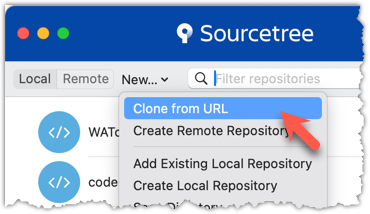
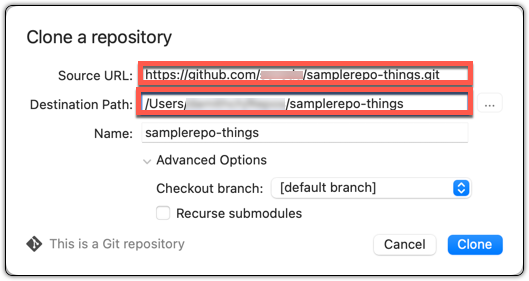
File → New ... → Choose as shown below → Provide the URL of the repo and the destination directory in the next dialog.
2 Verify the clone has a remote named origin pointing to the upstream repo.
Use the git remote -v command that you learned earlier.
Choose Repository → Repository Settings menu option.
done!