Another way to contribute to a GitHub project is by giving your inputs via a pull request review.
PR reviews are a collaborative process in which project members examine and provide feedback on PRs submitted to a remote repo. After an initial review, the reviewer may suggest improvements or identify issues, prompting the submitter to refine and update their code in the PR. This review-refine-update cycle can repeat several times, with reviewers reassessing each new iteration until all feedback is addressed and the code meets the team’s expectations. Once approved, the PR can be merged, making the changes an official part of the codebase.
Preparation If you do not have access to a PR that you can review, you can create one for yourself as follows:
- Create a branch in a repo that you have forked and cloned (e.g., samplerepo-pr-practice).
- Do some changes in the branch.
- Push the branch to the remote repo.
- Create a PR within your fork, from the new branch to the
mainbranch.
1 Locate the PR:
- Go to the GitHub page of the repo.
- Click on the Pull requests tab.
- Click on the PR you want to review.
2Read the PR description. It might contain information relevant to reviewing the PR.
3Click on the Files changed tab to see the diff view.
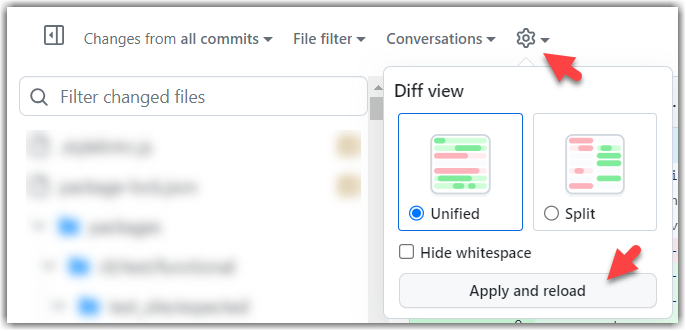
You can use the following setting to try the two different views available and pick the one you like.
4Add review comments:
- Hover over the line you want to comment on and click on the icon that appears on the left margin. That should create a text box for you to enter your comment.
- To give a comment related to multiple lines, click-and-drag the icon. The result will look like this:
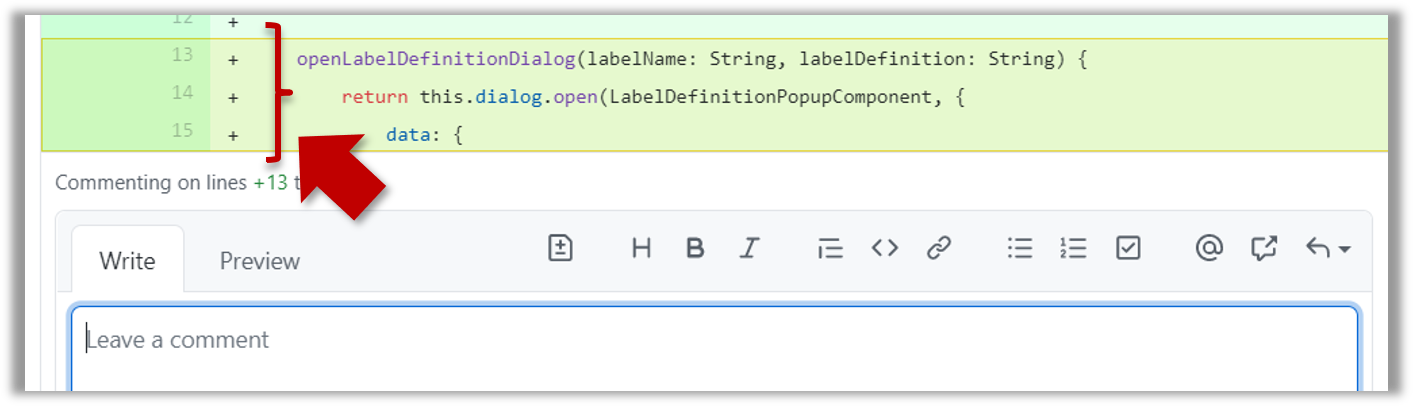
- To give a comment related to multiple lines, click-and-drag the icon. The result will look like this:
- Enter your comment.
- This page @SE-EDU/guides has some best practices PR reviewers can follow.
- To suggest an in-line code change, click on this icon:
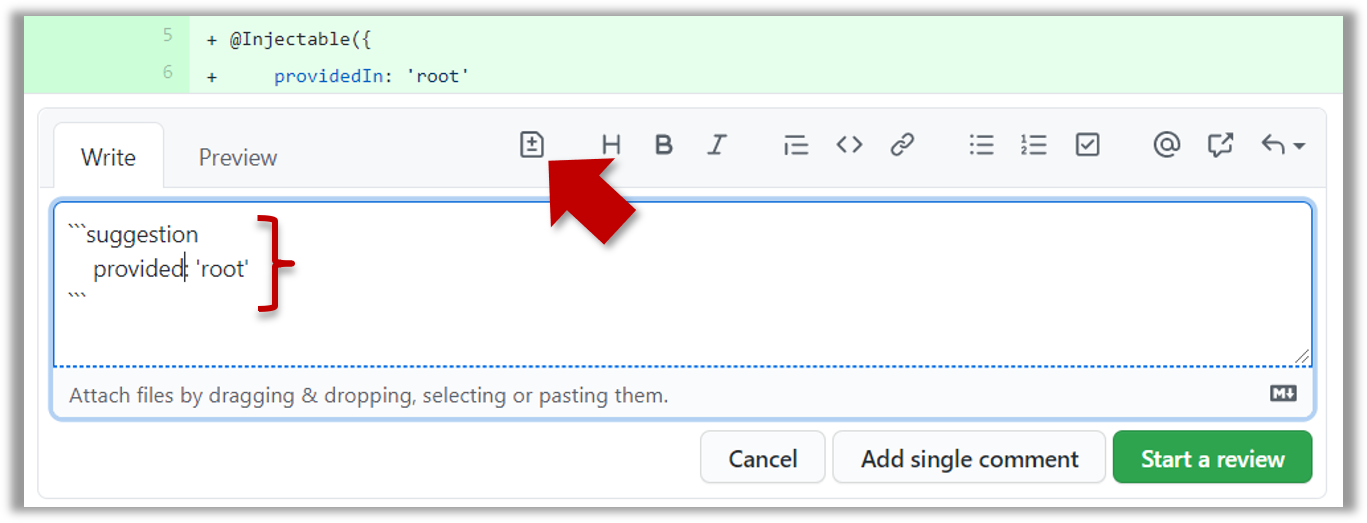
After that, you can proceed to edit thesuggestioncode block generated by GitHub (as seen in the screenshot above).
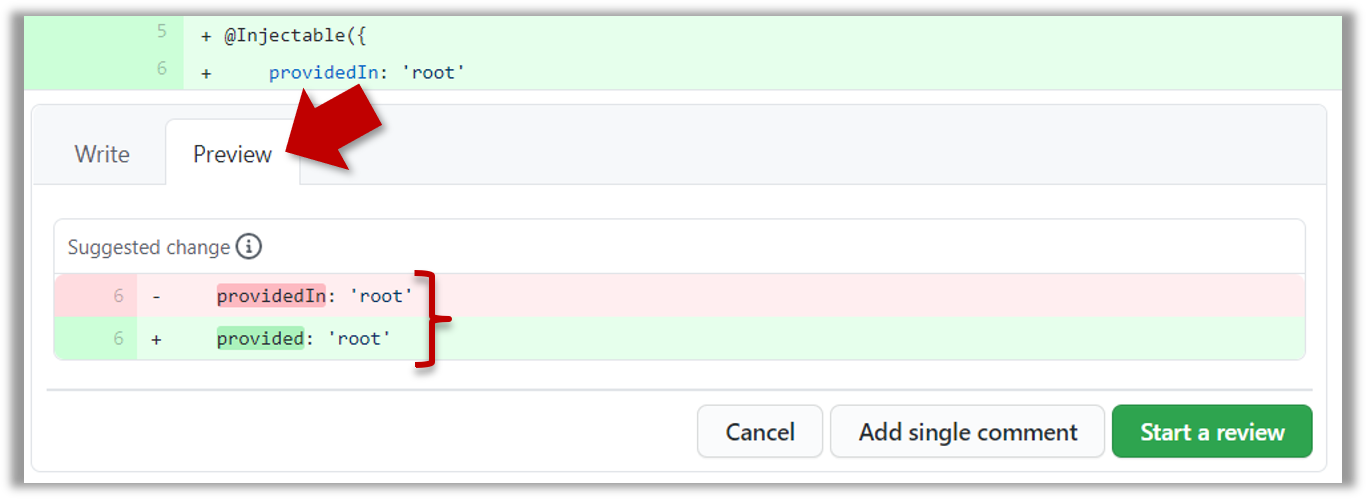
The comment will look like this to the viewers:
- After typing in the comment, click on the Start a review button (not the Add single comment button. This way, your comment is saved but not visible to others yet. It will be visible to others only when you have finished the entire review.
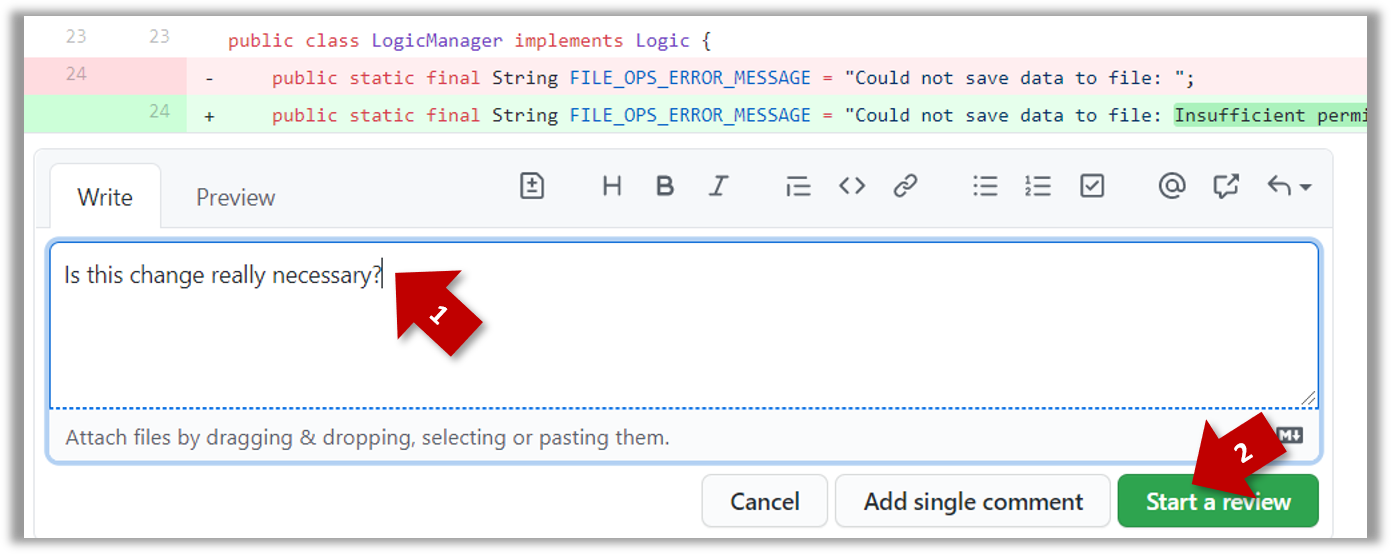
- Repeat the above steps to add more comments.
5Submit the review:
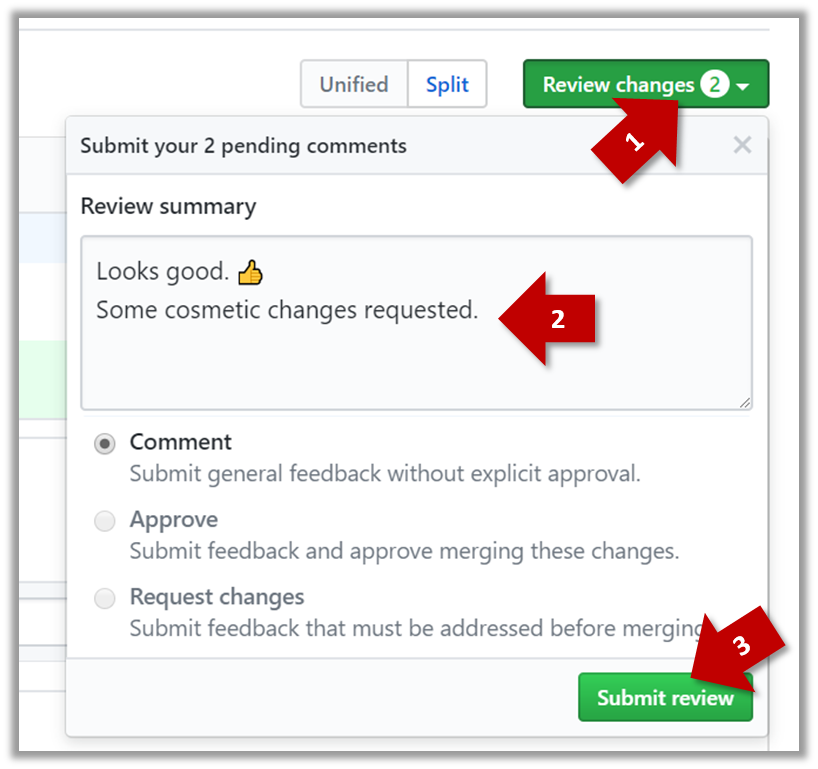
- When there are no more comments to add, click on the Review changes button (on the top right of the diff page).
- Type in an overall comment about the PR, if any. e.g.,
Overall, I found your code easy to read for the most part except a few places where the nesting was too deep. I noted a few minor coding standard violations too. Some of the classes are getting quite long. Consider splitting into smaller classes if that makes sense.LGTMis often used in such overall comments, to indicateLooks good to me(orLooks good to merge).
nit(as in nit-picking) is another such term, used to indicate minor flaws e.g.,LGTM. Just a few nits to fix.. - Choose
Approve,Comment, orRequest changesoption as appropriate and click on the Submit review button.
done!